> For the complete documentation index, see [llms.txt](https://docs.bsure.io/llms.txt). Markdown versions of documentation pages are available by appending `.md` to page URLs; this page is available as [Markdown](https://docs.bsure.io/v1/installation/installation-instructions.md).
# Installation Instructions
How to install the Bsure Insights Marketplace app
{% hint style="warning" %}
Make sure you have all the [prerequisites](/v1/installation/prerequisites.md) in place before you begin.
If you encounter any problems during the installation please review the [Frequently asked questions](/v1/support/frequently-asked-questions.md).
{% endhint %}
Step 1 - Run the requirements check script
To install the Bsure Insights Data Collector you need to be a Global Administrator with the Owner RBAC role on at least 1 subscription in an Entra ID P1 enabled tenant. The script will validate that you meet those requirements.
Click the **Azure Cloud Shell** to start a PowerShell session. \
\
(*If you have not used the Cloud Shell before, you will be prompted to select/create a storage account)*\
\
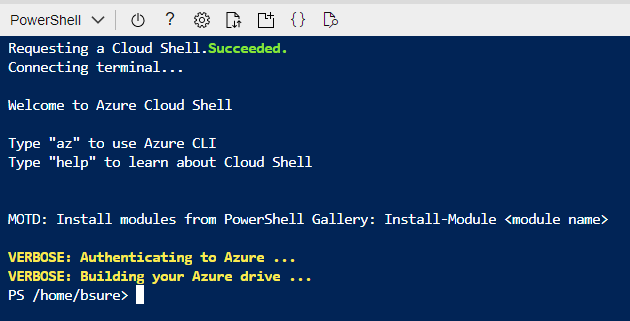
Copy this script to your clipboard:
```powershell
#Builds Auth Headers for Graph API
$graphAPIReqHeader = @{
Authorization = "Bearer $($(Get-AzAccessToken -ResourceTypeName MSGraph).token | ConvertFrom-SecureString -AsPlainText)"
Host = "graph.microsoft.com"
ConsistencyLevel = 'eventual'
}
# Get the signed in user's ID
$userId = $(az ad signed-in-user show --query id -o tsv)
# Gets the available licenses for the tenant
$licensesUrl = "https://graph.microsoft.com/v1.0/subscribedSkus"
$licenses = Invoke-RestMethod -Uri $licensesUrl -Headers $graphAPIReqHeader
# Check if the Azure AD Premium P1 license is available
$isP1Enabled = $licenses.value.servicePlans | Where-Object {$_.servicePlanName -eq "AAD_PREMIUM"} | Select-Object -First 1
$rolesUrl = "https://graph.microsoft.com/beta/rolemanagement/directory/transitiveRoleAssignments?`$count=true&`$filter=principalId eq '$userId'"
$roles = Invoke-RestMethod -Uri $rolesUrl -Headers $graphAPIReqHeader
# Check if the user is a member of the Global Administrator role
$isGlobalAdmin = $roles.value | Where-Object {$_.roleDefinitionId -eq "62e90394-69f5-4237-9190-012177145e10"} | Select-Object -First 1
# Get the list of subscriptions
$subIds = $(az account list --query "[].id" -o tsv)
# Get the list of subscriptions where the user is a Resource Owner
$resSubCunt = $subIds | ForEach-Object{
$(az role assignment list --assignee $userId --all --query "[?roleDefinitionName == 'Owner'].scope" --subscription "$_" -o tsv)
}
if($resSubCunt.Count -gt 1){
$subscriptionReplacement = "subscriptions"
}else{
$subscriptionReplacement = "subscription"
}
# Clear the screen
# Display the results
$allRequired = $isP1Enabled -and $isGlobalAdmin -and ($resSubCunt.Count -gt 0)
$allRequiredMessage = if ($allRequired) {"You have all the required permissions & licenses."} else {"You do not have all the required permissions & licenses."}
$aadP1Result = if ($isP1Enabled) {"Entra ID P1 is enabled in your tenant."} else {"Entra ID P1 is not enabled in your tenant."}
$globalAdminMessage = if ($isGlobalAdmin) {"You are a Global Administrator in your tenant."} else {"You are not a Global Administrator in your tenant."}
$ownerMessage = if ($resSubCunt.Count -gt 0) {"You have the Owner RBAC Role for $($resSubCunt.Count) $subscriptionReplacement."} else {"You are do not have the Owner RBAC Role on any subscription."}
$sb = {
Clear-Host
Write-Host "--------------------------" -ForegroundColor Yellow
Write-Host $aadP1Result -ForegroundColor $(if ($isP1Enabled) {"Green"} else {"Red"})
Write-Host $globalAdminMessage -ForegroundColor $(if ($isGlobalAdmin) {"Green"} else {"Red"})
Write-Host $ownerMessage -ForegroundColor $(if ($resSubCunt.Count -gt 0) {"Green"} else {"Red"})
Write-Host $allRequiredMessage -ForegroundColor $(if ($allRequired) {"Green"} else {"Red"})
Write-Host "--------------------------" -ForegroundColor Yellow
}
Invoke-Command -ScriptBlock $sb
# Press Enter
```
Paste the script to the PowerShell session, and hit Enter.
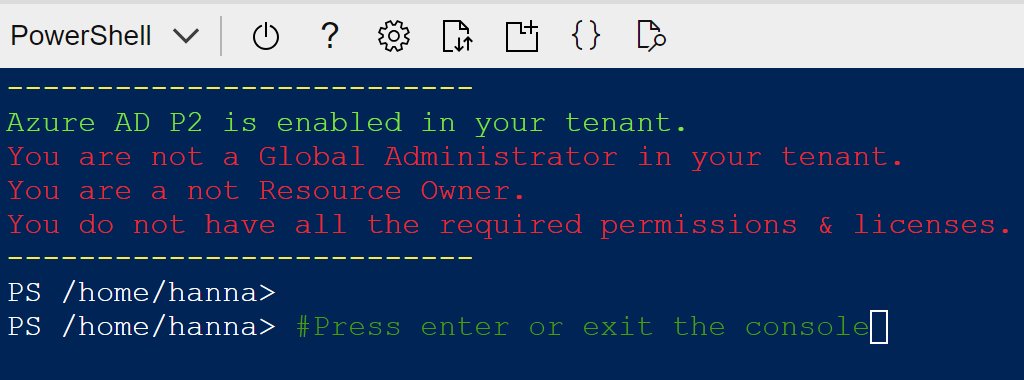
A failed run will contain red text on the failed checks:
Please correct any missing requirements and rerun the requirements check.
A successful run will contain all green text:

If all the checks are green it means you have the required access to proceed to Step 2: Step 2 - Start the permissions script
To collect license and user information, the Bsure Insights Data Collector application need read permissions to your Azure Active Directory.
Click the **Azure Cloud Shell** to start a PowerShell session. \
\
(*If you have not used the Cloud Shell before, you will be prompted to select/create a storage account)*\
\

Copy this script to your clipboard:
```powershell
$BSureSpnName = 'Bsure-Umi-'
$BsurePermissions = @(
"Directory.Read.All"
"AuditLog.Read.All"
"Domain.Read.All"
"Reports.Read.All"
"Policy.Read.All"
"MailboxSettings.Read"
"DeviceManagementManagedDevices.Read.All"
)
$RunStartTime = (Get-Date).AddMinutes(-30)
$RunAbortTime = (Get-Date).AddMinutes(30)
$GraphAppId = "00000003-0000-0000-c000-000000000000"
$msGraphSpn = Get-AzADServicePrincipal -Filter "appId eq '$GraphAppId'"
$RolesToAdd = $msGraphSpn.AppRole | Where-Object {($_.Value -in $BsurePermissions) -and ($_.AllowedMemberType -contains "Application")}
do{
$spnBsure = (Get-AzADServicePrincipal -DisplayNameBeginsWith $BSureSpnName).Where({[datetime]($_.AdditionalProperties.createdDateTime) -ge $RunStartTime})
Clear-Host
Write-Host ""
Write-Host "Waiting for the Bsure Azure Managed Application Installation..."
Write-Host "Do not close this window"
Write-Host ""
Start-Sleep -Seconds 30
if((Get-Date) -gt $RunAbortTime){
Write-Host "Service principal not created within 30 minutes. Exiting..."
exit
}
}while($spnBsure.count -eq 0)
$spnBsure | ForEach-Object{
$script:graphAPIReqHeader = @{
Authorization = "Bearer $($(Get-AzAccessToken -ResourceTypeName MSGraph).token | ConvertFrom-SecureString -AsPlainText)"
Host = "graph.microsoft.com"
}
$currentSPN = $_
$currentSPN
$assignedPermissionsUri = "https://graph.microsoft.com/v1.0/servicePrincipals/$($currentSPN.Id)/appRoleAssignments"
$currentAssignments = Invoke-RestMethod -Method Get -Uri $assignedPermissionsUri -Headers $script:graphAPIReqHeader | Select-Object -ExpandProperty value
$RolesToAddClean = $RolesToAdd | Where-Object {($_.id -notin $($currentAssignments.appRoleId))}
foreach($AppRole in $RolesToAddClean)
{
$body = @{
principalId = $currentSPN.Id
resourceId = $msGraphSpn.id
appRoleId = $AppRole.id
} | ConvertTo-Json -Depth 99 -Compress -EscapeHandling EscapeNonAscii
Invoke-RestMethod -Method Post -Uri $assignedPermissionsUri -Headers $script:graphAPIReqHeader -Body $body -ContentType "application/json"
}
$RolesToRemoveClean = $currentAssignments.appRoleId | Where-Object {($_ -notin $($RolesToAdd.id))}
foreach($AppRole in $RolesToRemoveClean)
{
$toRemoveId = $currentAssignments | Where-Object -Property appRoleId -eq $AppRole | Select-Object -ExpandProperty id
Invoke-RestMethod -Method Delete -Uri "$assignedPermissionsUri/$toRemoveId" -Headers $script:graphAPIReqHeader
}
}
Write-Host "Done setting permissions for $($spnBsure.DisplayName) ($($spnBsure.Id))"
```
Paste the script to the PowerShell session, and hit Enter.
**The script will poll for Stage 3, do not wait for the script to complete, please start Stage 3 immediately after pasting the script and pressing enter.**
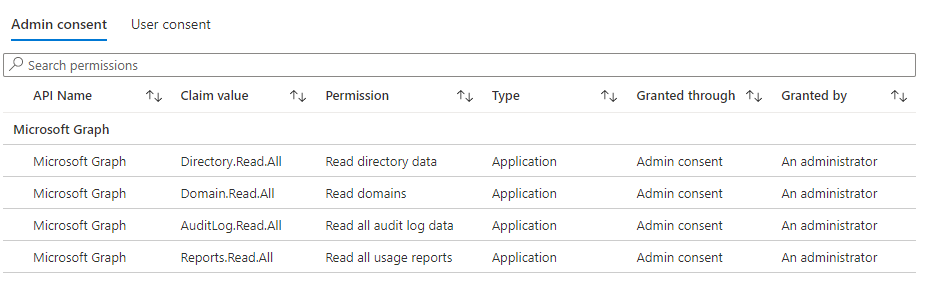
The application will get read permissions to your Azure AD, and is able to collect license and user information once Step 2 completes.
You can see the permissions granted to the Collector app if you go to Azure Active Directory, Enterprise Applications and find the Bsure-Fn-DataCollector app.\
{% hint style="danger" %}
**IMPORTANT!** \
Make sure you have the permissions script running before you proceed to Step 3. \
The installation will **FAIL** if you skip Step 2.
{% endhint %}
Step 3 - Install Bsure Insights Data Collector
1. Login to [Azure portal](https://portal.azure.com) using your Global Administrator credentials.
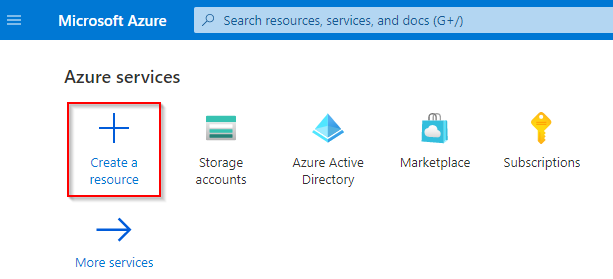
2. Select **Create a resource.**
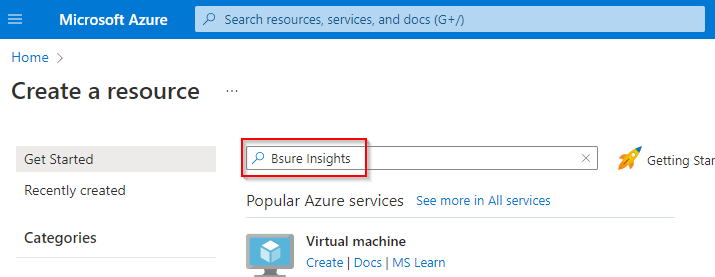
3. In the **Search services and marketplace** box, enter **Bsure Insights**.
4. From the results, select **Bsure Insights for Microsoft 365 and Entra ID - Data Collector** ([direct link](https://portal.azure.com/#create/bsureas1656340440185.bsure_ma_insightsdaily_per_user_rated)).
5. Select the default Plan **Bsure PayGo**, and click **Create**.
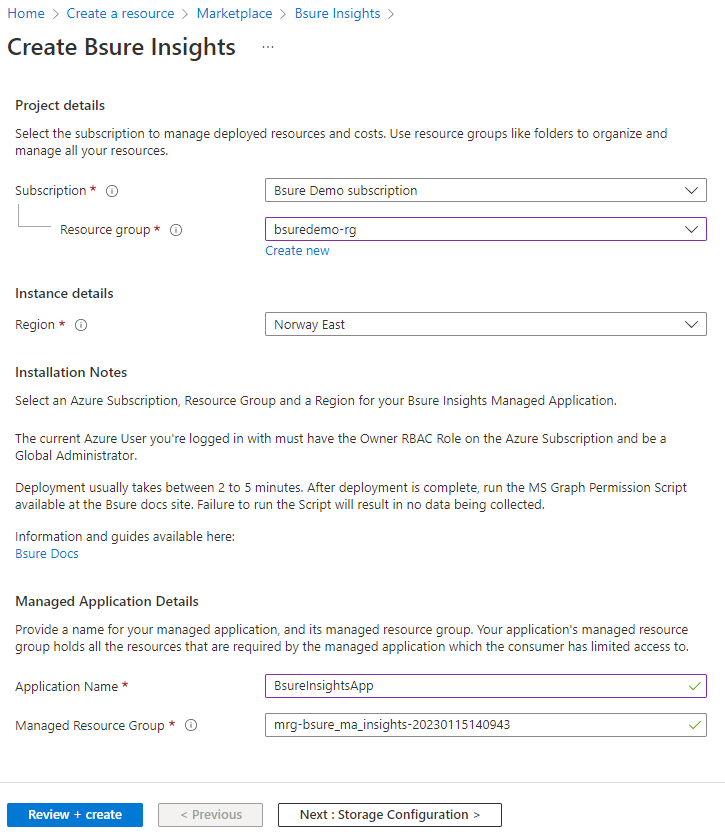
6. On the **Create Bsure Insights** page, the first section is **Basics**.
* **Subscription** - Select the subscription you have decided to use for your installation.
* **Resource group** - Select your resource group, or create a new one if needed.
* **Region** - Select your region (recommended to use the same region as your Storage Account).
* **Application Name** - Select a name for the application.
* **Managed Resource Group** - Use the provided name.\
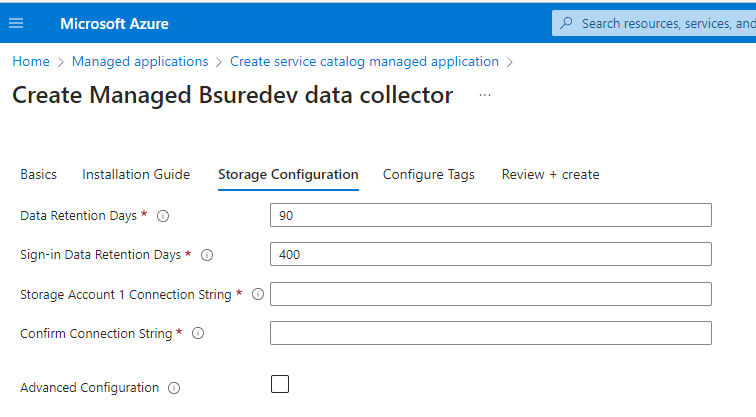
7. The next section is **Storage Configuration**
* **Data Retention Days** - Number of days to retain data in the storage account.
* **Storage Account 1 Connection String** - Enter a valid Storage Account connection string. (*You will find the connection string by going to your storage account and choose the menu **Access Keys***).
* **Confirm Connection String** - Paste the same connection string again.
* **Advanced Configuration (****Optional****)**
Select only if you want to write data to a second Storage Account. A second storage account can be used for multi-tenant support, or as a separate archive (*Data Retention Days does not apply to the second storage account*).
8. Select **Next : Review + create**\
After validation is passed, agree to the terms and conditions, and select **Create**.
9. Wait for deployment to finish (less than 5 minutes).
{% hint style="info" %}
After the installation is complete, the Data Collector will start collecting data within 15 minutes.
{% endhint %}
Step 4 - Install Bsure Insights Power Bi app
1. Go to [Microsoft Appsource](https://appsource.microsoft.com/) with a Power Bi Pro licensed user.
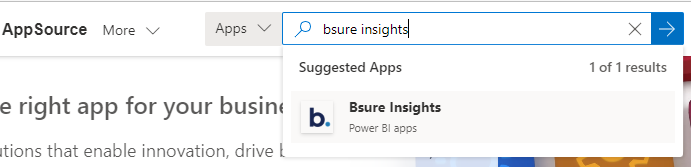
2. Search for **Bsure Insights**, and select our app. \
You can also use this direct link: \
[Bsure Insights for Microsoft 365 and Entra ID](https://appsource.microsoft.com/en-us/product/power-bi/bsureas1656340440185.bsure_pbi_insight)
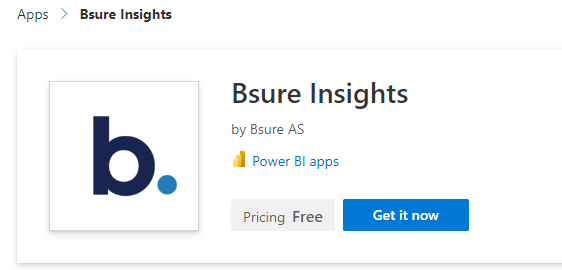
3. Select **Get it now**. (Sign in if prompted)\
\
If prompted - confirm your details, agree to the terms of use and select **Get it now** again.
4. Select **Install**.\
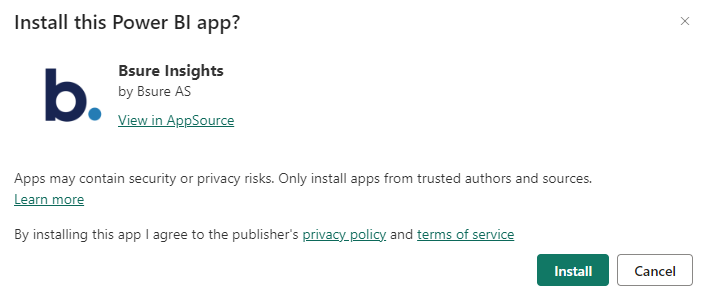
5. Wait for installation to complete (less than 5 minutes)
6. Go to **Apps** and start **Bsure Insights**\
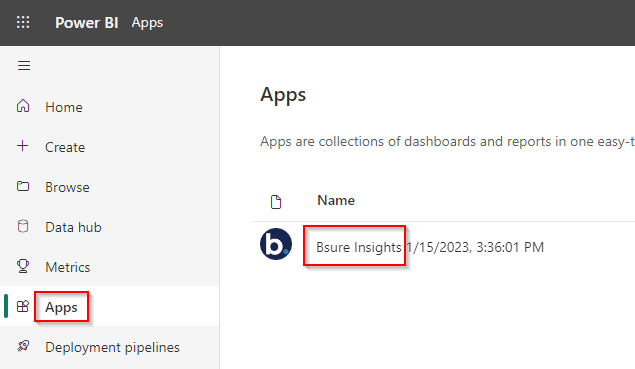
7. You are now viewing the app with sample data. Select **Connect your data** in the yellow ribbon.\
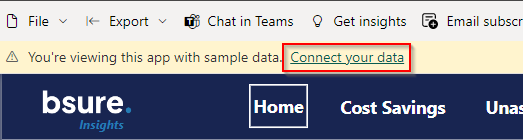
8. Enter the **Name** of your storage account (from [prerequisites](/v1/installation/prerequisites.md)) and select **Next**.
9. Enter the **Access Key** to your storage account in the **Account key** field, and select **Sign in and connect**.
You should now be able to see your own data in the Power Bi app!
{% hint style="info" %}
Typically, it is sufficient for a single user in your organization to install the Power BI app.
You can find instructions on how to share the app with others in our [sharing guide](/v1/user-guides/share-the-power-bi-app.md).
{% endhint %}
Step 5 - Configure Power BI app data refresh
Go to Workspaces and select Bsure Insights

Move mouse over Bsure Insights and select icon to configure refresh

Expand Refresh, Add another time and set it to 6 AM local time of Your Azure region.

Press apply
---
# Agent Instructions
This documentation is published with GitBook. GitBook is the documentation platform designed so that both humans and AI agents can read, navigate, and reason over technical content effectively. Learn more at gitbook.com.
## Querying This Documentation
If you need additional information that is not directly available in this page, you can query the documentation by asking a question.
Perform an HTTP GET request on the following URL with the `ask` and `goal` query parameters:
```
GET https://docs.bsure.io/v1/installation/installation-instructions.md?ask=&goal=
```
`ask` is the immediate question: it should be specific, self-contained, and written in natural language.
`goal` is what the user is ultimately trying to achieve, the reason they need the answer. Sharing it helps GitBook give you a better, more relevant answer. A goal is most helpful when it describes the outcome the user wants rather than restating the question. For example, with `ask=how do I create an API token`, a goal like `automate deployments from our CI pipeline` lets GitBook tailor the answer to that use case.
The response will contain a direct answer to the question and relevant excerpts and sources from the documentation.
Use this mechanism when the answer is not explicitly present in the current page, you need clarification or additional context, or you want to retrieve related documentation sections.
 Please correct any missing requirements and rerun the requirements check.
A successful run will contain all green text:

If all the checks are green it means you have the required access to proceed to Step 2:
Please correct any missing requirements and rerun the requirements check.
A successful run will contain all green text:

If all the checks are green it means you have the required access to proceed to Step 2: