> For the complete documentation index, see [llms.txt](https://docs.bsure.io/llms.txt). Markdown versions of documentation pages are available by appending `.md` to page URLs; this page is available as [Markdown](https://docs.bsure.io/v1/user-guides/microsoft-licenses/add-your-own-prices.md).
# Add Your Own Prices
By default the prices in our Power Bi App are standard Microsoft list prices in USD. These prices will not be accurate for many organizations. This page will show you how you can add your own prices!
{% hint style="info" %}
You can only add one price per SKU!\
If your organization have bought licenses on different terms (Monthly, Annual) with different prices, try our [Average SKU price calculator Excel spreadsheet](/v1/user-guides/microsoft-licenses/add-your-own-prices/average-sku-price-calculator.md) to find the average price on your different SKUs.
{% endhint %}
### Power BI App Settings
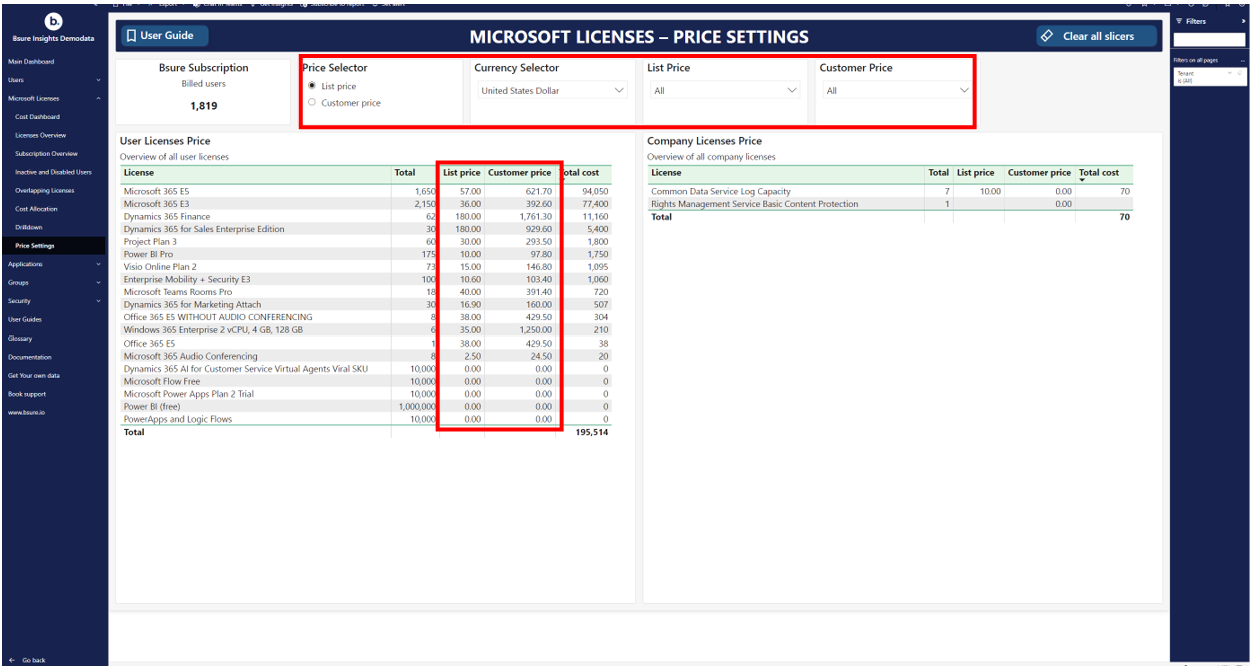
Go to **Settings** in the Power Bi App. \
This is where you can toggle between *List Price* and *Your Price*.\
In the example screenshot below own prices are set, but if customer price is -1 it means no prices have been set as own prices are default -1.
### Set Prices in your Storage Account
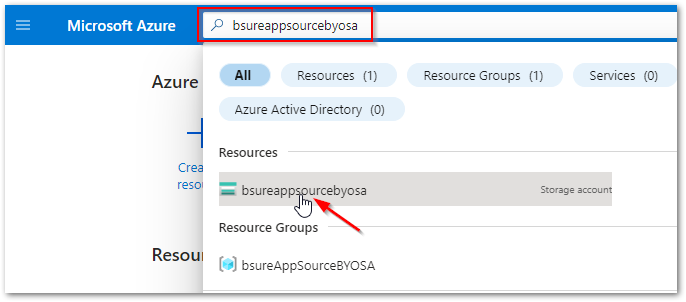
Go to the [Azure portal](https://portal.azure.com), and locate the *Storage Account* you set up as one of the [prerequisites](/v1/installation/prerequisites.md#azure-managed-application) when you installed the Azure Managed Application. It is the *Storage Account* you used when you connected the Power Bi App to your data.
An easy way to locate it, is to use the top search bar in the Azure portal:
Locate your Storage Account and select it.
Select **Storage Browser** in the menu.
Select **Tables**.
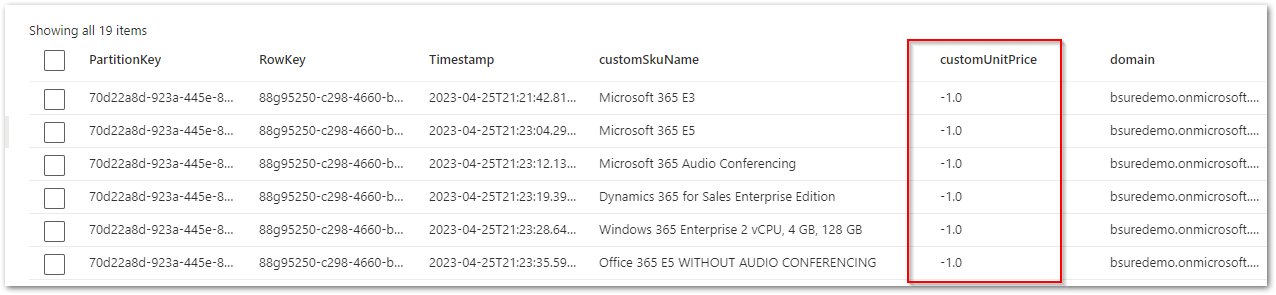
Select **TblCustomerSkuPrices**.
The table contains all the licenses available in your Azure AD. Both paid and free.
{% hint style="warning" %}
You need to update prices in the column **customUnitPrice** for all rows in the table!\
\- Add your own prices for paid licenses.\
\- Set free licenses to 0.
{% endhint %}
Double-click each row to edit. Add your own price, and **Update**.
{% hint style="info" %}
You can choose to add prices in your own currency.
Use . (dot) as decimal symbol.
{% endhint %}
All prices updated! In this example prices are added in NOK (Norwegian Krone).
### Select Your Own Prices in the Power Bi App
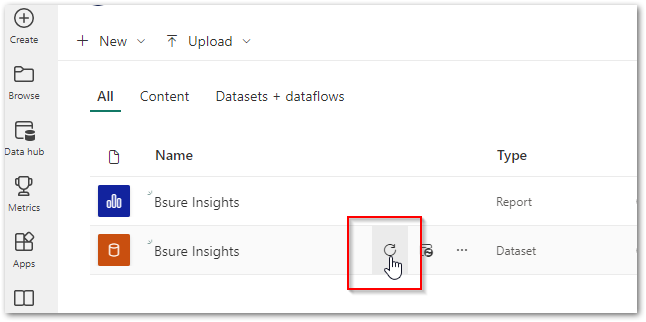
Go to your Power Bi Workspace, and select to refresh the Bsure Insights dataset.
When refresh is done, go to the Power Bi report, and open the **Settings** page.
Verify that you can see the prices you added to the **customUnitPrice** column in the **TblCustomerSkuPrices** table.
Select **Your Price** and your **currency**.
Enjoy the **Bsure Insights** report showing your own prices in your own currency!
---
# Agent Instructions
This documentation is published with GitBook. GitBook is the documentation platform designed so that both humans and AI agents can read, navigate, and reason over technical content effectively. Learn more at gitbook.com.
## Querying This Documentation
If you need additional information that is not directly available in this page, you can query the documentation by asking a question.
Perform an HTTP GET request on the following URL with the `ask` and `goal` query parameters:
```
GET https://docs.bsure.io/v1/user-guides/microsoft-licenses/add-your-own-prices.md?ask=&goal=
```
`ask` is the immediate question: it should be specific, self-contained, and written in natural language.
`goal` is what the user is ultimately trying to achieve, the reason they need the answer. Sharing it helps GitBook give you a better, more relevant answer. A goal is most helpful when it describes the outcome the user wants rather than restating the question. For example, with `ask=how do I create an API token`, a goal like `automate deployments from our CI pipeline` lets GitBook tailor the answer to that use case.
The response will contain a direct answer to the question and relevant excerpts and sources from the documentation.
Use this mechanism when the answer is not explicitly present in the current page, you need clarification or additional context, or you want to retrieve related documentation sections.