Loading...
Loading...
Loading...
Loading...
Loading...
Loading...
Loading...
Loading...
Loading...
Loading...
Loading...
Loading...
Loading...
Loading...
Loading...
Loading...
Loading...
Loading...
Loading...
Loading...
Loading...
Loading...
Loading...
Loading...
Loading...
Loading...
Loading...
Loading...
Loading...
Loading...
Loading...
Loading...
Loading...
Loading...
Loading...
Loading...
Loading...
Loading...
Loading...
Loading...
Loading...
Loading...
Loading...
Loading...
Loading...
Loading...
Loading...
Loading...
Loading...
Loading...
Loading...
Loading...
Loading...
Loading...
Loading...
Loading...
Loading...
Loading...
Loading...
Loading...
Loading...
Loading...
Loading...
Loading...
Loading...
Loading...
Loading...
Loading...
Loading...
Loading...
Loading...
Loading...
Loading...
Loading...
Loading...
Loading...
Description of Bsure Insights Data Collector application.
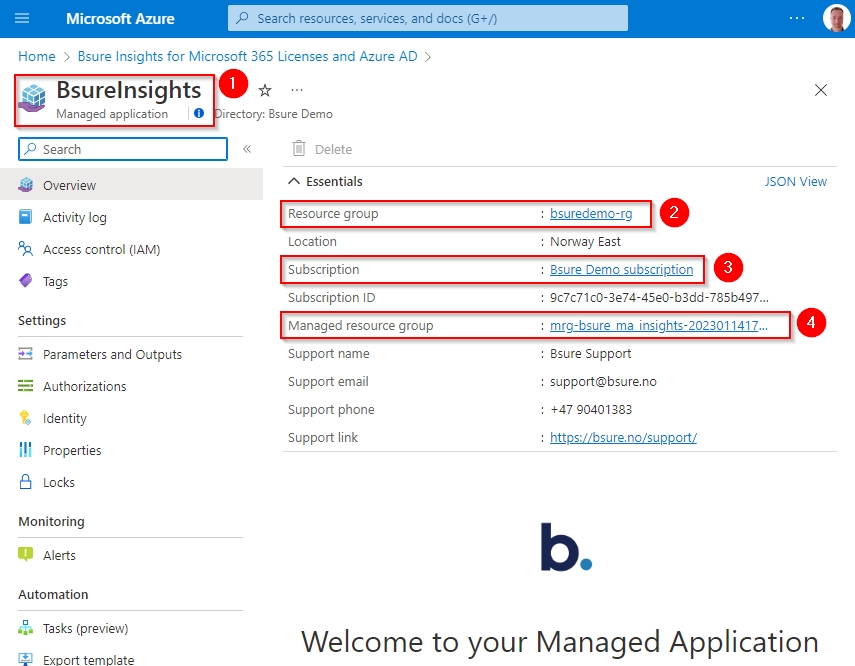
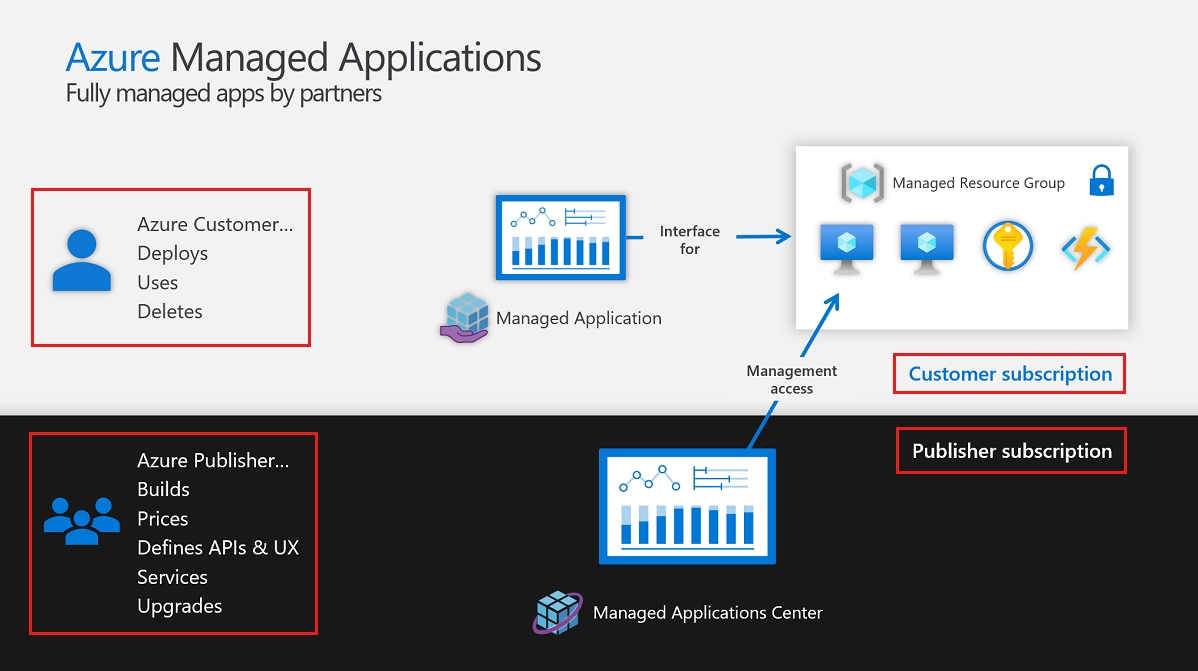
An Azure Managed application is installed from Azure Marketplace. They are easy to deploy and operate for customers. They are fully managed by the publisher. To learn more, visit Microsoft's documentation.
When you install Bsure Insights:
The Managed Application Resource.
The Resource Group where the app is installed (provided by you under installation).
The Subscription you have chosen to install it to.
The Managed Resource Group contains the managed application components.
Bsure is responsible for the resources inside the Managed Resource Group. These resources are shown in the picture below.
Container Apps and Jobs, for Compute and webpage hosting
Container Apps Environment, configuration buckets for Container Apps/Jobs
Key Vault, for secrets ()
Log Analytics Workspace, stores log output (no personal information is logged)
Bsure Insights is a business app that gives organizations full visibility into their Microsoft Entra ID.
By having a complete view of all identities, devices and applications organizations can optimize Microsoft 365 license usage and strengthen overall user security.
Our solution provides a simple and intuitive way for organizations to manage and monitor their Microsoft Entra identities. This visibility enables them to optimize Microsoft 365 license usage and enhance security. Bsure Insights is quick to install and helps organizations stay in control of their identity management.
This table describes how data flows between the parties: Bsure, Customer and Microsoft.
Customer
Bsure
Count of billed users, Usage metrics*, Operational logs
Microsoft
Bsure
Customer name, Customer country, Subscription name, Count of billed users
Bsure
Customer
Runtimes and metadata such as list prices and windows versions +
*Usage Metrics : We monitor unique users accessing different pages and how fast they load. This data is aggregated and anonymized before sent to Bsure.
All collected data is stored securely and anonymized, retained only for as long as necessary to fulfil the stated purposes, and is not disclosed to third parties except where required by law, pursuant to a valid legal basis, or with explicit user consent.
Overview of the dashboards and reports in Bsure Insights, and how to use them in practice.
The User Guides explain how to work with the dashboards and reports in Bsure Insights.
These reports give you visibility into key areas of your Microsoft 365 environment, helping you monitor usage, identify risks, and support decision-making. Version 2 includes both dashboards and web-native reports, giving you flexibility in how you access and explore your data.
Each guide walks through the available insights and shows how they can be applied in practice. Whether you are looking for a high-level overview or detailed information about a specific area, the User Guides provide the context you need.
If you need clarification on terminology, see the glossary.
The reports under application will give you insight into your Entra ID Enterprise applications.
Note that the applications showing in this report consume applications, data and other resources your end-users will have to authenticate by using their Entra ID credentials
Service Bus Namespace, used for solution internal communication
SQL Data Base / Server, used for solution storage, stores customer data with a data plane hardened setup to ensure Bsure has no access by default
Storage Account, used for solution internal storage (no personal information is stored)
This is our main dashboard, which gives you a status of how tidy your Microsoft Entra ID is. We believe that Identity lifecycle management and good processes is the key to a tidy Microsoft Entra ID, and with Bsure you get the insight you need to make better decisions.
Users
In order to have a tidy Entra ID you need to know who your users are, and whether they are active or not.
Disabled and Inactive users: This graph shows the percentage of users with access to the Entra ID who are not active. This overview includes both members and guests
Members: Users owned and controlled by your Entra ID, or your internal users
Guests: An Entra ID Guest user account is an account that is invited to your Entra ID from another identity catalogue. It can be assigned access and permissions to almost anything in you Entra ID tenant.
Users: All members and guests
Active: All users (members and guests) active in the Entra ID
Inactive: All users (members and guests) that have not signed into the Entra ID the last 90 days
Disabled: Disabled user accounts
Microsoft Licenses
In this dashboard we give you a flash of your total Microsoft license cost, as well as your potential monthly cost savings based on the analysis made
Potential savings: This number represents the total monthly savings divided by total monthly Microsoft license costs
License cost: Your total monthly Microsoft license costs
Potential monthly cost savings: The sum of savings related to unassigned, inactive and disabled licenses
Unassigned: Licenses not assigned to any users that can potentially be removed at next renewal date
Inactive: Licenses assigned to users that are inactive, meaning they have not logged on to Entra ID last 90 days
Disabled: Licenses assigned to users that are disabled
Security
In the security section of the dashboard we focus on multi-factor-authentication (MFA) status on the users, as well users or groups with administrative privileges in your Entra ID
Missing MFA registration: Members in the Entra ID without registered MFA
Administrative privileges: Overview of Entra ID roles with administrative privileges
To add applications you want to monitor in the Application - Cost report - follow this guide
If you found some applications in the Application - Usage report that you want to follow more closely and perhaps distribute cost based on usage, please note the names of these applications. You can right click the name in the Focus filter section and select copy value.
At first run the page will be empty with no applications configured:
Click Add New Application or Browse Applications buttons to get a list of all the applications. Enter the name to search for the application you want to add. Click the app you want to add and click Next.
Fill in information you want, like the cost per user in the app and how many you bought and press the Add New Application button
Continue adding your applications the same way.
When done You can press the refresh Power BI button on the top left corner in the page to see your changes in the Application Cost report.
You can at a later stage edit or remove each entry by clicking the square with the three dots to the right:
Report showing active and inactive guest users. Entra ID guest accounts are external user accounts invited to your tenant/EntraID where they typically have access to Teams or Sharepoint sites.
Users: Showing the total number of guest users according to your filtering selections.
Created Date & Last Sign-in Date: Set periods for when users where created/invited or their last sign-in date.
User State: - Active - guest users having signed in the last 90 days - Inactive - guest users that has not signed in the last 90 days
If You use Intune as deployment system, this report will give you information on all devices.
This drilldown report will show all devices in you Intune environment with status and who's using the different devices.
Slicer menu:
Devices : shows number of devices based on your filtering
Device Activity: When it was last synced with intune
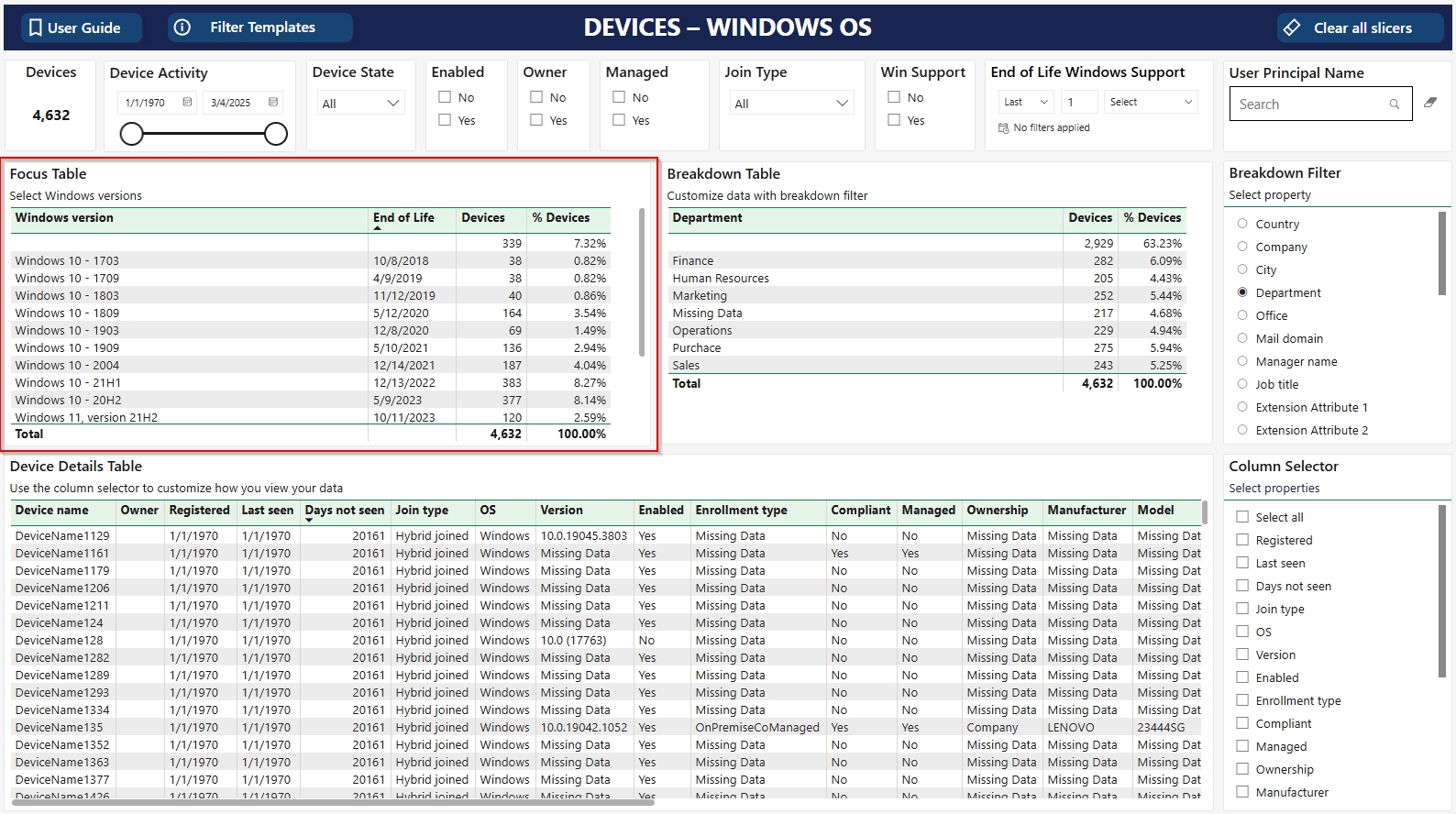
Identify devices with out-of-support Windows versions in Microsoft Entra ID.
The Windows OS report displays details for Windows devices in your Microsoft Entra ID environment. The report focuses on OS versions and their support status to help you identify devices running out-of-support Windows versions.
The report provides a summary of Windows OS versions, including end-of-life (EOL) status, and detailed device information.
Main focus in this report is End of Life for Windows versions.
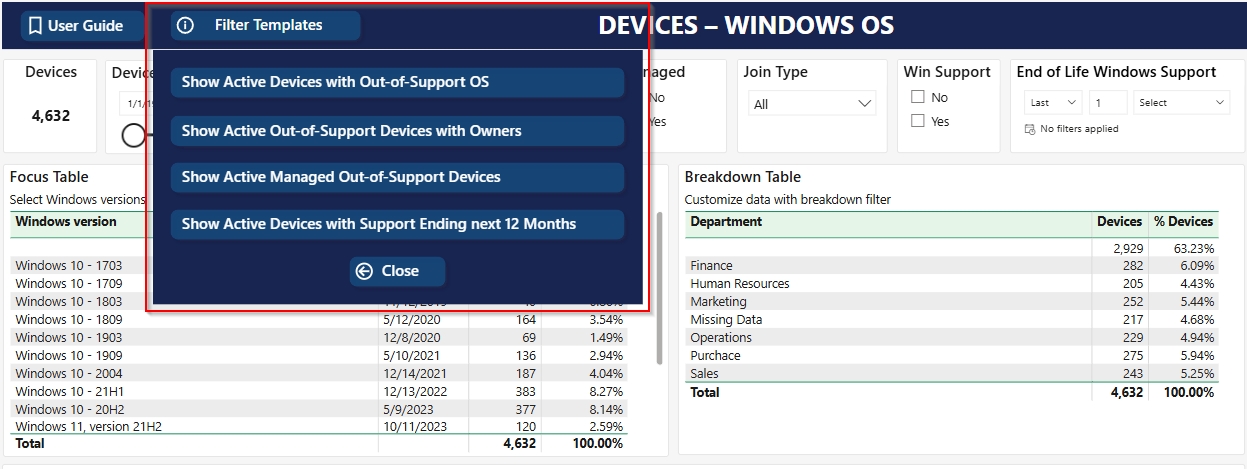
Use the slicer menu for manual filter selections, or try the predefined
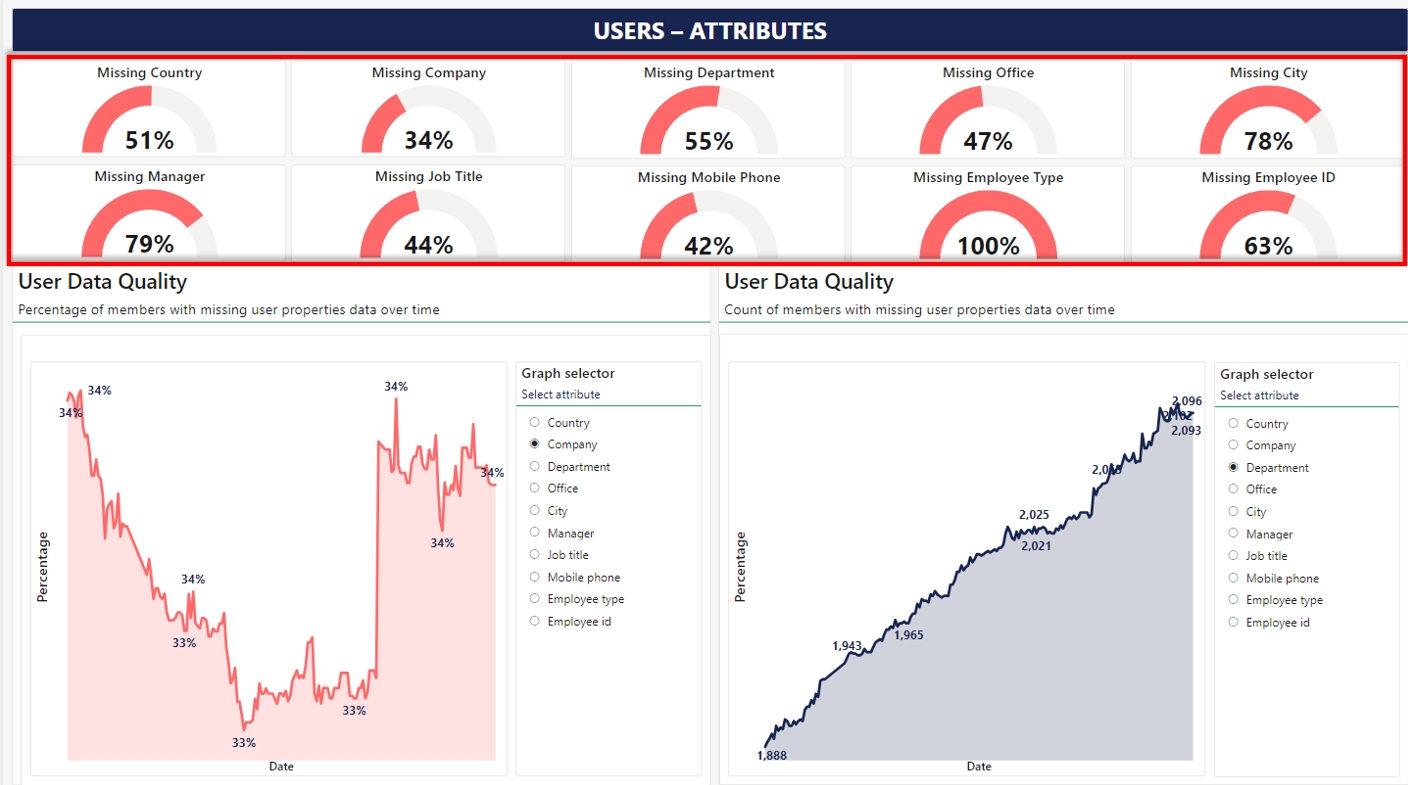
This pages offers insights into more user properties than users main dashboard
Gauges at the top displays current status of Country, Company, Department, Office, City, Manager, Job title, Mobile phone, Employee type and Employee ID.
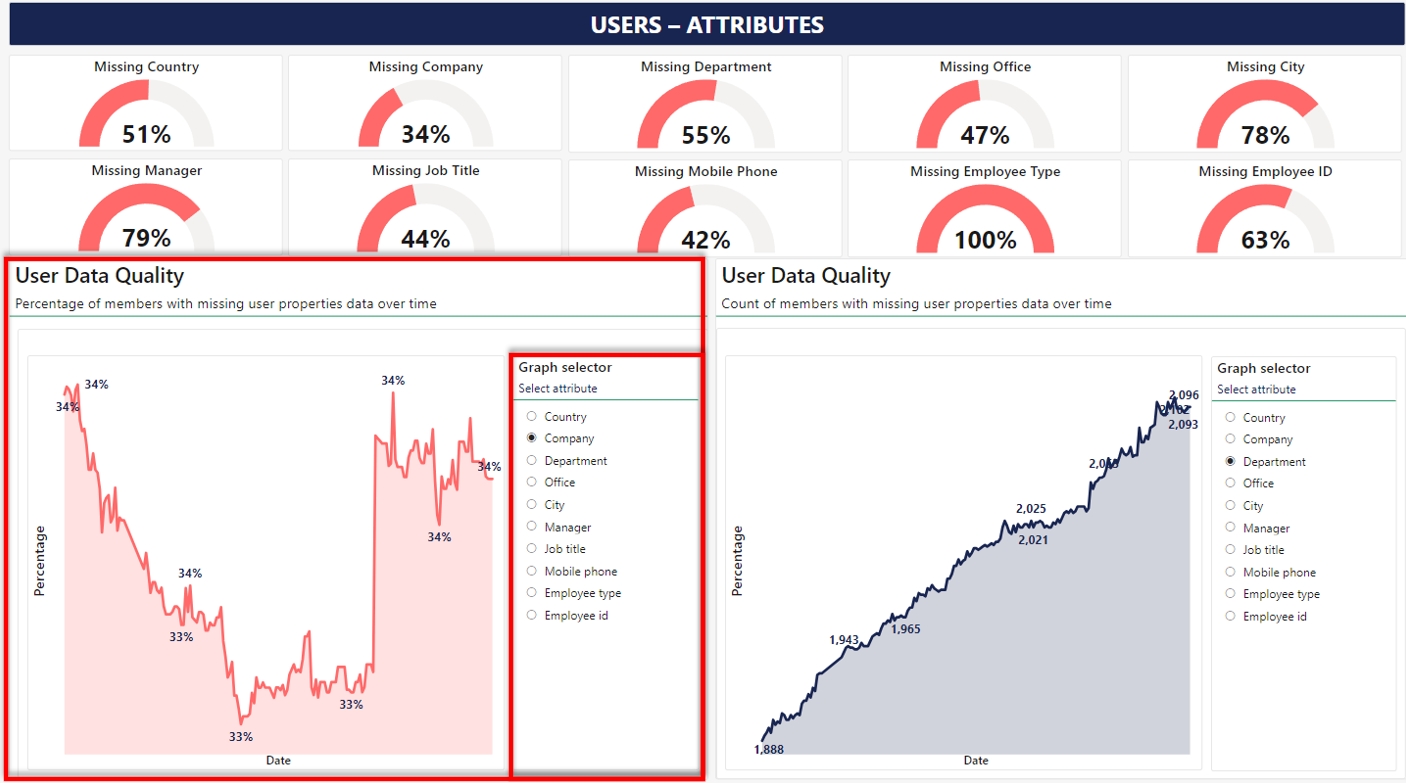
The graph to the left shows percentages of missing data of the property selected in the graph selector over time.
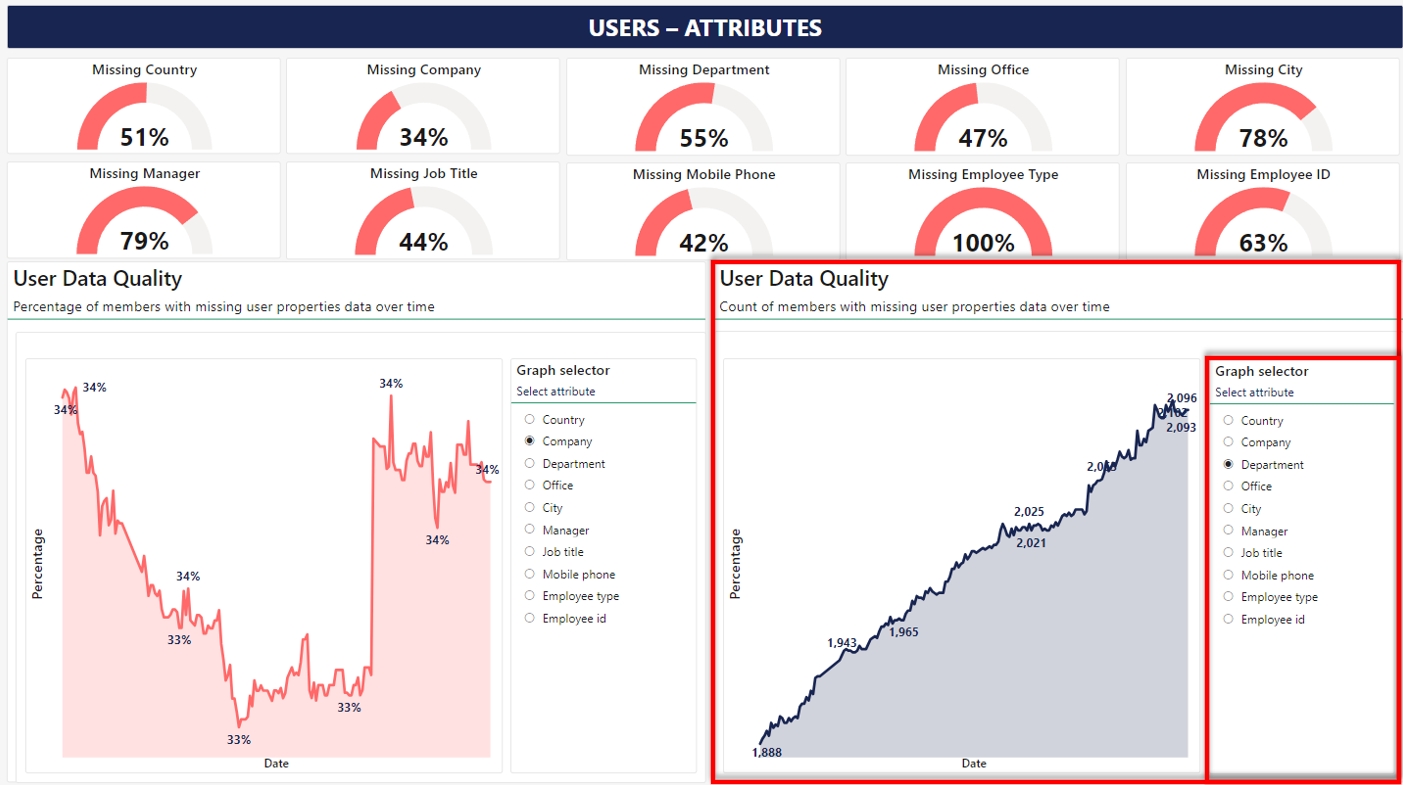
The graph to the right shows how many users missing data of the property selected in the graph selector over time.
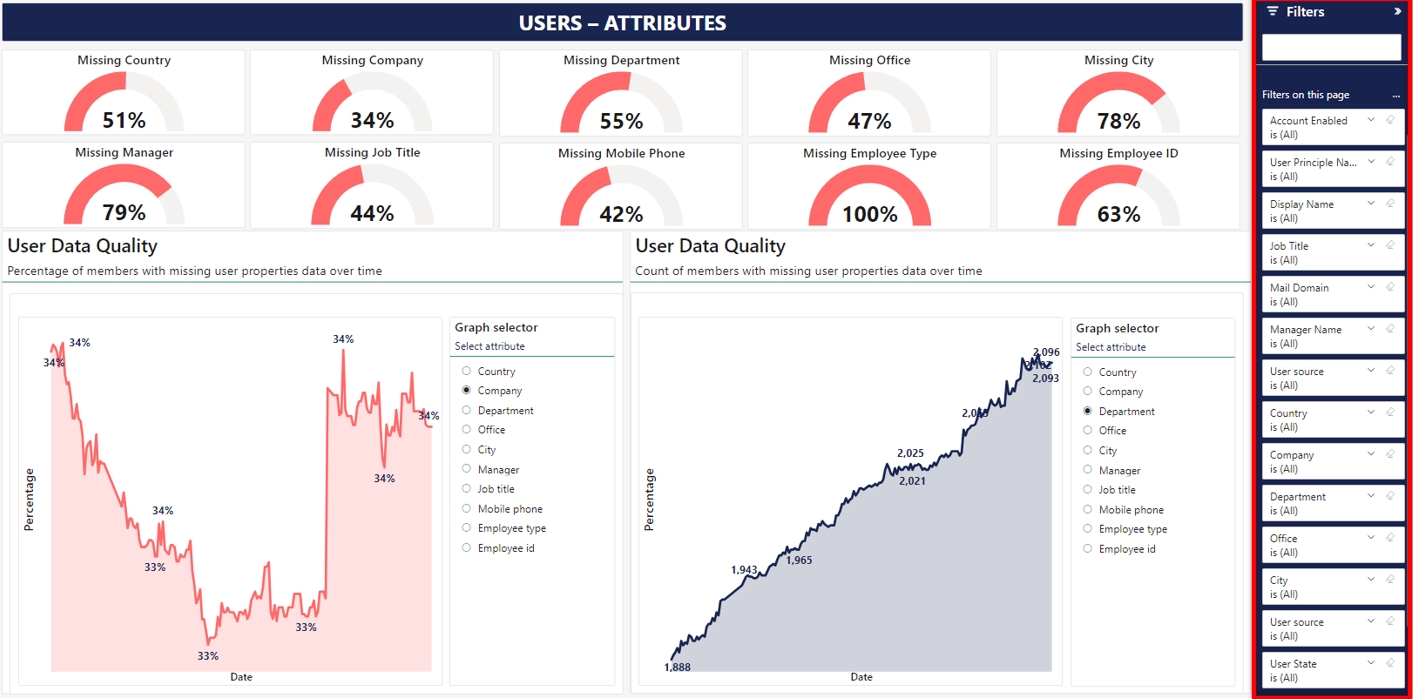
Use filter section to the right to refine users you want to monitor. These filters will affect both the current gauges in the top and the graphs in the lower section of the page.
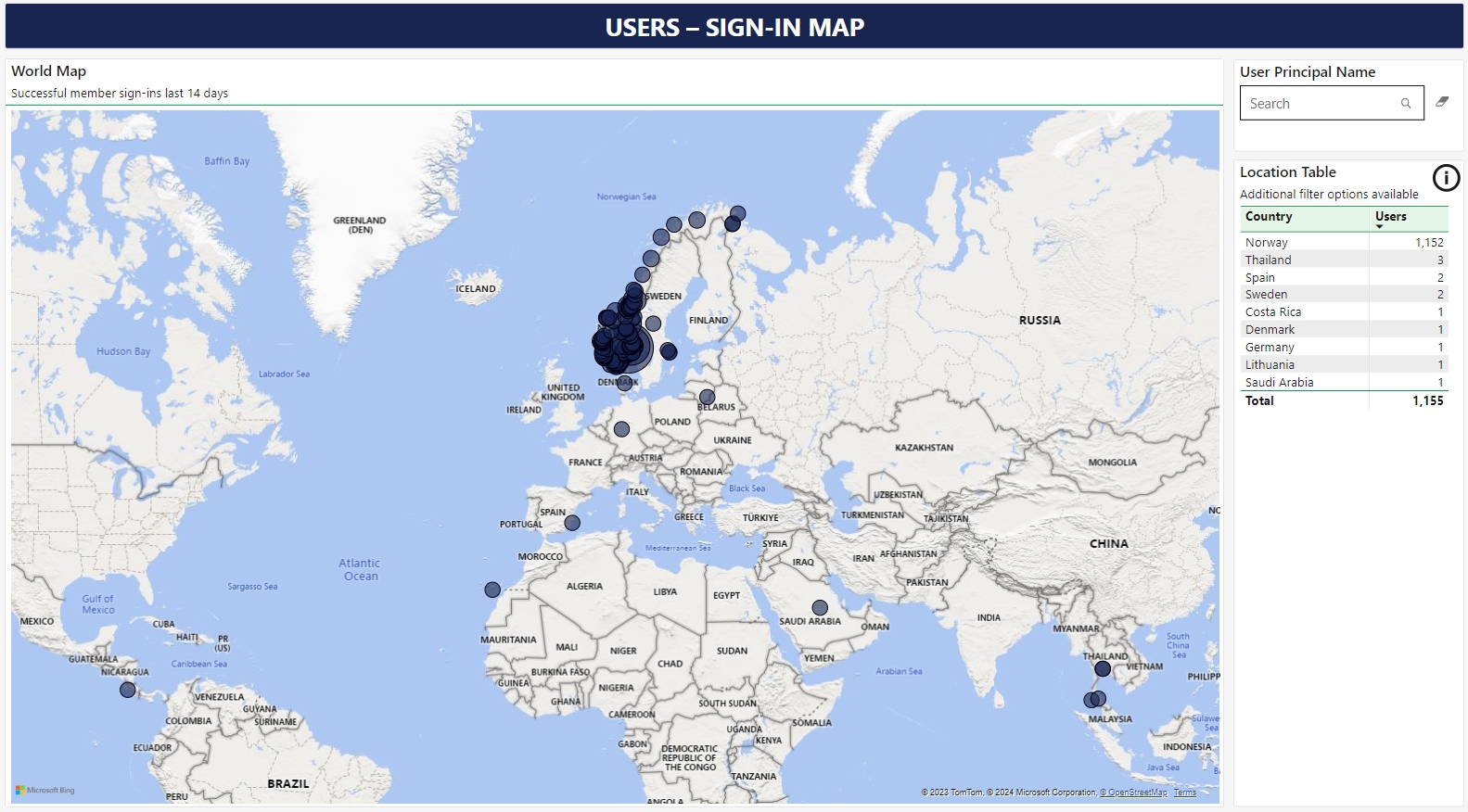
Simply a world map showing which countries your member users have successfully signed in from the last 14 days.
Use this guide to configure whats displayed in the Groups report
By default Bsure Insights will only gather all groups with names. To find the members of a specific group and possibly assign a cost to perform cost allocation, please follow this guide:
The page will be empty by default, so to add a group, please click Add Groups
You will then be able to search for the groups you want to see members of and click the group you want and click next
Add cost for being member in the group and a description:
Click Add New Group button.
When added all groups you want to monitor, you can choose to tell Bsure Insights to refresh all data in the solution and then refresh Power BI afterwards by clicking the Run Collector button in the top right corner.
You can follow progress by clicking the bell next to your name in the top right corner. It may take a while.
Here you add users to Bsure Insights. After adding a new user, please provide the url new user and they will get instant access. More granular access possibilities in under development.
Bsure Insights will fetch all users in your Entra ID and you can add any of the member accounts as users in the application. Click Add Users button and select what role you want to assign to the users:
System Administrator gives access to everything in the application
Role Member gives access to all Power BI reports but not any configuration.
Tick off all the users you want to assign that role and press Next
If someone deleted or made changes to the Power BI workspace used by Bsure Insights, you have the option to create a new workspace, add all reports to it and set permissions and scheduled updates by clicking Recreate Workspace.
It will delete the old workspace if it still exists.
For assistance, please visit . Here, you have the option to schedule a meeting or send us an email.


OS : Operating system from Intune
In Entra: If device in Intune has a corresponding object in Entra ID. If you find some of these devies you should investigate.
Duplicate: It is possible to get same serialnumber registered in Intune as two individual registrations. If you find some, please investgigate and delete the duplicate not in use one.
Compliance: Compliance state from Intune
In device details table we've added some new columns:
Last user: Latest sign in to the device and user that did it
Users count: How many users have signed in to the device
Logged on users: Displays all users that have signed into the device
Storage health: to help you find devices with full disk etc.


This version will be automatically updated for everyone during week 44
New features: Added Sponsors to guest accounts in Users - Guests, Member and Drilldown reports Improvements: Filter templates cleanup
New features:
Two new reports:
Application Overview report shows usage of all applications, including the unused ones.
Devices - Intune Drilldown: Report of all devices in Intune with serial number and users signed in to the devices
Improvements:
Data collector improved - groups, intune devices and user purpose
Improved stability in customer application (web app)
Improved logging
Apps or Service Principals should be considered as a user account and should be monitored closely
Often when a third party app offers single sign-on or other interactions with your Entra ID they offer a solution to create a service principal. To get the integration running you will provide the system or vendor with your tenant id, application id and a corresponding secret. The application then need access to Entra ID for the integration to work as expected and the application is given permissions in your environment.
Sign-in from this application is not governed by identity protection, such as conditional access policies, meaning that the application id + secret would work from everywhere at any time.
The Service Principal report show the different service principals in your environment, permissions given and where they sign in from. Often third party vendors ask for too much permissions and you should review the report to make sure that permissions and sign-ins are as expected.
We've classified permissions in critical, high, medium and low but a read role that is classified as low could be potentially business critical if exposed. Eg. if a service principal has been given mail.read permissions and the secret is compromised someone out there could read all your company e-mails.
Based on experience and customer feedback we've created a playbook on how to secure and reduce license spend your Microsoft cloud environment.
Even if cost savings is important, we've created a balanced recommended action list, where you quickly will reduce security risk and then at the same time release licenses to reduce cost.
We've created subpages per report with explanations and short videos to help you navigate and understand the different reports under the Licenses section.
Configure Basics
Select your Subscription and Resource group (create new if needed).
Select a Region.
Set a Application Name.
Managed Resource Group is prefilled.
Select Next.
Configure Tags
(Optional) configure your tags Name and Value
Select Next.
Review + Create
Review the Price and TERMS sections.
Agree to Co-Admin Access Permissions. (This allows Bsure - the publisher - access to the Managed Resource Group for application maintenance)
Select Create.
Wait for deployment to finish.
Continue to First-run Config to continue the setup process.
Sign-in Status: Filter for guest users that have Never signed in and guest users that have Signed in.
Account: - Enabled - Enabled guest users - Inactive - Disabled guest users
Domain Type: Filter for if the guest account is from a Managed or Unmanaged domain. Read here for more information.
User Principal Name: Free text search for a guests user name. Report will update accordingly.
The Focus Table shows the distribution of active and inactive guests.
The Breakdown Table shows the distribution of guests from different mail domains or sponsors
Sponsors was introduced in July 2023 and from then the inviting user was set as sponsor. It is possible to assign up to 5 users and groups as sponsors for one user object in Entra ID. If more than one sponsor field will contain a semicolon separated list. If groups are set as sponsor we prefix the group display name with Group:"Group Display Name" in the semicolon separated list.
The user details table lists all guest users in scope of your filtering selections. The table has a default set of columns. You can change these to your preferences using the columns selector.


We are currently building more roles and more options to offer individuals a more granular access to reports and content in the application.
You can change role or delete a user from Bsure Insights by clicking the square with the three dots to the right of each user.

The License Cost Dashboard provides a basic overview of your total license expenses and potential monthly cost savings. In the graph on the bottom right you can see historical license utilization, and see if this has improved over time.
Total Monthly License Costs
This section gives a flash of the overall license cost for the company, split by company specific licenses, and user licenses.
Company specific licenses are general licenses, i.e related to storage or sandbox environments.
User licenses are licenses assigned to specific users
Interactive table: If you click this table it will take you to license overview, which gives you a detailed breakdown of all the licenses you have, quantity and cost
Distribution of costs
This chart provides a distribution of your license cost today, and the darker colors are active licenses (user licenses or company licenses), while the brighter colors means you have potential savings that needs to be looked further into
Potential monthly cost savings
This table provides an overview of your potential savings, distributed by three different types
Unassigned licenses: Refers to licenses on stock that are available to be allocated to new users. If they remain unassigned when renewal date arrives, these licenses should not be renewed, resulting in cost savings. The reneweal date will depend on what kind of agreement you have, and if you are on a CSP agreement you will see the savings faster than if you are on a EA license agreement
Inactive: Refers to value of licenses assigned to users that are inactive, meaning they have not logged into their account the last 90 days. These users should be investigated, and if the licenses are unnecessary they should be removed.
Historical cost
This graph provides an overview of historical license utilization, where your goal should be to make the bottom two colors (pink and yellow for inactive and disabled users) to be as small as possible. All unassigned licenses will be shown with a light yelloe color as a top bar in the graph
Target: Prepare your company for the upcoming license renewal date by cleaning up licenses allocated to inactive and disabled users, so when renewal date comes all unassigned licenses can be removed and your company can reduce their monthly spend
CSP License Agreement:
Immediate Action: Licenses can be removed instantly, offering immediate cost-saving benefits.
EA License Agreement:
In the application cost report we want you to add a cost and quantity purchased of each application, giving you the chance to leverage cost control for all your SaaS apps with single-sign-on (SSO) through Entra ID. We recommend you to run Bsure for at least 30 days to have enough data to consider whether you have a potential saving on an application.
Visit Customer Settings - Applications to learn how to add your selected applications to the Cost report.
User sign-ins will start from the day you install Bsure Insights or from the time Bsure patch your instance and keep information for the period you entered when installing Bsure Insights Azure Marketplace app. Contact [email protected] to change this setting if needed.
Filter alternatives
User Purpose: Filter on the type of Exchange Online mailbox connected to the user.
User - A user account with a mailbox.
Guest - The user purpose for guest users is set to Guest.
Shared - A shared mailbox user.
Last used period: Helps you filter on the time period you want to look into for application usage
Sign-in Type: Select to view Interactive or Non-interactive sign-ins - or both.
Microsoft app: Gives you the opportunity to filter between Microsoft apps and third party apps. Read more on
Application filter: This filter includes all available apps, so you can choose a single app to filter on
Resource filter: Filter on the resources consumed
User principal name: Free search for user principal names
Focus table - Application cost
In this table you will see all applications where you have configured cost and quantities purchased, and how many unique users have authenticated themselves towards since Bsure was installed. By entering cost and quantities purchased you can do cost control on all your SaaS applications with single-sign-on towards your Entra ID.
We recommend Bsure to be installed for at least 30 days before making decisions on whether to remove licenses or not
This table consists the different applications and the number of times they have been accessed
Breakdown table - additional filter available for different user properties
This table shows the distribution of logins for the chosen user property in the breakdown filter
Breakdown filter: Choose the preferred property you want to filter by, by using the breakdown filter on the right side. We have also included Extension attributes as this is often used by companies
User details table - Cost
In this table you can drill down on the specific users and which applications they have been authenticated towards since Bsure was installed, and which cost that application has
The column selector on the right hand side gives you the opportunity to choose which information is the most interesting to see.
Authentication methods is a report that gives insights into Multi Factor Authentication configurations per user.
You will see the default MFA method used by each individual and should consider to run MFA campaigns to ensure that all your end-users uses a secure way to authenticate to your solutions and data. You will also see all MFA methods configured and available per user.
This is a quite complex subject and You should make sure that you've followed Microsoft best practice guidance
Worst case scenario is if someone guess the correct password to a member account haven't registered MFA and have not self service password registered. Most likely someone will configure MFA according to policy and start consuming your solutions and data.
You will find these users by selecting MFA registration complete = FALSE and SSPR Registered = FALSE
Showing users successful sign-in locations for selected sign-in period
Description of the Users - Sign-in Locations report:
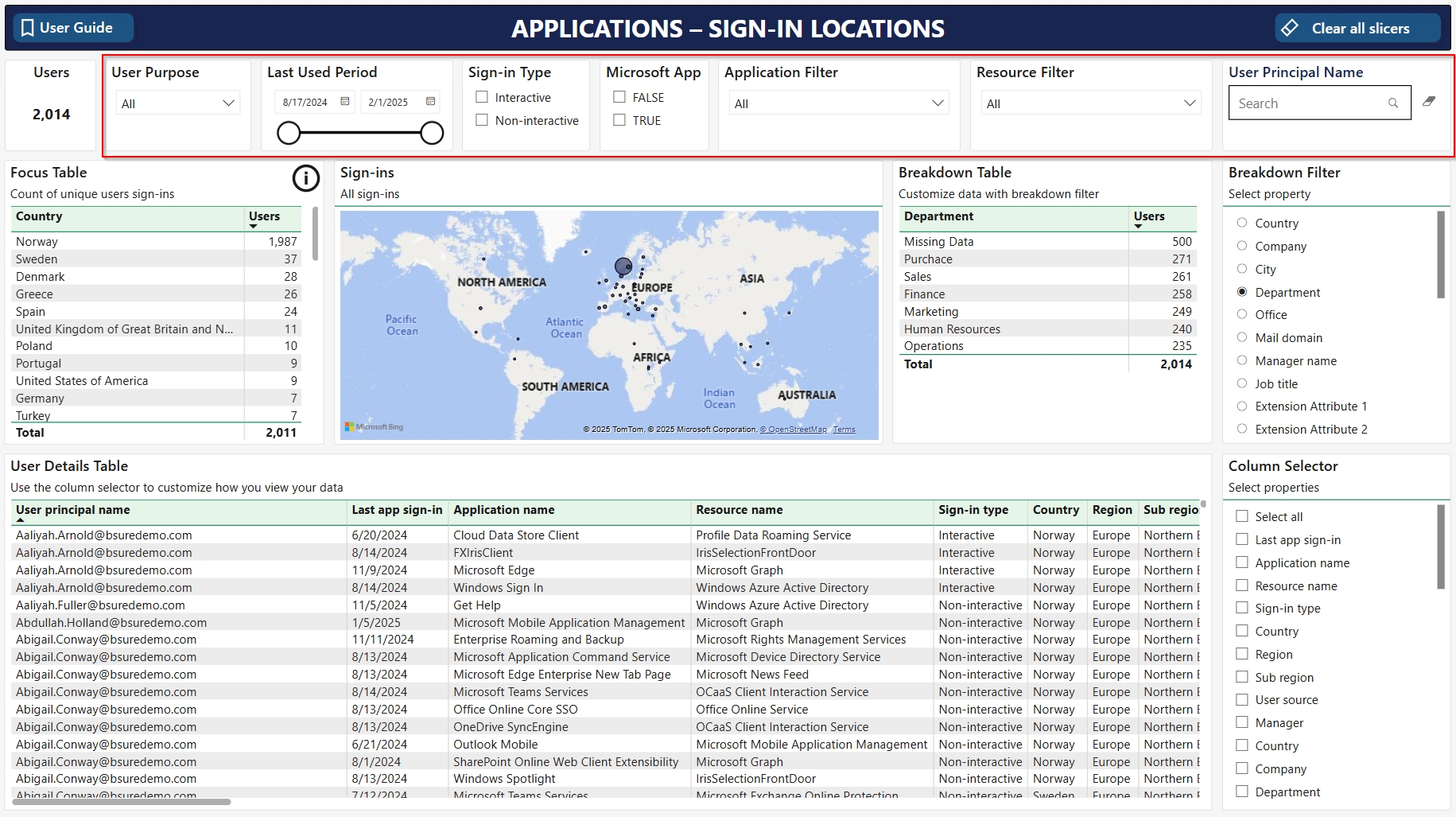
Users
Showing the number of users that has signed in according to your filtering selections.
Sign-in Period
Select period to show sign-ins for a specific interval.
User Type
Select to show Member or Guest sign-ins - or both.
Geo-filters for Region, Country, State and City
Filter on specific world regions, countries, states and cities.
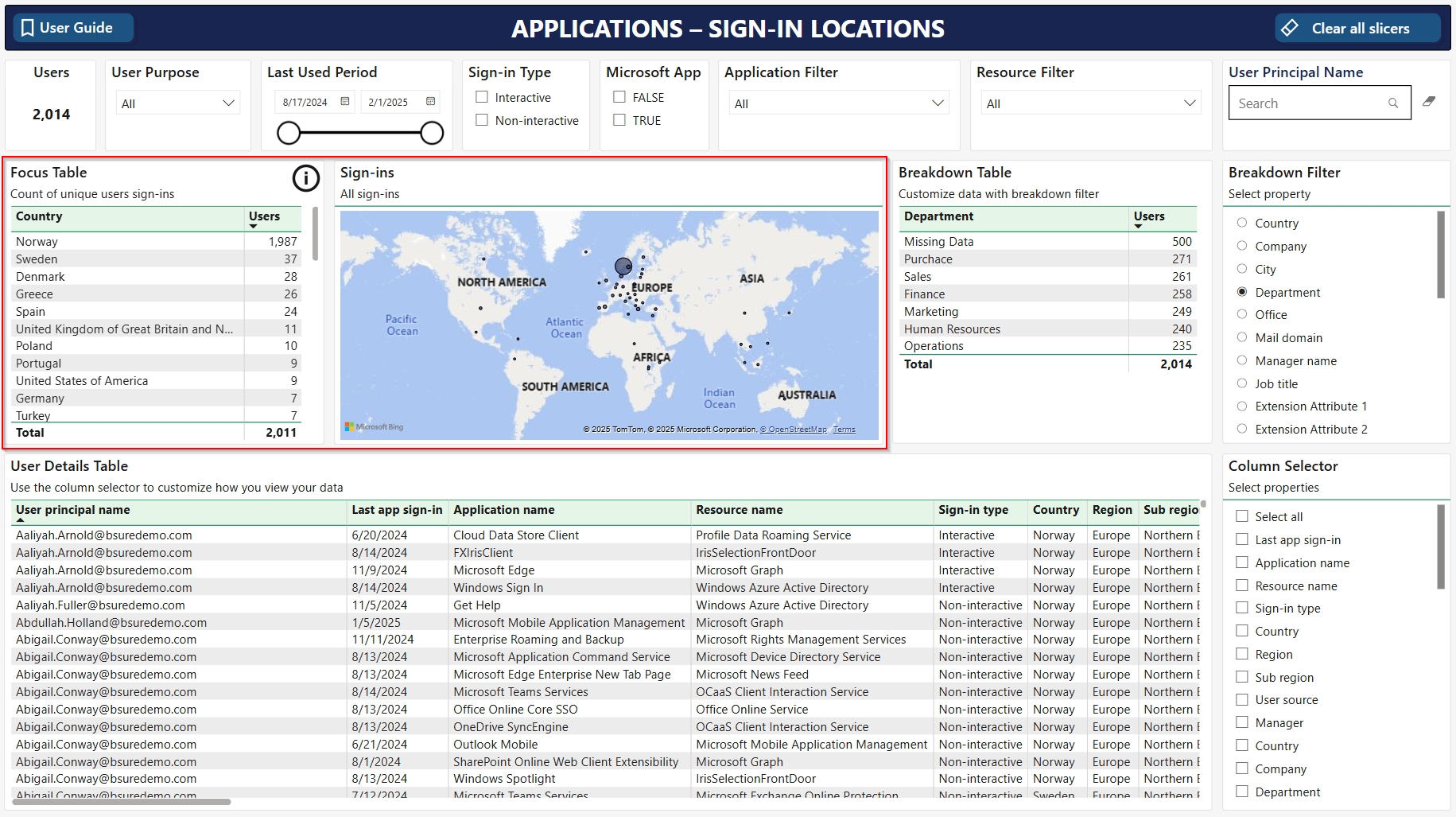
Focus Table
Showing the sign-in country
Sign-in Locations Map
Map of daily sign-in locations according to your filtering selections.
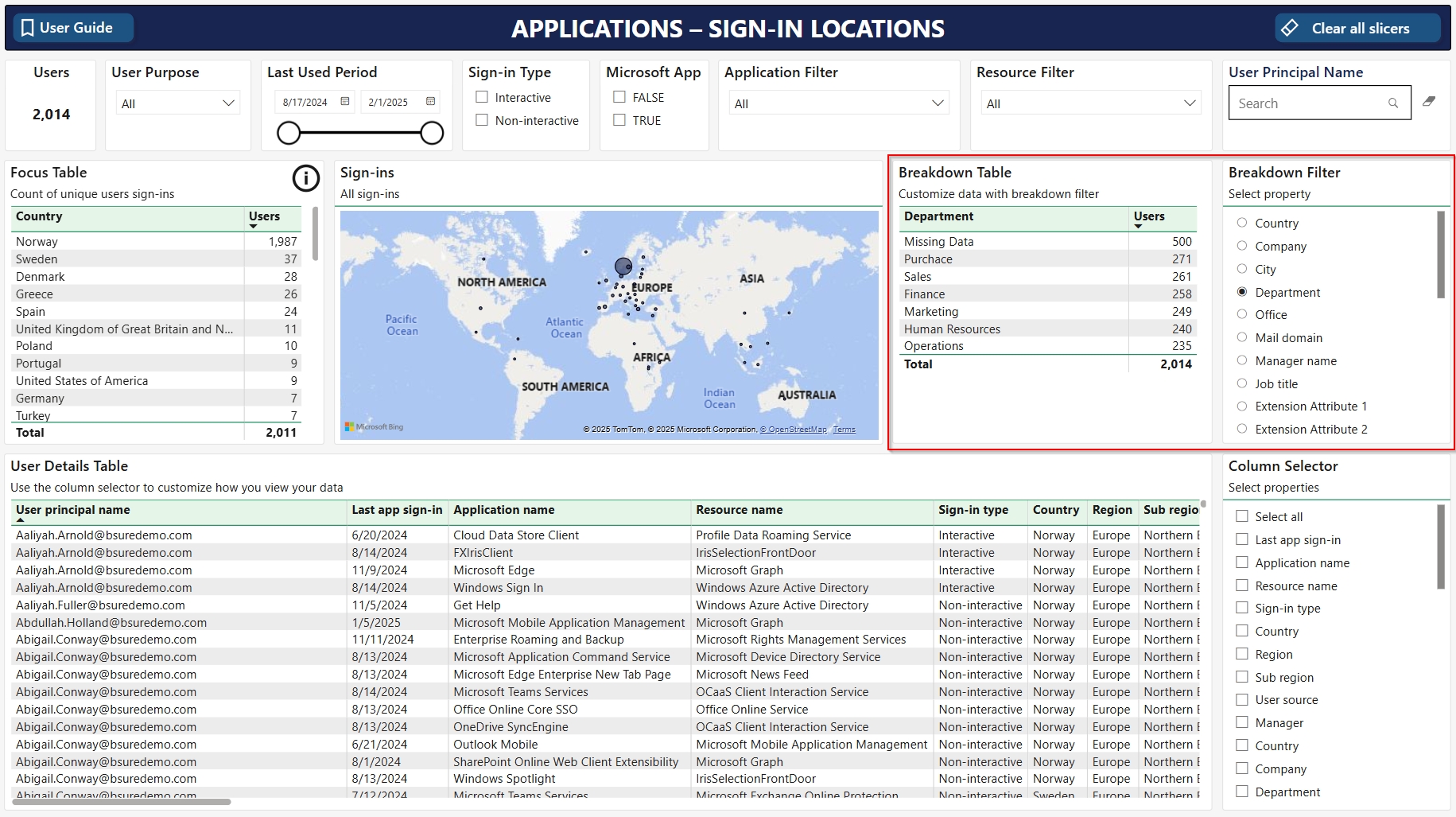
Breakdown Table and Filter
Use the Breakdown Filter to choose the user property you would like to se in the Breakdown Table
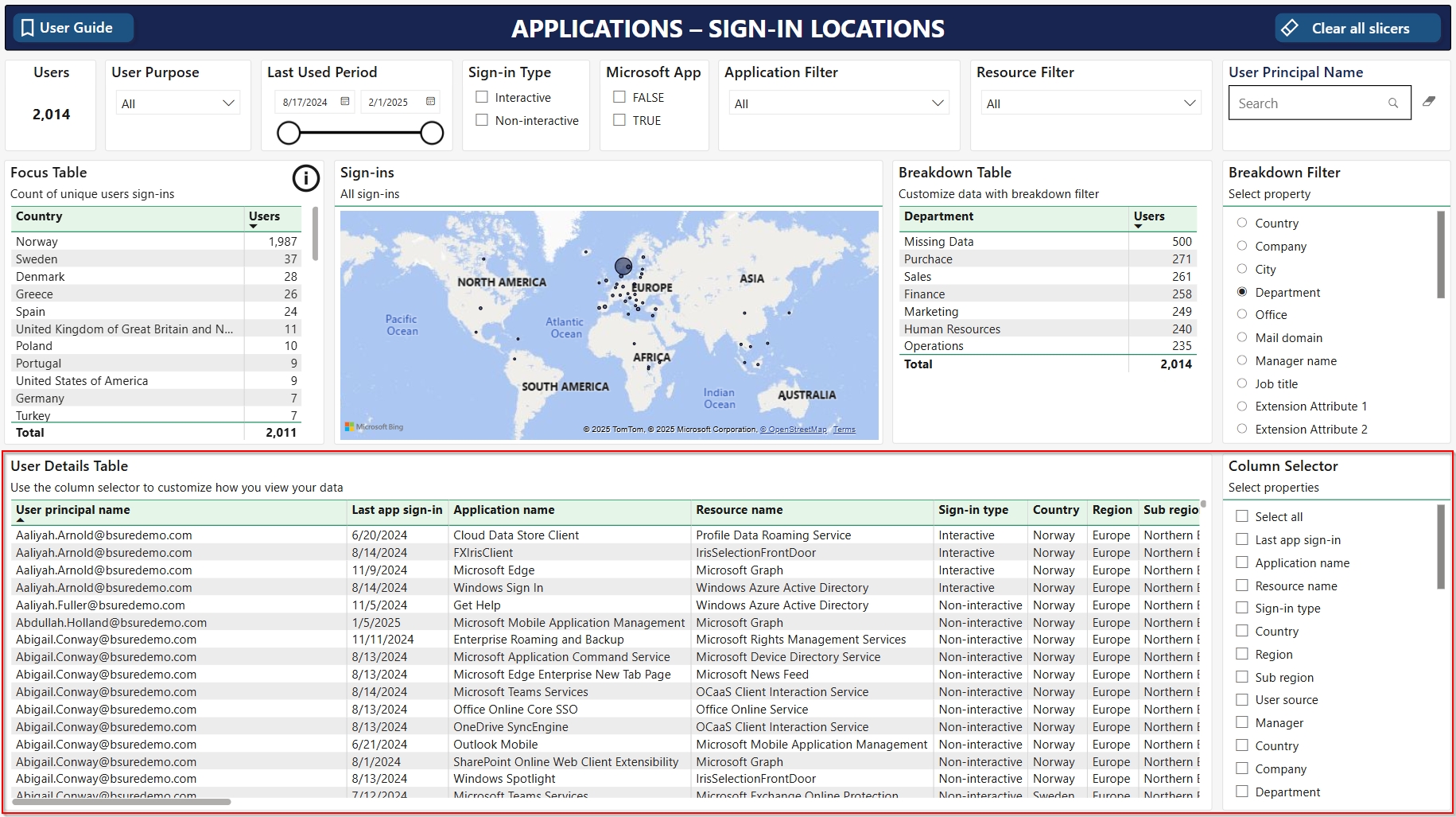
User Details Table with Column Selector
User details for the sign-ins, according to your filtering selections.
User Principal Name Search
Free text search for a user name. Report will update accordingly.
To ensure confidentiality and privacy, our application has these features:
All data is encrypted at rest and in transit.
Container App uses Entra Id and access token validation to enable SSO,
Outbound data contains no personal data, only data used for billing or handcraftet operational signals to ensure no personal data in error messages.
Billing information only contains the number of billable user accounts found in Entra Id and Managed Application identifier.
The Managed Application uses to access MS Graph with read only.
Azure Keyvault for secrets (Bsure personnel cannot access these secrets).
SQL only supports identities from the customer tenant, Entra Id only login.
The Keyvault resides in the Managed Resource Group, but Bsure have no access to access the secrets.
Bsure have the Contributor RBAC role, which is not sufficient to read secrets, or elevate permission.
References:
Azure built-in RBAC roles:
Azure built-in roles for Key Vault data plane operations:
Assess management status of Windows devices in Microsoft Entra ID to prioritize enrollment.
The Windows Management report displays details for Windows devices in your Microsoft Entra ID environment. The report focuses on management status to help you identify unmanaged devices.
The report provides a summary of Windows device management states and detailed device information.
View Windows device management states.
Use the Focus Table to get a quick view on the different Windows management states of your devices:
Unmanaged disabled devices
Managed disabled devices
Unmanaged enabled devices
Managed enabled devices
Or try the predefined Filter Templates to look for more specific use cases.
Looking for devices that maybe should have been managed? Try the Show Active Entra ID Registered Devices with Owners.
View inactive Windows devices in Microsoft Entra ID with priority details for removal.
The Windows Inactive Devices report displays details for Windows devices in your Microsoft Entra ID environment that have had no activity in the last 90 days. Use this report to identify and remove stale devices to reduce security risks and optimize your device management.
The report provides a summary of inactive Windows devices, categorized by removal priority, and detailed device information to assist with cleanup.
This section categorizes inactive devices by removal priority.
Disabled, Not Used and Ownerless Devices Devices that are disabled, inactive, and not assigned to a user.
Enabled, Not Used and Ownerless Devices Devices that are enabled, inactive, and not assigned to a user.
Disabled, Inactive and Ownerless Devices Devices that are disabled, inactive for 90 days, and not assigned to a user.
Enabled, Inactive and Ownerless Devices
Group inactive devices by selected user properties, to see where the devices with a registered owner belongs in your organization.
Use the Windows Inactive Devices report to identify devices for removal. Follow Microsoft’s best practices for in Microsoft Entra ID:
Review Removal Priority: Use the Focus Table to identify high-priority devices, such as "Disabled, Not Used and Ownerless Devices" or "Enabled, Not Used and Ownerless Devices."
Check Device Details: Review the Device Details Table to confirm device status, ownership, and compliance. Use the Column Selector to add properties for more context.
Export Data: Export the Device Details Table to Excel to create a worklist for your IT team.
Follow Best Practices
In this report we combine the information from the previous reports and give you the chance to drill down on all member and guest users statuses.
Users: Showing the total number of users according to your filtering selections.
User Purpose: Filter on the type of Exchange Online mailbox connected to the user.
User - A user account with a mailbox. Guest - The user purpose for guest users is set to Guest. Shared - A shared mailbox user. Room - A user with a mailbox that represents a conference room. Equipment - A user with a mailbox that represents a piece of equipment. Others - A mailbox was found but the user purpose is not specified. Unknown - User has no Exchange Online mailbox, or we were not able to read it.
Created Date & Last Sign-in Date: Set periods for when users where created or their last sign-in date.
User State: - Active - users having signed in the last 90 days - Inactive - users that has not signed in the last 90 days
Sign-in Status: Filter for users that have Never signed in and users that have Signed in.
Account: Filter for showing Disabled or Enabled users - or both.
User Source: Filter for showing if the users are Cloud native (created in your Entra ID) or if they are On-premises synced from your on-premises Active Directory.
User Principal Name: Free text search for a user name. Report will update accordingly.
Focus Table: The focus table shows the distribution of Active, Inactive and Disabled member and guest accounts in your tenant.
Breakdown Table and Filter: Use the Breakdown filter to see the distribution of member and guest users based on selected user properties.
The user details table lists all member and guest users in scope of your filtering selection. The table has a default set of columns. You can change these to your preferences using the column selector.
Microsoft has a great guide on how to bulk delete users using Entra admin center
This process of deleting users in bulk is quick (5 minutes), easy and safe to use.
When you export a list of users from User Details Table to excel format, verify the list once more and copy the User Principal Name column (except from column header and bottom row) into column A from line 4 in the CSV template referred to in the Microsoft documentation.
Follow the instructions in the documentation.
Tip to verify deleted users:
Sign in to the Microsoft Entra admin center as at least a User Administrator.
Select Microsoft Entra ID.
Click Users and then Deleted users
It may take a few minutes for the Microsoft Entra ID admin center to show the recently deleted users
Analyze devices in Microsoft Entra ID with customizable focus areas for flexible insights.
The Drilldown report displays details for devices in your Microsoft Entra ID environment. The report allows you to choose your area of focus for a customizable analysis of device properties.
The report provides a flexible summary of devices based on a selected focus area, with detailed device information.
Select your own focus area using the Focus Filter. Select from all available device properties.
Use the Filter Templates as inspiration on what to look for.
Follow this step-by-step guide to install Bsure Insights from Azure Marketplace.
Verify you meet the prerequisites.
In this report we combine the information from the previous reports and give you the chance to drill down on all user- and license specific data
Filter alternatives
User Purpose: Filter on the type of Exchange Online mailbox connected to the user.
User - A user account with a mailbox.
Applications showing in this report consume applications, data and other resources your end-users will have to authenticate by using their Entra ID credentials
In the Application Usage report we give you insight in which applications users in your Entra ID is consuming. The report is based on the sign-in logs from Entra ID, and we start collecting this from the day Bsure is installed, meaning that you will get more insights the longer Bsure Insights have been running.
Filter alternatives
User Purpose: Filter on the type of Exchange Online mailbox connected to the user.
User - A user account with a mailbox.
This report provides you with a detailed breakdown of licenses allocated to inactive and disabled users, which should be considered removed to reduce license spend.You can drill down on the different license types as well as the individual users and which licenses they have assigned. All tables in this report are interactive and if you filter/click on one object the other tables will respond to this.
Why and how Bsure Insights differentiates from many other offerings.
At Bsure, privacy is not an afterthought—it is the foundation of everything we build. From the very beginning, our solutions have been developed according to the principles of privacy by design and by default, ensuring that protection of personal data is embedded into our architecture, systems, and processes.
Key Difference: Unlike traditional SaaS applications—where customer data is typically transferred to vendor-hosted environments under broad data processing agreements—Bsure ensures that no customer user data is ever exposed to us or to any third parties.
This page displays active assignments of Entra ID roles assigned to users, groups or service principals.
Entra ID roles gives a user, group or service principal permissions to manage Microsoft Entra.
Filter alternatives
Entity type: Filter on whether entity is user, group og service principal
Created date: Use the slicer to determine which period you want the user/group to be created
This page guides existing Bsure Insights customers through migrating their data to version 2. It outlines the requirements and steps needed to securely transfer existing data.
In this report you can choose whether to use Microsoft's list prices, or your own prices in your own currency when viewing your data.
Visit to learn how to add your own prices for licenses.
In addition you will see how many users we bill your company every day.
Billed users
This is the numbers of users used for billing of your subscription
This page gives you the opportunity to see members in one or more Entra ID groups, and by giving a cost to a group it makes it easy to allocate costs.
You can specify which groups You want to include in the report, set a cost per member of each group and give the groups a friendly name.
Visit to add the groups you want to monitor in this report.
Key benefits with report
Bsure Insights Azure Managed Application is billed through your existing subscription. You will find the cost for Bsure Insights under Service Family "Azure Marketplace Services" on your detailed Microsoft invoice.
You can also monitor the cost in
This report is designed to give you a comprehensive understanding of your Microsoft cloud subscriptions. It details the types and quantities of subscriptions you have purchased and their respective expiration dates, helping you plan ahead effectively. If you have unassigned licenses on subscriptions set to expire, don't renew them and save costs
Tip: Set your focus period to your choice in the filter, and subscribe to this report at your preferred frequency. That way you will get a reminder of upcoming renewal dates and potential savings/focus areas in the near-term.
By default the prices in our app are standard Microsoft list prices in USD. These prices will not be accurate for many organisations. This page will show you how you can add your own prices!
All subscriptions in your tenant will be listed in this view. You can search for licenses and sort each column the way you prefer.
To add your price on a specific subscription, click the square with the three dots to the right and press Edit subscription. Make a note on the Renewal date and Total (amount of licenses) to find the price on that specific subscription:
Enter a note on terms (monthly, yearly) and perhaps source (csp partner, credit card etc) and set the correct value in you currency and click Save
The cost allocation report gives you the opportunity to allocate licenses All tables in this report is interactive and if you filter/click on one object the other tables will respond to this
Filter alternatives
Allocation period shows the period of which you have chosen for allocation
Selection period gives you the opportunity to select a certain period of which you want to allocate the cost from
Data Sovereignty: All personally identifiable information (PII) is processed exclusively within the customer’s own environment. No user data is transferred to Bsure or external parties.
Azure Managed Application: Our solution is delivered as an Azure Managed Application, deployed and hosted directly within the customer’s own Azure subscription.
Restricted Access: Although Bsure, as publisher, technically has access to the managed application resource group, we have implemented strict safeguards. No Bsure personnel can access customer resources without going through a tightly controlled privilege escalation process. Data stores are locked down to prevent access, requiring significant infrastructure changes to override.
We recognize the trust customers place in us when deploying our solution. To honour this trust, we enforce rigorous safeguards that make privacy a guaranteed standard, not an option.
To give customers full transparency, we provide a secure web-based solution running entirely inside their own environment. This integrates with Power BI, leveraging Single Sign-On (SSO) via the customer’s Entra ID for authentication. Importantly, Bsure has no ability to log in to or access this portal.
By design, our architecture ensures that privacy is absolute. Customers retain control of their data at all times, with Bsure providing insights and value without ever accessing sensitive information.
Create Azure SQL database
Set retention settings
Create Power BI Workspace
Disabled: Refers to value of licenses assigned to users that are disabled. These users can't use their account, and the license should be removed.
Interactive boxes: All 4 boxes are interactive and will take you to the report where you can see detailed breakdowns. I.e if you click the Inactive box it will take you to the Inactive and Disabled Users report where you can see an overview of all Inactive users with licenses assigned to them
Scheduled Action: Licenses under this agreement can be removed or adjusted during the renewal process with Microsoft.


Equipment - A user with a mailbox that represents a piece of equipment.
Others - A mailbox was found but the user purpose is not specified.
Unknown - User has no Exchange Online mailbox, or we were not able to read it.
Managed devices not in use
Unmanaged devices in use
Managed devices in use
Enabled, Not Used Devices with an Owner Devices that are enabled, inactive, and assigned to a user.
Enabled, Inactive Devices with an Owner Devices that are enabled, inactive for 90 days, and assigned to a user.
For devices managed by an MDM solution like Intune, ensure they are retired from the management system before removal from Entra ID.
For devices with BitLocker encryption, consider backing up recovery keys to avoid data loss.
For devices registered with Windows Autopilot, consider the impact of removal on re-provisioning.
Establish Processes: Create consistent processes for identifying, disabling, and removing stale devices. Define roles, timelines, and approval workflows to ensure governance and minimize risks.
Guest - The user purpose for guest users is set to Guest.
Shared - A shared mailbox user.
Room - A user with a mailbox that represents a conference room.
Equipment - A user with a mailbox that represents a piece of equipment.
Others - A mailbox was found but the user purpose is not specified.
Unknown - User has no Exchange Online mailbox, or we were not able to read it.
Created date: Helps you filter on when users were created
Last sign-in: Helps you filter on showing all users from when they were last created. In this overview you can i.e exclude users created last two weeks
User state: Choose if you want to see overview of active or inactive users or both
Sign-in status: Helps you filter on users who have never signed in and users that have
Account: Filter for showing Disabled or Enabled users - or both.
User Principal Name: Free text search for a user name. Report will update accordingly.
Focus table - license types
This table shows you all licenses, quantity and cost.
Breakdown table - additional filter available for different user properties
This table shows the distribution of cost for the chosen property
Breakdown filter: Choose the appropriate property you want to by using the breakdown filter on the right side. We have also included Extension attributes as this is often used by companies
User details table
In this table you can drill down on the specific users that have licenses allocated to them and investigate whether they should be removed or not.
The column selector on the right hand side gives you the opportunity to choose which information is the most interesting to see. Some of the most interesting properties to see based on our experience is:
Created
Last sign-in
Days since last sign-in
Cost
Licenses combined
Guest - The user purpose for guest users is set to Guest.
Shared - A shared mailbox user.
Room - A user with a mailbox that represents a conference room.
Equipment - A user with a mailbox that represents a piece of equipment.
Others - A mailbox was found but the user purpose is not specified.
Unknown - User has no Exchange Online mailbox, or we were not able to read it.
Last used period: Helps you filter on the time period you want to look into for application usage
Sign-in Type: Select to view Interactive or Non-interactive sign-ins - or both.
Microsoft app: Gives you the opportunity to filter between Microsoft apps and third party apps. Read more on Microsoft first-party applications
Application filter: This filter includes all available apps, so you can choose a single app to filter on
Resource filter: Filter on the resources consumed
User principal name: Free search for user principal names
Focus table - Application usage
In this table you will see all applications users have authenticated themselves towards since Bsure was installed, and how many the application has been accessed
This table consists the different applications and the number of times they have been accessed
Breakdown table - additional filter available for different user properties
This table shows the distribution of logins for the chosen user property in the breakdown filter
Breakdown filter: Choose the preferred property you want to filter by, by using the breakdown filter on the right side. We have also included Extension attributes as this is often used by companies
User details table - Application usage
In this table you can drill down on the specific users and which applications they have been authenticated towards since Bsure was installed.
The column selector on the right hand side gives you the opportunity to choose which information is the most interesting to see.
Filters
User Purpose: Filter on the type of Exchange Online mailbox connected to the user.
User - A user account with a mailbox.
Guest - The user purpose for guest users is set to Guest.
Shared - A shared mailbox user.
Room - A user with a mailbox that represents a conference room.
Equipment - A user with a mailbox that represents a piece of equipment.
Others - A mailbox was found but the user purpose is not specified.
Unknown - User has no Exchange Online mailbox, or we were not able to read it.
User State: Choose if you want to see overview of inactive or disabled users or both
Sign-in Status: Filter for users that have Never signed in and users that have Signed in.
Focus table - Overview of license types
This table shows you all licenses and the quantity and cost that can potentially be saved
Breakdown table - additional filter available for different user properties
This table shows the distribution of cost for the chosen property
Breakdown filter: Choose the appropriate property you want to by using the breakdown filter on the right side. We have also included Extension attributes as this is often used by companies
User details table
In this table you can drill down on the specific users that have licenses allocated to them and investigate whether they should be removed or not.
The column selector on the right hand side gives you the opportunity to choose which information is the most interesting to see. Some of the most interesting properties to see based on our experience is:
Created
Last sign-in
Days since last sign-in
Cost
Licenses combined
Last sign-in: Use the slicer to determine the last sign-in period of the user
User state: Choose if you want to filter on active or inactive users
Account: Filter for showing Disabled or Enabled users - or both.
Sign-in status: Helps you filter on users who have never signed in and users that have
MFA Reg: Filter on whether MFA registration process has been completed or not
License Status: Filter on if users are licensed or not
Entra Level: The Entra ID license level of the user (Free, P1, P2, Governance)
User principal name: Free search for user principal names
Focus table - Entra ID role assignments
The table provides an overview of all roles with administrative privileges, and number of entities that have the different role.
Groups and service principals with Entra ID roles should be reviewed.
Breakdown table - additional filter available for different user properties
This table shows the distribution of roles for the chosen user property in the breakdown filter. If a line is blank it means that this is a service principal or a group
Breakdown filter: Choose the preferred property you want to filter by, by using the breakdown filter on the right side. We have also included Extension attributes as this is often used by companies
Entity details table
In this table you can drill down on the specific users that have administrative privileges and investigate whether they should be removed or not.
The column selector on the right hand side gives you the opportunity to choose which information is the most interesting to see.
NB: Bsure Insights will only display active assignments and not eligible assignments due to permissions needed to extract eligible roles via Microsoft Graph. The app must be given write access to roles in order to extract eligible roles. This is not something you should allow.
Configured applications with cost and units bought
Configured groups with assigned cost
User attribute history
User license history
Sign-in logs
In the address bar, add /admin-settings/migration after main url to Bsure Insights
Paste connection string (not the Key) to the storage account used by Bsure Insights version 1 into the field:
Press Run First it will show pending, and when done it will state Success. Process can take up to a few hours, but feel free to continue using the application while copy-job runs.
When version 2 is up and and running, data is migrated and users are added, you can follow these steps to remove version 1:
There are 3 components involved in version 1:
Azure Managed Application
Storage Account
Power BI app / workspace
Find the resource group in Azure where you have installed Bsure.
Delete the Managed application that belongs to version 1, and the Storage account. Only keep the new Managed application for the version 2.
The resource groups named mrg-bsureinsights-2025xxxxxxxxxxx are connected to the Managed application. You don't have to delete these. It will be removed automatically when the Managed application is deleted
Go to https://app.powerbi.com/groups/me/apps and check who is owner of the version 1 Power Bi App.
As owner go to Workspaces, and open the version 1 workspace. The workspace that has a "b." logo is the version 1 workspace.
Open Workspace settings:
Scroll to the bottom of the General page, and Remove this workspace
You have now completely removed Bsure Insights version 1.
Price selector: Gives you the option to choose whether you want to see Microsoft's list prices or your own price
Currency selector: Filter on and choose the currency you want to use for the report
Table User Licenses Price
In this table you see an overview of all your user licenses with the list price from Microsoft, and your own price if you have added them yourself
Table Company Licenses Price
In this table you will see all your company licenses with the list price from Microsoft, and your own price if you have added them yourself

See members of groups with administrative privileges
Report will be empty until you follow instructions to Configure which groups to show in the report.
The report will show You all your specified groups in the Focus table with how many users and the total cost per group. The report itself has the same setup as the other reports with a focus table, a breakdown table and a user details table
Subscription period: This filter gives you the opportunity to show subscriptions in given time frames. I.e if you want to focus on subscriptions to be renewed next 3 months set filter period to next 3 months
Subscription status: Gives you the opportunity to filter on enabled, suspended and locked out subscriptions
Unassigned count: Give you opportunity to filter on subscriptions on the unassigned licenses count
Overview of all user subscriptions and their expiry date
Tip: Subscriptions with unassigned licenses represent potential cost savings
Overview of all company specific subscriptions and their expiry date
Graph - Value of unassigned licenses
This graph provides you with potential savings if unassigned licenses are not renewed at renewal date
Sign-in Status: Filter on users Never signed in and signed in users
User Type: Filter to show only Member or Guest users
Account: Filter to show Disabled or Enabled users
User Source: Filter to show if users origin is Cloud (Entra ID native) or synced from you on-premises Active Directory.
User Principal Name: User name free text search
Set correct price on each subscription. Bsure Insights will calculate the average price for each license available in Entra ID.
When done, please select customer price and select your currency from drop down menu:
Click Refresh Power BI button to see changes. THis may take a few minutes, and you can follow progress by clicking the bell icon next to your name in the top right corner of the app.


This table shows you all licenses, quantity and cost. This list is the basis for the total cost and allocation
Breakdown table for allocation of costs
This table gives you the breakdown for allocation of costs based on the property selected
Breakdown filter: Gives you the option to choose the property you want to allocate on, either it is department, company, main domain or an extension attribute
User details table
In this table you can drill down on the specific users that have licenses allocated to them.
The column selector on the right hand side gives you the opportunity to choose which information is the most interesting to see. Some of the most interesting properties to see based on our experience is:
Created
Last sign-in
Days since last sign-in
Cost
Licenses combined

The cost is calculated daily. You will only pay for the number of days you have the app installed in a month. The daily cost is calculated like this:
For large enterprises and organizations we also offer custom pricing upon request.
In addition to the monthly cost of subscribing to our product, there will be some Azure infrastructure consumption. This is the cost of running the Storage Account(s), SQL Database, Container Apps, Key Vault and Log Analytics Workspace included in our solution.
Give you an overview of all your appllications in Entra ID their related sign-in events
This report will show you how many users that have signed into the specific application, and also if the application have been signed into by a service principal or a managed identity.
The report will help you find applications in use and also the applications not in use.
Slicer menu:
Applications: number of applications based on you filter choices
Microsoft App: Gives you the opportunity to filter between Microsoft apps and third party apps. Read more on
App Used: If neither used by end-users nor service principal/Managed identity = No, else Yes
User Sign-In: If used by End-users or not
App Sign-in: If used by Service Principal or Managed Identity or not
Latest User Sign-In: To filter on a specific period when end-users signed into the applications
Latest Application Sign-in: To filter on a specific period when Service Principal or Managed Identity signed into the applications
Use report to find application usage and track Service Principals.
Learn how to install and set up Bsure Insights in your Azure environment.
Bsure Insights is deployed as an Azure Managed Application, which automatically provisions all required components in your own Azure environment:
Azure Container Apps: run the data collection services that connect to Microsoft Entra ID via Microsoft Graph, and also host the web application.
SQL Server and database: securely store and process the collected data inside your Azure subscription.
Power BI workspace: automatically deployed with pre-built reports and dashboards, embedded directly into the solution for immediate use.
Bsure maintains and updates the managed application to ensure reliability, security, and continuous access to the latest features.
Installing Bsure Insights is simple and takes less than 30 minutes, provided all are met. The deployment is fully automated through the Azure Marketplace, with all components provisioned in your environment.
To begin, follow the , which walks you step by step through the process.
This section offers a detailed view of all licenses, including the quantity purchased, type, and categorization into user-specific and company-specific licenses. You will also see potential savings broken down on license type, and see if you are compliant (under licensed) within certain license types
Table - Monthly User License Cost
Shows all user licenses, their price, total cost and how many that have been assigned to people in the organization.
Tip: A discrepancy between total licenses bought and allocated indicates surplus licenses, which can be assigned to new employees or considered for removal at the next Microsoft license agreement renewal.
Table - Monthly User License Overuse Value
Highlights non-compliance by showing where more licenses are allocated than purchased.
Action Required: To achieve compliance, either purchase additional licenses as indicated or reallocate licenses from inactive or disabled users.
Compliance Indicator: A blank table signifies full compliance.
Table - Monthly Company License Cost
Provides an overview of company-specific licenses that are not allocated to any users.
Table - Monthly Potential Cost Savings
Details potential savings from unassigned licenses, inactive, and disabled users.
Unassigned Licenses: Licenses purchased but not assigned. These can be allocated to new users or not renewed during upcoming license negotiations with Microsoft.
Inactive Licenses: Licenses assigned to users inactive for over 90 days. Consider downgrading or removing these licenses.
Table – Monthly suspended licenses
This table displays licenses you have terminated, yet they remain allocated to users. It’s important to know that licenses listed here are correct, as users connected to these licenses will lose functionality upon removal
by the Bsure Insights Data Collector Managed Application
When you run the permissions script during the installation process, you give the Microsoft Graph permissions below to a Managed Identity used by a Container App in the Managed Resource Group.
Permission
Resource Name
Reason
AuditLog.Read.All
collector
Allows the app to read audit logs to monitor sign-ins and activities for security and compliance (read-only).
DeviceManagementManagedDevices.Read.All
collector
Allows reading Intune-managed device inventory and status to support reporting and troubleshooting (read-only).
Directory.Read.All
Permissions Bsure have in your environment:
To monitor jobs and provide updates and new features the solution provider Bsure will be given contributor and owner access during installation to the Managed Resource Group inside the managed application.
The Users Dashboard has two parts. Tiles showing your tenant's users - types and state. And a user data quality section showing status over time for some of the most commonly used user properties.
Users: Total number of users in your tenant.
Members: Total number of member users
Guests: Total number of guest users
Active: Users signed in the last 90 days
Members: Member users signed in the last 90 days
Guests: Guest users signed in the last 90 days
Disabled: Total number of disabled users in your tenant
Members: Total number of disabled member users
Guests: Total number of disabled guest users
Inactive: Users not signed in the last 90 days
Members: Member users not signed in the last 90 days
Guests: Guest users not signed in the last 90 days
The User Data Quality section tracks missing member user properties over time for these commonly used user properties:
Company
Department
Manager
Job Title
When working with improving your data quality, you can get a quick overview of the effect in this dashboard.
Analyze the number of devices per user in Microsoft Entra ID.
The Devices per Person report displays details for devices in your Microsoft Entra ID environment. The report focuses on the number of devices per Registered Owner (user) to help you assess device distribution in your organization.
The report provides a summary of device counts per user and detailed device information.
The Focus Table shows the number of devices per user (where user is a registered owner of the device). Use the filter options in the Slicer Menu to look for different types of devices, activity and management states.
Use the Breakdown Table and Breakdown Filter to choose your view of the distribution in your organization based on the user properties available.
Try the predefined Filter Templates to get inspiration on what to look for.
If you experience any issues during the third stage of the installation, you'll need to remove the managed application and initiate the process again. Instructions on how to find and delete your managed application are provided below. Please wait until deletion is completed before starting again. If the installation fails for a second time, please examine the deployment logs to identify the necessary corrective measures. If you need further , don't hesitate to reach out to us.
The most frequent issue during installation occurs when the Azure Resource Manager is unable to deploy resources due to unspecified reasons, such as not being able to find the subscription while deploying certain Azure Resources.
Many software solutions is made to enhance or offer functionality/features on your data in Microsoft 365 cloud. Most organizations does not have a fully functional application governance process.
Entra ID allows organizations to provide single sign-on (SSO) to applications, services and systems, represented as Enterprise Apps and App Registrations.
Prime examples of such enterprise applications are Salesforce and Workday for end-user usage and Keepit (backup), Avepoint Fly (migration tool) or Sharegate teams management for operational purposes.
There are thousands of applications that offers functionality "needed" by your end-users available. End-users is allowed by default to consent to install any of these applications, and if one of your users are compromised they could install an application to copy, delete, manipulate all data in all resources that user have access to.
View and manage Windows devices in Microsoft Entra ID with metrics on activity, security, and management status.
The Windows Dashboard displays metrics for Windows devices in your Microsoft Entra ID environment. Use this dashboard to monitor device health, identify security risks, and optimize device management.
The Windows Dashboard is divided into three main categories—Devices, Security, and Managed—each focusing on a critical aspect of your Windows device ecosystem. Each category includes high-level metrics and detailed breakdowns to help you understand the status of your devices at a glance.
This section shows the activity and ownership status of Windows devices.
collector
Allows reading Azure AD directory data (users, groups, apps) to look up identities and relationships (read-only).
Domain.Read.All
collector
Allows reading domain settings (read-only).
MailboxSettings.Read
collector
Allows reading users’ mailbox settings (type; read-only; no mail access).
Policy.Read.All
collector
Allows reading organization conditional access policies (read-only).
Directory.Read.All
updater
Allows reading Azure AD directory data (users, groups, apps) to look up identities and relationships (read-only).


Mobile Phone
Office
Please verify if there are any Azure Policies that could potentially impact the Subscription, Resource Group, or Managed Application resource.
To test if you are allowed to use Device Code flow to authenticate from Azure Cloud shell, do the following test:
Open an Azure Cloud shell with the Global Administrator account you will use when installing Bsure Insights.
Type Connect-MgGraph -DeviceCode to start the sign-in process.
Open the Microsoft device login URL (you can click it in direct in the shell window to open in a new tab).
Enter the code and follow the sign-in instructions
I your sign-in was succesful, you will see this message:
If the sign-in fails, it is likely because your organization have blocked or restricted the use of Device Code flow in your Conditional Access policies.
Learn more about Device code flow in our FAQ: Device Code Flow in the Bsure Installation Process.
In the last step of the First-run Config, you will create the Power BI workspace. This can fail if the Bsure Managed Identities are not able to call the Fabric public APIs in your tenant.
If you encounter this error it is likely because your organisation have disabled or scoped the setting "Service principals can call Fabric public APIs". The default value from Microsoft is enabled.
The following managed identities needs to have access to call Fabric public APIs:
update-<random string>
update-schedule-<random string>
Please visit Fabric admin portal and search for public APIs
Go to Developer settings and check that "Service principals can call Fabric public APIs" are enabled or scoped to a group that contains the three managed identities mentioned above.
When done, please click Retry button to finalize installation wizard.
A user holding Fabric Administrator role or higher needs to enable this feature by going to https://app.powerbi.com/admin-portal/tenantSettings?experience=power-bi
Search for map in the search box in top right corner and expand "Map and filled map visuals"
Enable feature and press "Apply"
"By selecting "Enabled", you agree that map and filled map visuals may use Bing services located outside of your Power BI tenant's geographic region, compliance boundary, or national cloud instance. This feature uses mapping capabilities that are powered in part by third parties, TomTom and SK Telecom, and operate outside your tenant's geographic region, compliance boundary, or national cloud instance. Microsoft shares the address and location queries with these third parties, but not the name of the customer or end user who entered the query. This feature is non-regional and the queries you provide may be stored and processed in the United States or any other country in which Microsoft or its subprocessors operate. Use of map and filled map is subject to the following terms."
What access does all these software providers possess within your environment?
From where is your data processed?
What kind of data will be stored or processed in that software?
Can all these vendors be trusted? Do they have proper security measures in place, and what about backup/availability?
These questions is important address to avoid security and regulatory breaches.
"If an application is free of charge, they most likely get paid with access to your data"
Read up: Microsoft MVP and MCT Sander Berkouwer have written an article explaining Microsoft Entra ID App Registration and Enterprise App Security
Decide how you want to onboard new applications. You should establish a process to consider security, risk, compliance and ownership before installing new applications within your environment.
Due to the simplicity and speed of getting a new application installed, you would have to review what exposure you have today and take actions.
Make sure you've turned off the ability for all users to consent to new applications.
Inform your users of the new process to implement new applications.
Review your current applications:
Bsure Insights - Security - Service Principals report will give you insights into your application environment in Entra ID:
Start by filtering on security risk critical and high to scope down the list of applications
Click on each application in Focus table and review the need for it and the permissions given. Where is the data processed?
Example:
Why does the printsolution need the permission Sites.ReadWrite.All? That permission "Allows the app to create, read, update, and delete documents and list items in all site collections without a signed in user." Why do you need the permission to delete files in all SharePoint sites in order to print?
Do You trust this vendor? If that vendor has a security breach, your SharePoint data will be exposed as well.
Then remove applications and permissions not needed.
Then review Medium and Low risk as well and delete the apps not needed.
Bsure Insights would give an attacker powerful insights into your environment and the permissions given the Managed Identity is low (read access)
To verify from where your apps are processing your data use the map or the breakdown table to click on each country:
In this example we've filtered on popular operational software "ShareGate Teams management". Sharegate runs their environment in Virginia US according to sign-in logs from the service principal used for that application. This means that ShareGate could process all your SharePoint data with the permission that "Allows the app to have full control of all site collections without a signed in user".
ShareGate states:
A risk and compliance evaluation should be performed on all the applications that access and process your data in their own environment.
What will happen if my application vendor gets a security breach? Do they provide proper safeguards to ensure availability, confidentiality and integrity of my data? Do I have a valid reason to export these data according to laws and regulations that apply to my organization?
Inactive Windows Devices: Percentage of devices with no activity in the last 90 days. Remove unused devices to reduce risks.
Devices State:
All Devices: Total Windows devices.
Inactive: Devices with no activity in the last 90 days.
Active: Devices with activity in the last 90 days.
All Windows Devices:
Enabled: Devices currently enabled.
With Owner: Devices with a registered owner.
Supported OS: Devices on a supported Windows version.
This section focuses on Out-of-Support Windows versions.
At-Risk Windows Devices: Percentage of devices on end-of-life (EOL) Windows versions. Update these devices to a supported version.
End-of-Life Windows:
Total Outdated: Total devices on EOL Windows versions.
Inactive: Outdated devices with no activity in the last 90 days.
Active: Outdated devices with activity in the last 90 days.
Active End-of-Life Windows Devices: Active devices on EOL Windows versions. Update these devices to mitigate risks.
Enabled Devices: Active outdated devices that are enabled.
Disabled Devices: Outdated devices that are disabled.
With Owner: Active outdated devices with a registered owner.
This section shows the management status of Windows devices.
Unmanaged Windows Devices: Percentage of devices not enrolled in a management solution. Enroll these devices to improve security and compliance.
Management Status:
Total Unmanaged Devices: Total unmanaged Windows devices.
Inactive: Unmanaged devices with no activity in the last 90 days.
Active: Unmanaged devices with recent activity.
Active Unmanaged Windows Devices: Active devices not enrolled in a management solution. Enroll these devices in Intune for better oversight.
Enabled Devices: Active unmanaged devices that are enabled.
Disabled Devices: Unmanaged devices that are disabled.
With Owner: Unmanaged devices with a registered owner.
After deployment, complete the first-run configuration to finish setting up Bsure Insights.
When deployment is done select Go to resource.
Select the application
Select the Managed resource group.
Open the Container App called customer-app-<random string>.
Open the Application Url.
Wait until configuration page is loaded.
In this part you will give Bsure Insights permissions to read data from your tenant through Microsoft Graph.
(Optional) Select Show Script to read the script.
Select Copy Script to add the script to your clipboard.
Select Launch Azure Cloud Shell
Opens in a new tab
Select Let's start.
Select Configure to set up the Azure SQL Database
This might take a few minutes...
When done, select
Configure Retention Settings and select Save.
USER STORAGE TIME: How long Bsure Insights will store information about users.
SIGN-IN DATA STORAGE TIME: How long Bsure Insights will store information from sign-in logs.
Create your Power BI Workspace
Select Launch Power BI to verify to check that you have access to Power BI. In Power BI, look at your profile (top right) and verify you have minimum a Power BI Pro license
Return to the Bsure app tab in your browser and select Create Power BI Workspace.
Data collection will start automatically. How long it will take depends on your organization's size. You can follow the status on the Bsure Insights system status landing page.
When both Power BI and Data Collector are in sync, you can start exploring our reports.
After installation and data collection is complete, follow these guides to add users to Bsure, and set your own subscription prices:
Follow our guide to add other users to Bsure.
Follow our guide to add your own license prices.
The overlapping licenses report gives you an overview of users that have licenses with license types that have overlapping functionalities. You can drill down on the different license types as well as the individual users and which licenses they have assigned. All tables in this report is interactive and if you filter/click on one object the other tables will respond to this
Filter options
User Purpose: Filter on the type of Exchange Online mailbox connected to the user.
User - A user account with a mailbox.
Guest - The user purpose for guest users is set to Guest.
Shared - A shared mailbox user.
Room - A user with a mailbox that represents a conference room.
Created date: Helps you filter on when users were created
Last sign-in: Helps you filter on showing all users from when they were last created. In this overview you can i.e exclude users created last two weeks
User state: Choose if you want to see overview of active or inactive users or both
Sign-in status: Helps you filter on users who have never signed in and users that have
Account: Filter for showing Disabled or Enabled users - or both.
User Source: Filter on Cloud users and users synced from on-premises
User Principal Name: Free text search for a user name. Report will update accordingly.
Focus table - licenses
This table gives you an overview of the license combinations that have overlapping licenses. The license on the left side is the most comprehensive license package, while the license on the right side is the overlapping license that can be removed.
Breakdown table - additional filter available for different user properties
This table shows the distribution of cost for the chosen property
Breakdown filter: Choose the appropriate property you want to by using the breakdown filter on the right side. We have also included Extension attributes as this is often used by companies
User details table
In this table you can drill down on the specific users that have licenses allocated to them and investigate whether they should be removed or not.
The column selector on the right hand side gives you the opportunity to choose which information is the most interesting to see. Some of the most interesting properties to see based on our experience is:
Created
Last sign-in
Days since last sign-in
Cost
This is the starting point of securing your environment
Most companies started an MFA registration campaign to make sure that all users use MFA when signing in. Many have also trained their end-users in how to detect phishing and so on.
One big problem is to handle all the inactive users, service accounts, resources and such. It's common to allow end-user to register MFA from anywhere. The password is then the only protection of those accounts. These accounts are then vulnerable for password sprays.
If the account to your previous CFO that left the company 7 years ago wasn't deleted due to issues in the offboarding routine, is that account protected with registered MFA?
Token theft is also popular amongst the evil ones. Helping your end-users to protect themselves by providing phishing resistant MFA or passwordless sign-in would prevent tokens being stolen by fake/malicious websites and other phishing attacks. Adopting a passwordless and phishing resistant strategy is easier than you might think. Jonathan Edwards created a great video for inspiration/demo on how to achieve .
MFA is the fundament in securing your environment, and we encourage everyone to spend an hour watching John Savill explaining
Normal user accounts should be protected from time of creation, meaning you should ensure no one else than the person/service account was created for could start using the account by guessing the correct username and password.
Some organisations choose to create the users with extremely long and complex passwords, some creates them as disabled and end-users needs contact support to get them enabled and some preregister an authentication method like phone or sms.
Using Temporary Access Pass (TAP) in combination with MFA requirement to register security information could be a great way of enhancing your
Many accounts like meeting rooms, shared resources and service accounts doesn't support a traditional two factor. You should protect these accounts by creating specific conditional access rules to protect the usage of these accounts.
report will list all accounts available for everyone guessing the correct username and password:
Create conditional access rule to
Require that all users register MFA regardless of location
Provide only the
Exceptions only for service accounts and location based users. Create specific network locations and create separate conditional access rules to allow usage of these accounts from specific ip
Ensure that the security information registration page is protected. Guessing correct username and password will then not be sufficient to take over an unused identity within your Entra ID.
Create a conditional access policy to require MFA ever time user want to register security information.
Under session - add sign-in frequency = Every time
Make sure you exclude all guest accounts (already taken care of if you use the provided)
Requires that users are allowed to change their password in Entra ID if passwords are needed.
Create new users as you always done but with a crazy long and complex password that you just forget.
Create and provide a temporary access pass when the user or manager requests it.
End-user goes to and type in username and gets asked for temporary access pass:
Sign in and follow wizard to register security information
When done, user should set a new password if needed using the link provided on
Follow the self service password reset instructions
This way you ensure that inactive accounts without MFA registration completed can't be taken over by attackers.

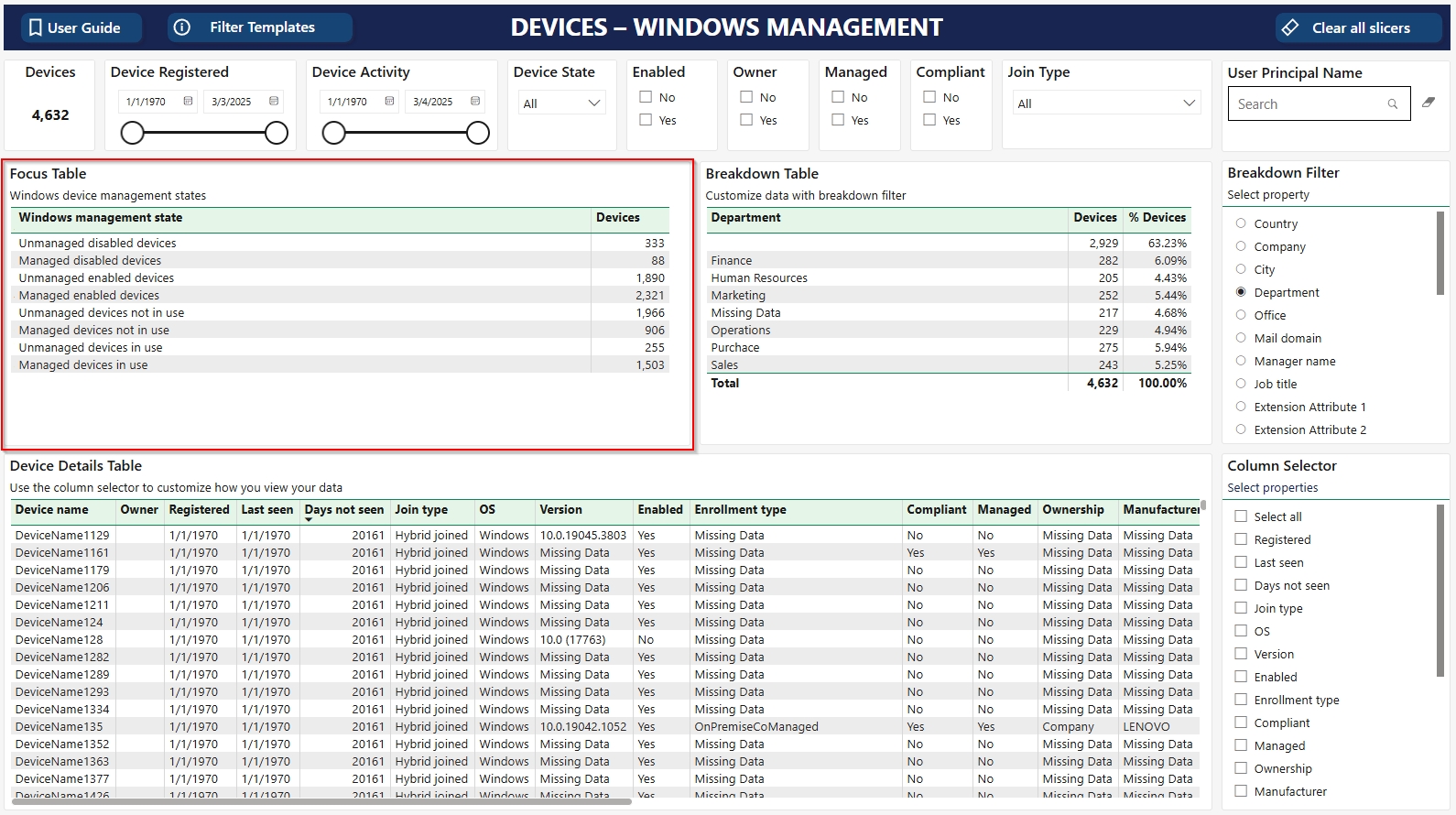
Reduce both security risk and license spend
Reports states that 85% of all attacks starts with a compromised identity, and we've learned that companies has a 10-30% cost saving potential of their total license cost on Microsoft OnlineServices.
Most organizations will find many inactive or unwanted user accounts in their Entra ID. Test-, administrator-, guest- and member-accounts can be created by anyone (with permissions to do so). In most organizations between 30-50% of the identities in Entra ID is not in use. A normal finding is that many user accounts were created years ago and have not been used for years, if ever used. Many of these accounts have not registered MFA, and in most cases, we see that organizations allow new users to register MFA from anywhere. The first person guessing the correct username and password combination will then register MFA.
These users also represent a quite significant cost since they in many cases have licenses assigned.
Overview of Device Code Flow in Bsure installation, with uses, risks, and best practices for secure access in headless systems.
The Device Code Flow is a way of logging in to Microsoft systems when the machine you’re using doesn’t have a normal web browser. Instead of opening a login window, the system shows you a short code. You then go to on your phone or computer, type in the code, and approve the login. Once you’re done, the headless system (for example, a container or the Azure web console) gets the access it needs.
Think of it like authorizing a smart TV to use Netflix: the TV shows you a code, you approve it on your phone, and then the TV is trusted.
The Security Dashboard has two parts. The upper part shows you key security related content, while the lower part has a sign-in map displaying where your users sign in from.
Review and prepare all necessary subscriptions, roles, and resources to ensure a smooth installation of Bsure Insights.
Before installing Bsure Insights from the Azure Marketplace, make sure the following requirements are in place:
The Global Administrator must be able to authenticate using Device code flow. Follow this guide to Test Device Code flow.
For Bsure Insights to be able to create Power BI workspaces, your Power BI Tenant settings must allow Service principals can call Fabric public APIs. Read more here.
When all prerequisites are confirmed, continue to Azure Marketplace to start your installation.
Azure Web Console / Cloud Shell: This environment comes with preinstalled tools (Azure CLI, PowerShell, SDKs). It can’t open login pop-ups, so Device Code Flow is the only simple way to sign in.
Containers and CI/CD pipelines: Automated jobs that need secure, temporary access to Azure.
Headless servers or IoT devices: Machines without a screen or browser.
Enables access on headless systems: Solves the problem of “no browser available.”
No passwords saved: Users don’t type credentials directly on servers or containers.
Built-in security: Works with Microsoft’s MFA, Conditional Access, and compliance rules.
Short-lived codes: Each login code expires within minutes.
Tricking users: Someone could try to get an employee to enter a code for a malicious app.
Token theft: If a server is compromised, access tokens could be stolen.
Overuse: If broadly enabled, attackers could abuse it from untrusted systems.
Use Conditional Access to enforce strict rules:
Normally block Device Code Flow.
If needed, allow short exemptions (e.g., 1–4 hours).
Require approvals and log these exceptions.
Employees should only log in using Device Code Flow from a trusted, company-managed device.
Prevent unmanaged personal laptops or phones from being used to approve logins.
Give access just-in-time — only when someone actually needs it.
Monitor Microsoft Entra ID sign-in logs for unusual behavior.
Microsoft provides governance tools to make temporary access safer and easier to manage:
Use Azure AD Privileged Identity Management (PIM):
Place users who may need Device Code Flow into a dedicated security group.
Configure this group for eligible, time-bound membership rather than permanent membership.
Example: a developer can request 2 hours of membership in the “Device Code Flow Exception” group.
Tie Conditional Access policies to this group:
Only members of the group can bypass the default “block Device Code Flow” policy.
Once their membership expires, they automatically lose access.
Benefits:
Reduces standing privileges.
Provides an approval workflow for exceptions.
Creates an audit trail of who had access, when, and why.
This approach ensures Device Code Flow is available only when business-justified, and automatically revoked after the time window closes.
The Azure Web Console is a perfect example of a headless environment.
It comes with all the right tools preinstalled (CLI, PowerShell), but it cannot pop up a login window.
Device Code Flow is the only practical login method there.
When combined with time-bound access rules, trusted devices, and group-based temporary memberships, it stays both useful and secure.
By requiring: - Device Code Flow to be off by default. - Short-term exemptions only, managed through group-based temporary access. - Use of trusted devices.
…companies can use Device Code Flow safely. It becomes a special tool for special cases, not a wide-open login method.
Headless system: A machine without a screen or browser (e.g., server, container).
Conditional Access: Microsoft’s policy engine to decide when and how users can log in.
Trusted device: A company-managed, compliant computer or phone that meets security rules.
MFA (Multi-Factor Authentication): Logging in with more than one proof (like password + phone approval).
Token: A digital “key” Microsoft issues that proves you’re allowed to access something.
Privileged Identity Management (PIM): Microsoft tool for granting just-in-time, time-limited group memberships to reduce standing privileges.

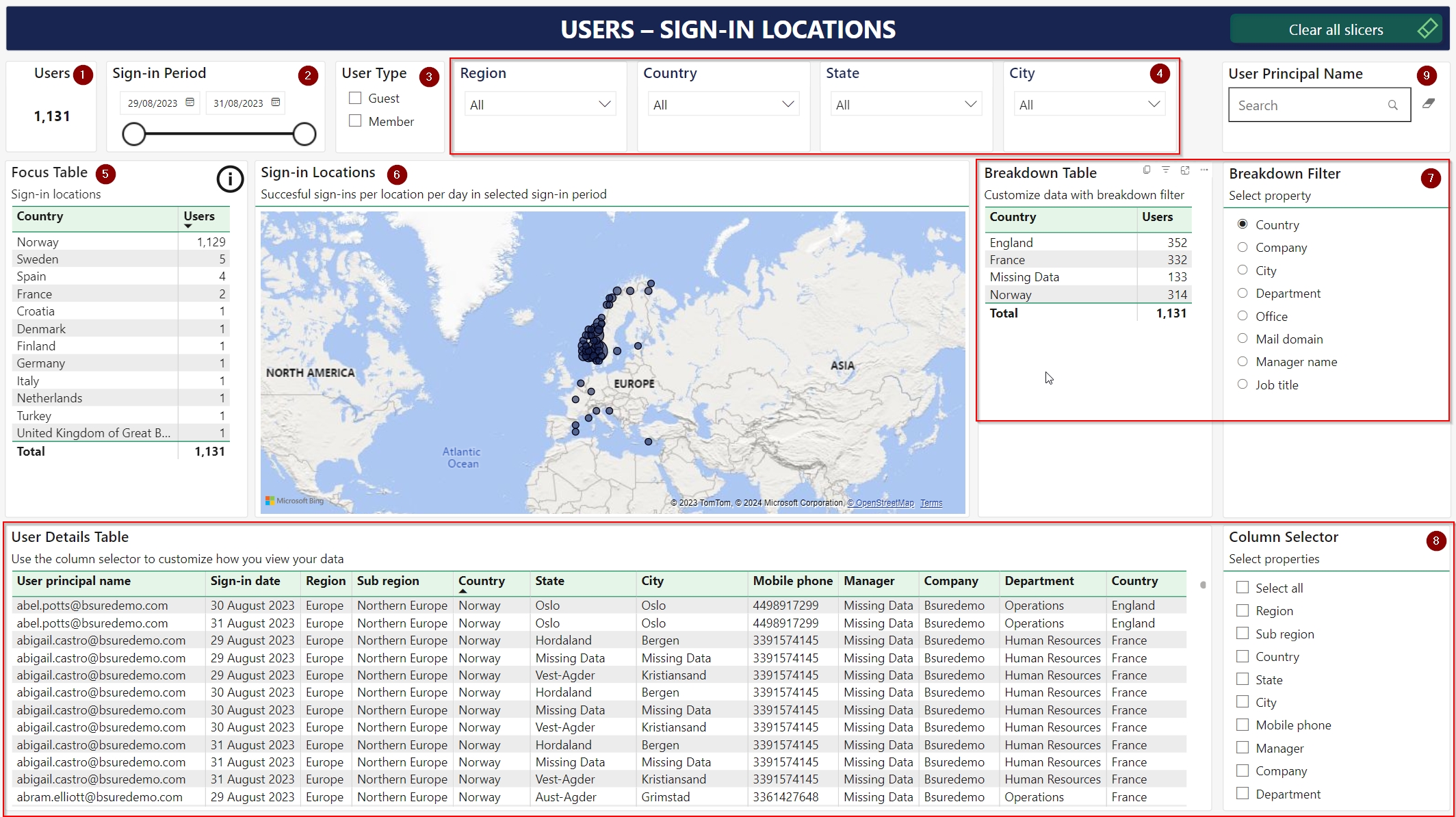
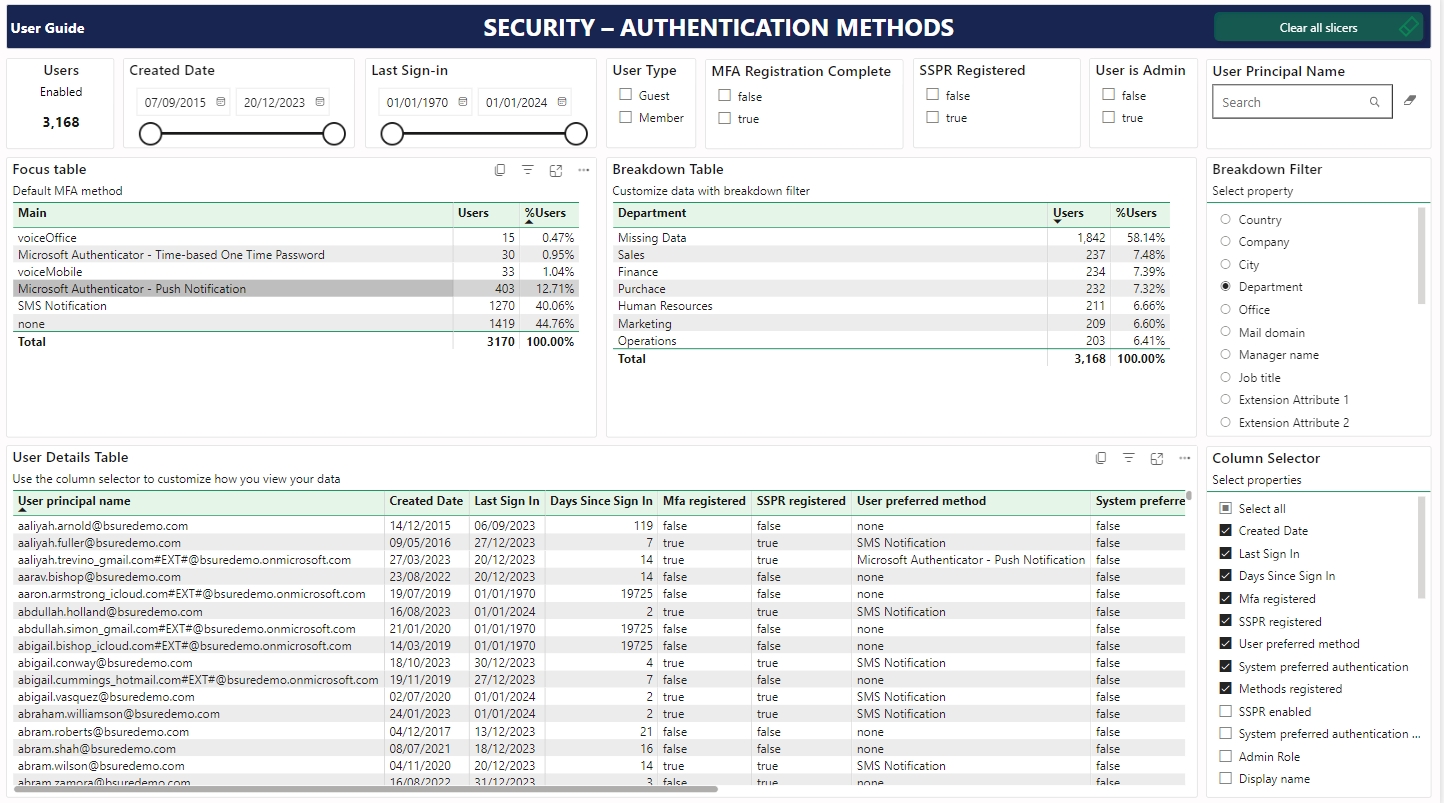
This report section will bring insights into Entra ID role assignments, status on MFA and sign-in related content, all in an identity related context
Disabled Devices: Devices disabled in Entra ID.
Without Owner: Devices with no registered owner.
Unsupported OS: Devices on an unsupported Windows version.
Without Owner: Outdated devices with no registered owner.
With Management: Active outdated devices enrolled in a management solution like Intune.
Without Management: Outdated devices not enrolled in a management solution like Intune.
Without Owner: Unmanaged devices with no registered owner.
Supported OS: Unmanaged devices on a supported Windows version.
Unsupported OS: Unmanaged devices on an unsupported Windows version.
Make sure to sign in with a user with Global Administrator role.
If prompted, select a subscription to run the cloud shell from
Right-click and paste the script in the shell window.
Copy the device code, go to the device login page and authenticate with your Global Administrator account.
Paste the device code and select Next.
Sign-in with your Global Administor account
Select Continue.
Close the windows/tab and return to the cloud shell.
Wait for the script to finish. You can watch the log output while it is running.
Go back to Bsure app configuration tab in your browser, and select Continue. (You can close the Azure Cloud Shell tab)
If prompted, sign in with your Global Administrator user.
Select Next step.
This will take up to 10 minutes - be patient...
When it is done, go to the application


Equipment - A user with a mailbox that represents a piece of equipment.
Others - A mailbox was found but the user purpose is not specified.
Unknown - User has no Exchange Online mailbox, or we were not able to read it.
Licenses combined
Responsibility for the existence of the user accounts in most organizations are unclear. Leveraging cloud software and services put pressure on your existing processes to avoid successful attacks and increasing software license cost. IT department might be responsible for some of the accounts but they can't be responsible for all these users.
To free up licenses and save cost you will have to remove licenses from the inactive users. To reduce security risk you will have to disable or delete the user object. This seems scary, but by planning well and follow these guidelines you will succeed.
Deleted users is easily recoverable, with all content, within 30 days.
If You want to explore the options to keep the user data, without licensing an inactive user account Microsoft has written a great article covering this topic: Delete a user, stop paying for their license, and choose what to do with their email and OneDrive content
"You need to break some eggs to make an omelette"
IT department should be in lead of a clean-up project removing these users, but feedback is needed from both HR department and each manager within the organization. Gartner have been talking about IT being a part of every department and function within an organization for years, and this goes for the ownership and responsibility for the identities within Microsoft Entra ID as well. Review your processes and ensure that governance of all identities are included.
All identities should have an owner, and the best way of doing that is to use the field manager for all member accounts, even for service accounts and resources like meeting rooms and shared mailboxes. Someone needs to be responsible for their existence and review if they're needed to optimize cost and reduce security risk.
Project is based on how to remove the most users as quickly as possible to reduce security risk, and not optimized for quick cost reduction.
Remove member accounts never used
Remove inactive or unwanted guest accounts
Remove unmanaged guests
Remove inactive guests
Remove guests from unwanted organizations/companies
Review and remove inactive member accounts
To identify these users in your current environment, use the report Bsure Insights - Users – Drilldown.
Set the latest created date 6 months back in time and tick the Never signed in slicer.
Export the list to excel clicking three dots in the top right corner of User Details Table and select Export data
Delete the users on-premises active directory or in the cloud/Entra ID based on where each user origins.
A guest account was created to give an external part access to some data in your environment. We find that many of these guest accounts is inactive and should be removed.
Private mail accounts such as hotmail and gmail is considered unmanaged and not to be trusted. Decide whether such users are acceptable within your environment.
To review these users, go to Bsure Insights - Users – Guests report and select Domain Type UnManaged:
Review the guest users in the user details table. You can filter further by identifying users that are inactive as well by using Created Date and Last Sign-in slicer or just use the preconfigured User State slicer to filter between Inactive (Not signed in last 90 days) and Active users
Export the list and bulk delete them from Entra ID.
Set Domain Type to Managed, User State to Inactive and Created Date 3 months back in time to identify guest users not in use:
Export the list and bulk delete the guest users.
Clear all filters in the top right corner of the report. Now it's time to do a quick review of the different companies having access to your environment by reviewing the mail domains in the Breakdown Table. If you find some organizations/companies that shouldn't be present in your environment, just click on that entry in the Breakdown Table, export result in User Details Table and bulk delete these users.
In step one you removed user accounts never been used. To delete user accounts that have been used and that most likely have data in their mailbox and in OneDrive is often a bit scary, but planning and involving the organization should reduce the risk of wrongdoing. And You will always have the option to recover the users with all content within 30 days of deletion. Microsoft has written a great article covering this topic: Delete a user, stop paying for their license, and choose what to do with their email and OneDrive content
Review inactive member accounts:
Go to Bsure Insights - Users - Drilldown report, select User Type - Member, Account - Enabled, latest Created Date to e.g. 3 months back and Last Sign-in to e.g. one year back. Set Breakdown Filter to Manager.
Export the list as summarized data to excel to get a spreadsheet with a live connection to the dataset.
Create new columns to get feedback from HR and/or Manager, share and distribute the spreadsheet.
Some organization chose to put some junior capacity in charge of fetching the information from the organization.
Delete the users based on the feedback from the organization.
You will most likely find many accounts with Missing Data as Manager. You need someone to find and set the responsible for these accounts.
Some of these accounts are most likely being used as shared mailboxes. If you migrated from an on-premises exchange environment into Exchange Online, shared mailboxes would appear as normal users and not converted to shared mailboxes with a corresponding disabled user account. If the mailbox is smaller than 50 GB you can remove the license from the disabled user account.
Finished? If that's the case, pet your own back and say well done :)
Guest accounts: Inactive guest accounts should be removed as a guest account with rights can be just as dangerous as a member of the company
Multi-factor Authentication: Users without multi factor authentication configured could be a security risk. What will happen if someone guess the correct password to one of these accounts? Break the glass accounts should also have a separate MFA method configured ref https://learn.microsoft.com/en-us/entra/identity/role-based-access-control/security-emergency-access.
Administrative privileges: Users with administrative privileges will provide you with information on active Entra ID roles assigned to users or applications
Service principals: Service Principals is often used when integrating third party solutions with Entra ID. They have an application id and a secret just as a member user have username and password. These Service Principals skips all security measures such as conditional access and the can be used from everywhere. Giving these "users" high permissions, such as read all mailboxes, create users and such means that you should monitor usage of these Service Principals. Where do the sign in from and did you know that these permissions was given the holder of the application id and the corresponding secret value? Consider adopting Microsoft best practice guidance
Simply a world map showing which countries your member users have successfully signed in from the last 14 days. Look at the map for unwanted sign-ins from specific countries such as i.e Russia or China


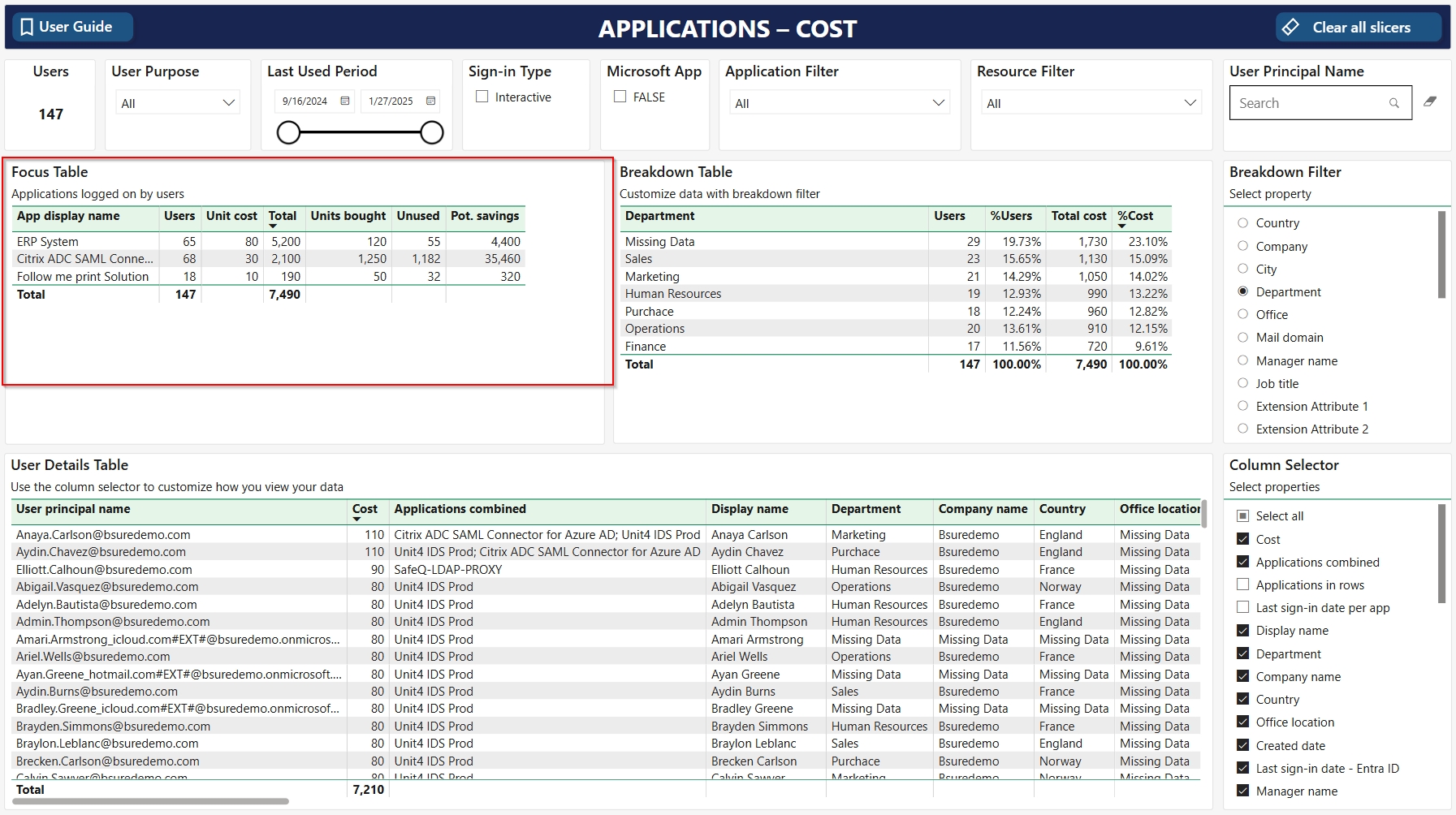
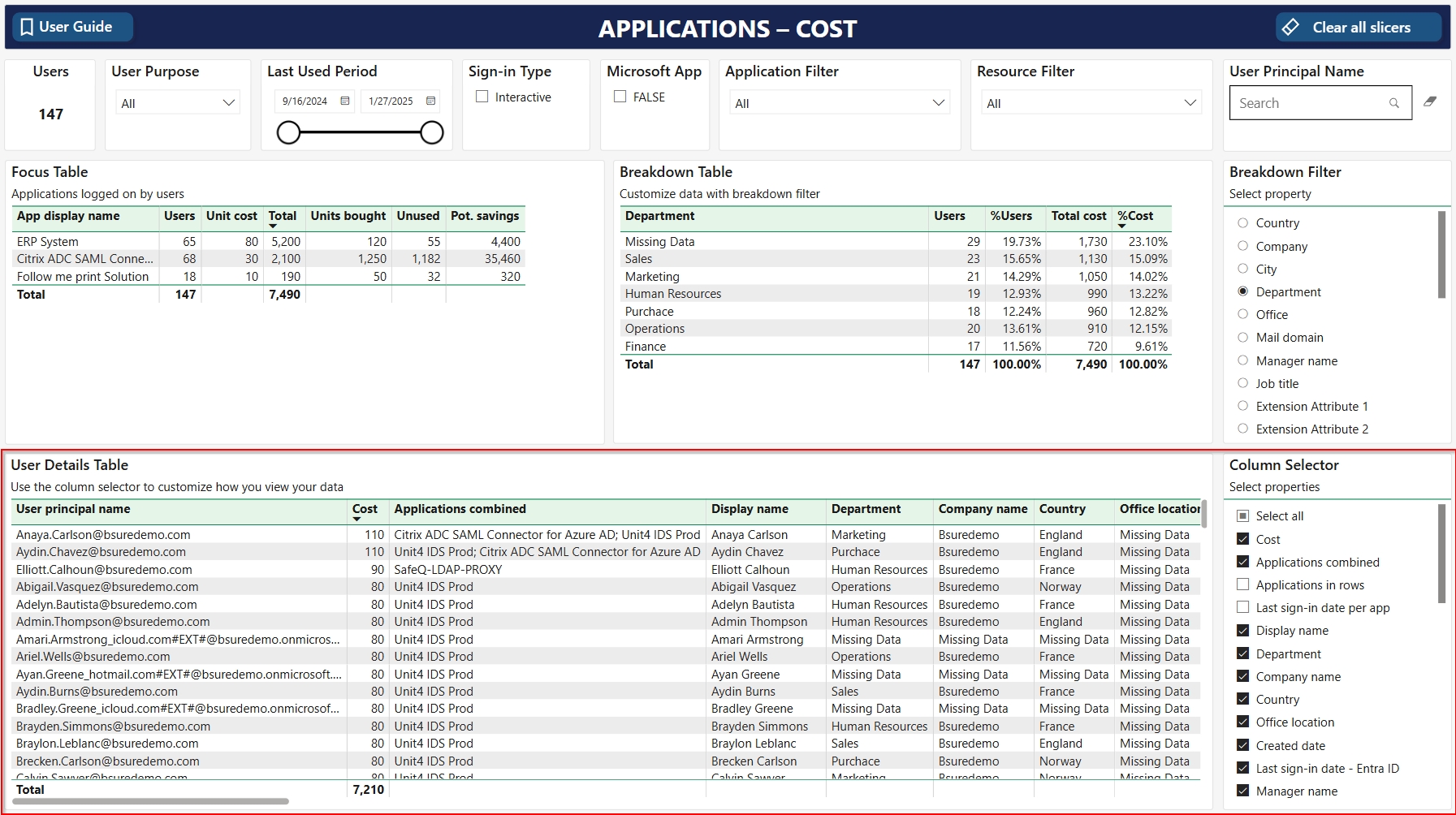
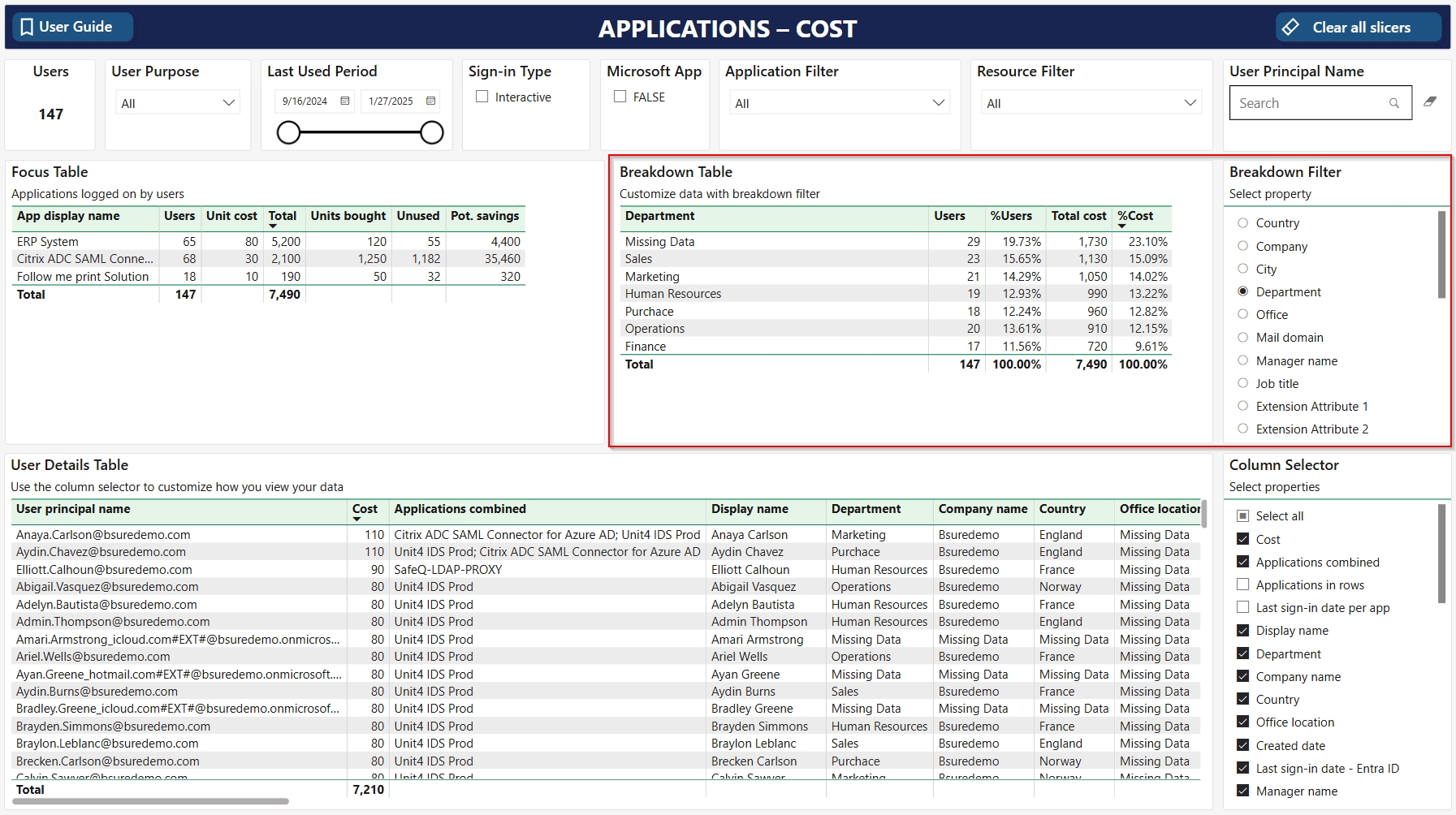
Reports on Devices from Entra ID
The Devices Reports section of Bsure Insights provides valuable insights into your organization's device ecosystem. The section revolves around devices registered with Microsoft Entra ID.
An Entra ID device is a physical or virtual endpoint - such as laptops, desktops, mobile phones, or tablets - that is registered or joined to your Entra ID tenant. These devices can be user-owned (registered) or organization-owned (joined, either Microsoft Entra joined or Microsoft Entra hybrid joined), and may be managed through solutions like Microsoft Intune, enabling secure access to corporate resources and enforcement of IT policies.
Microsoft documentation: What is a device identity?
All device data in the reports are collected from the Microsoft Graph endpoint.
In Microsoft Entra, this data is found in the view:
Currently, we do not collect data from Intune. Intune has its own Microsoft Graph endpoint, In the future we will use this endpoint to add more information about managed devices.
The properties we collect, and the name we use in reports
Review all privileged accounts and remove any unnecessary permissions
Most organizations assign the built-in Entra ID roles to users, groups and service principals to operate their environment. It is common that highly privileged roles with excessive permission levels are used for performing daily tasks.
Microsoft has made over 30 different built-in roles to give administrators just enough privileges to do their job, but most organizations have adopted just a few of them.
Users or service principals holding these roles are rarely reviewed and from a security perspective this is a huge problem. There are also some decisions to be made when it comes to how you distribute these roles and how you protect them.
Highly privileged roles should be assigned individual identities using and it is also a good practice to enforce for activating such roles.
These users should be cloud native and you should configure .
These features requires an Entra ID P2 license per user benefitting from PIM and Identity Protection.
All identities having privileged roles should be . Licensing these identities with access to services like Exchange Online or Teams should be avoided and handled with care.
Due to the nature of newer web browsers it is not recommended to use the same computer for administrative tasks as daily consumption of email and teams. Most web browsers have support for running several profiles running different user contexts. When clicking an external link you must avoid that the link starts in a browser signed in as an elevated user.
Considering implementing is a good idea to avoid usability of stolen credentials and unintentional behaviour like a click on an external link ending up in an elevated browser.
Personal user accounts:
Entra ID roles are often assigned to normal user accounts on a permanent basis, meaning that if a user falls for a phishing attack or clicks on a malicious link in teams or email the result could be catastrophic. Users change roles over time and if a user needed Sharepoint Administrator role years ago we find that most organizations don’t have good routines in removing this access when no longer needed. If you enforce proper security measures on these "admin" users to protect Entra ID, usability on these accounts would be limited.
Personal administrator accounts:
It is considered better to use separate dedicated personal administrator accounts to operate the environment. But technicians could still end up clicking a link ending up in the web browser that holds privileged permissions. These administrator accounts also tend to be unmanaged, and based on our experience, it’s normal to find several accounts not registered MFA or not been used for a very long time with permanent assigned privileged roles. It is also considered a security risk to license these accounts to Exchange and/or Teams. The requirement of in combination with the usage of should be the minimum requirement for such users.
Guest accounts:
Even guest accounts can be assigned these roles, but these accounts are, in most organizations, unmanaged. If you assign permissions to a guest account, you automatically trust the organization, from where the account resides, to have very good on- and off-boarding routines and you trust their security setup. We’ve had several major incidents in Norway where guest accounts were compromised and resulted in organizations being attacked.
If You decide to assign Entra ID roles to guest accounts, you must use and set the eligibility to each role to expire in the very near future. It could also be a good idea to require an before elevating the guest user.
Groups:
Assigning roles to groups is also a common way of distributing permissions. It is an easy way of distributing permissions, but it is harder to figure out which user has which role and there is some downsides, like the possibility for self elevation from lower permissions and running automated access reviews on Entra ID roles. If you still want to use groups please read and follow best practices from Microsoft:
You should also carefully review membership in these groups on a schedule. is a great way to review membership in such groups.
If You still want to use groups for eligible role assignments, you should require additional on highly privileged roles.
Service principals:
It is common to use SaaS solutions and integrate them into your environment. Migration tools, backup tools and normal production software often need some sort of access into your environment to function properly. Very often providers of such software ask for way more permissions than they need. We’ve seen follow me print solutions holding SharePoint administrator role and systems controlling meeting room panels holding full access permissions to all mailboxes within organizations. If the application provider gets a security breach, how exposed are you, since the attacker then will have access to your environment with the permissions given the application?
As a side comment it is also important to evaluate from where these service principals sign in in from. If you gave an application provider a service principal to consume your data, you should evaluate from where the application is processing your data. Is your data protection officer informed?
Review your current environment by using the
Remove roles and permissions from users, groups and service principals not needing them.
Ensure that all accounts holding such permissions are protected with or ensure to protect them with conditional access policies ensuring that they can only be used from a specific ip or other measures that decreases usability of the account.
Ensure that all privileged accounts holds an Entra ID P2 license and configure to get these features:
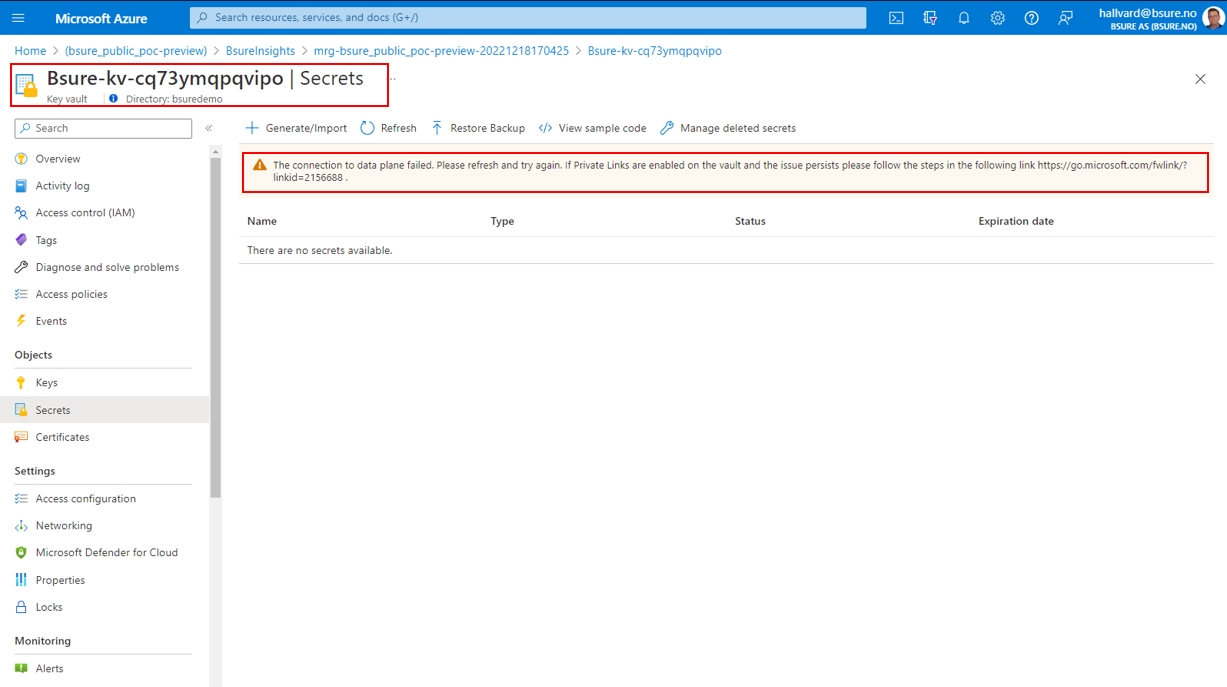
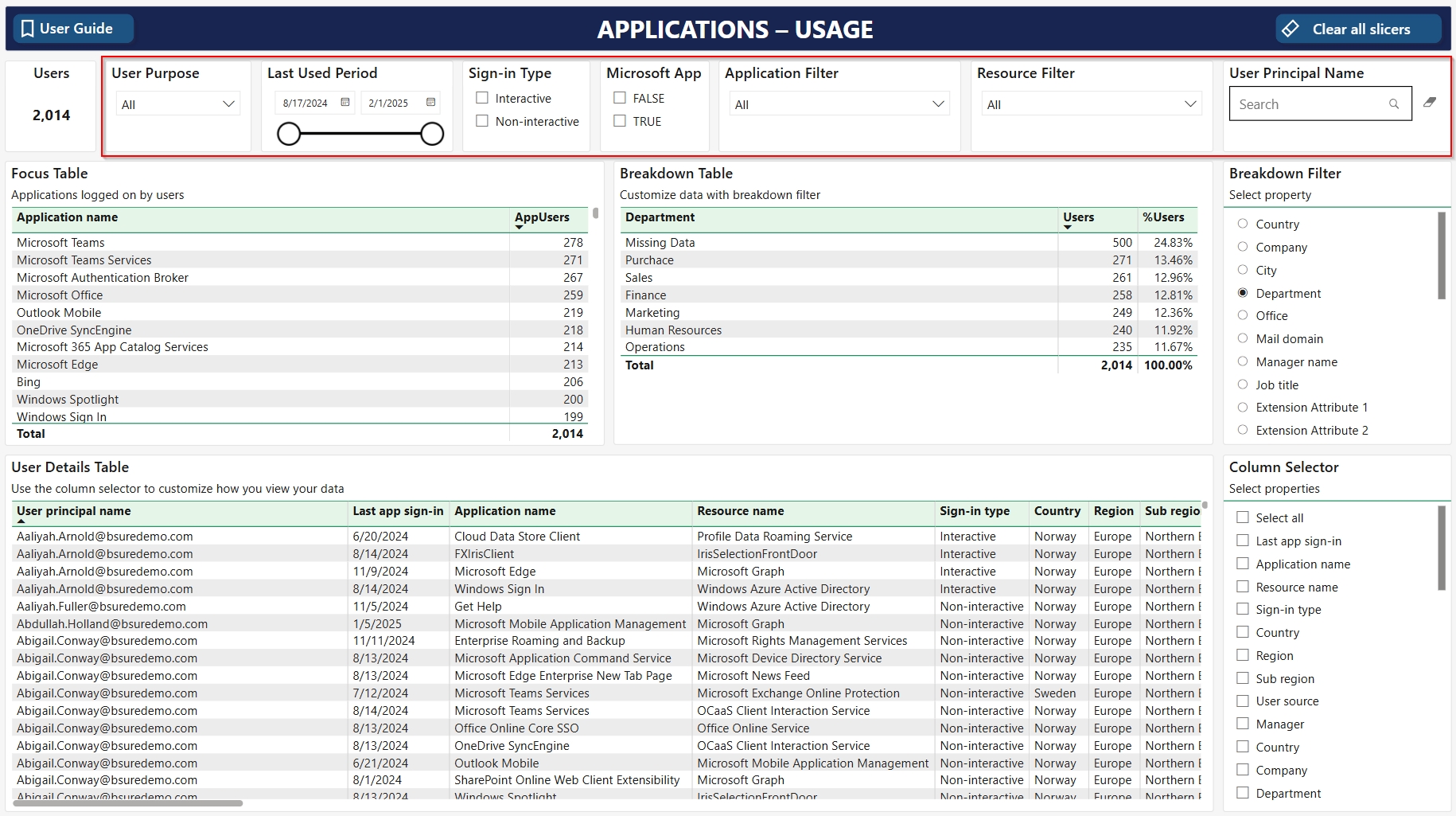
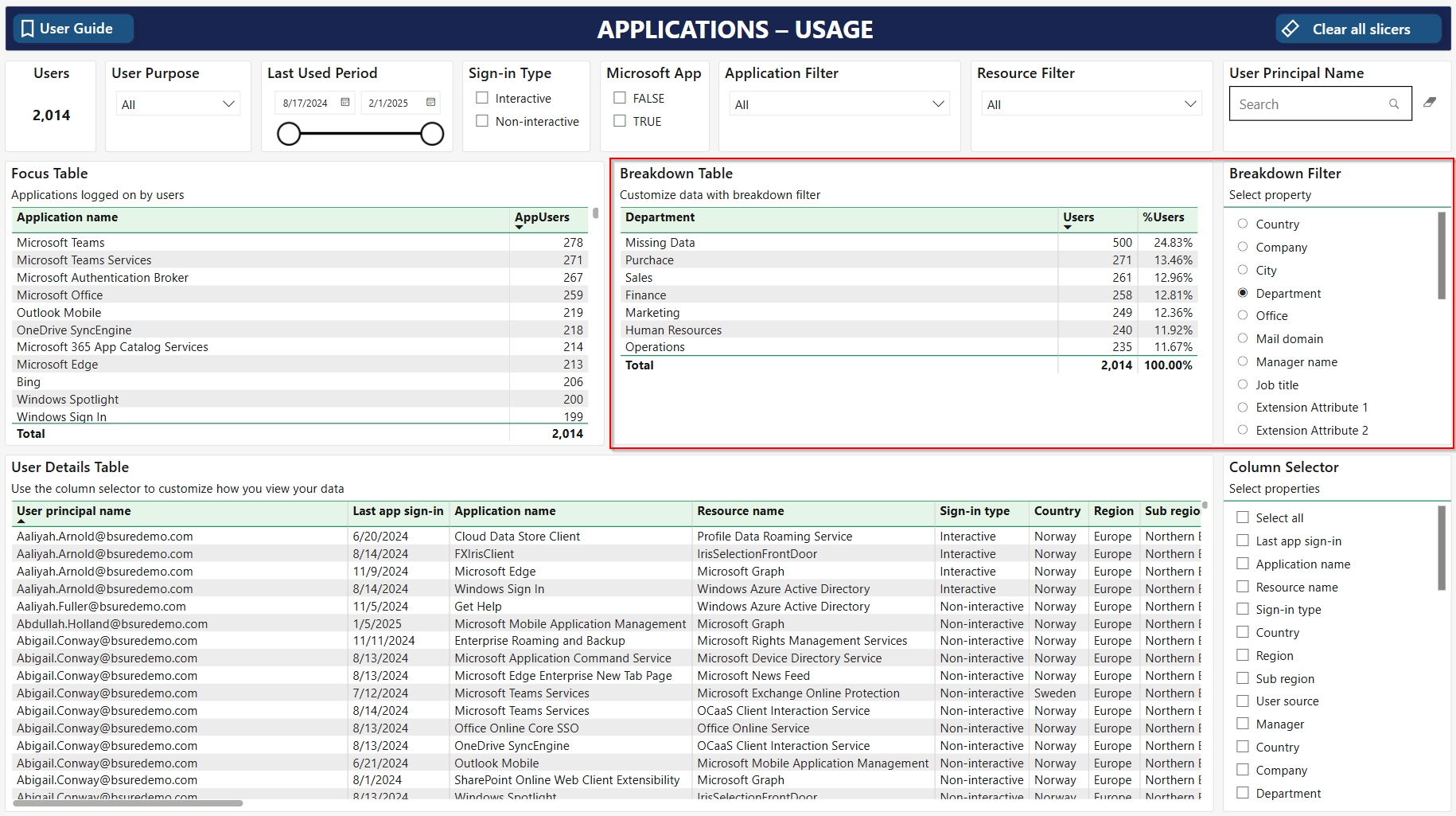
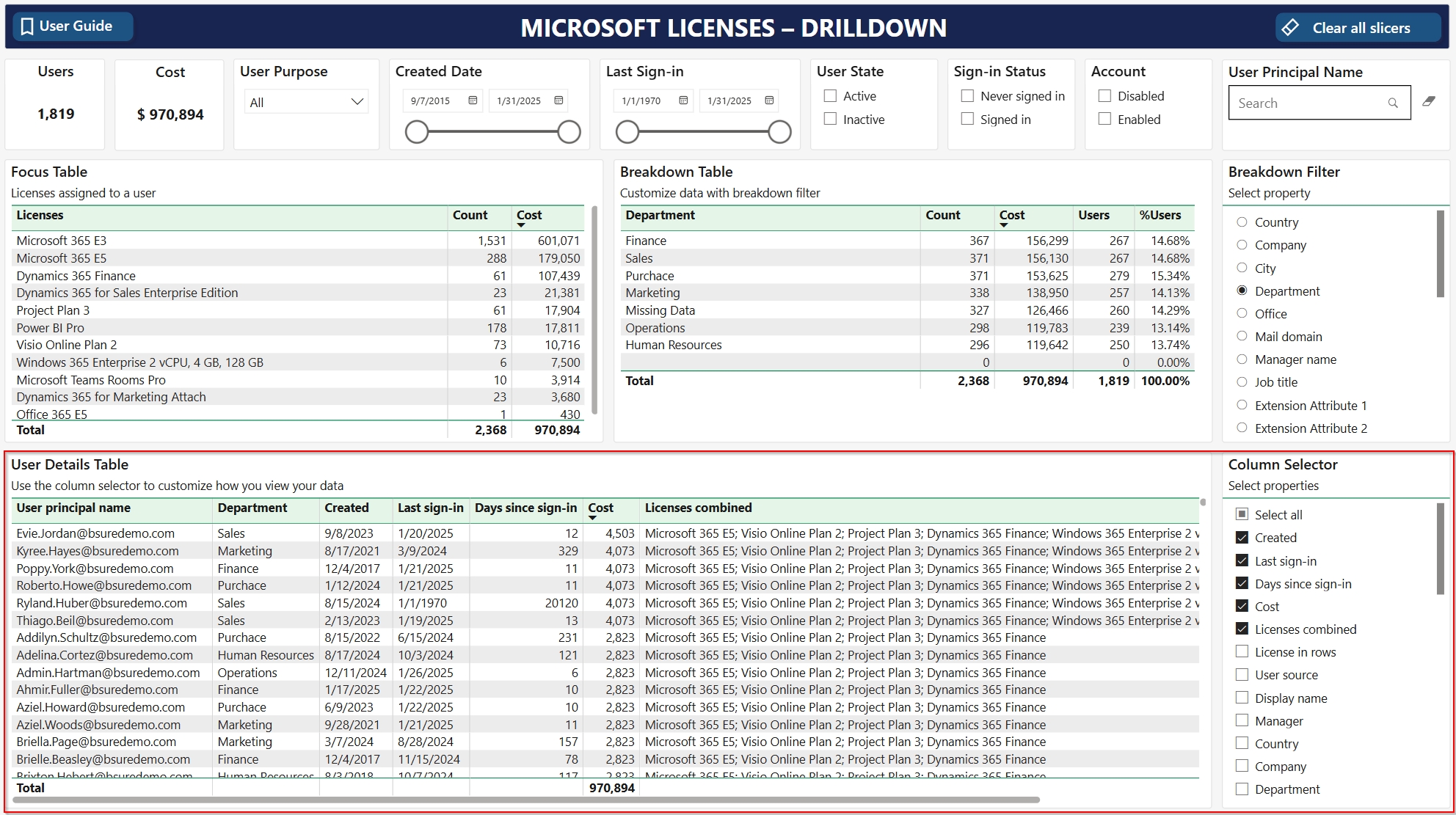
Provide just-in-time privileged access to Microsoft Entra ID and Azure resources
Assign time-bound access to resources using start and end dates
Require approval to activate privileged roles
Enforce multifactor authentication to activate any role
Use justification to understand why users activate
Get notifications when privileged roles are activated
Conduct access reviews to ensure users still need roles
Download audit history for internal or external audit
Prevents removal of the last active Global Administrator and Privileged Role Administrator role assignments
Review your current strategy on how you assign roles and permissions to your users:
Ensure separate administrative accounts to operate your environment
Don’t give privileged access to guest accounts unless you have proper governance on such users or set a short timeframe for the eligible role access
Only use groups for lower privileged roles, and if you use groups, you should create an access review policy on them.
Consider protecting usage of users with privileged roles by leveraging a Privileged Access Workstation and configure conditional access to only allow sign-ins from that device. This could be a virtual machine in Azure or a Windows 365 device


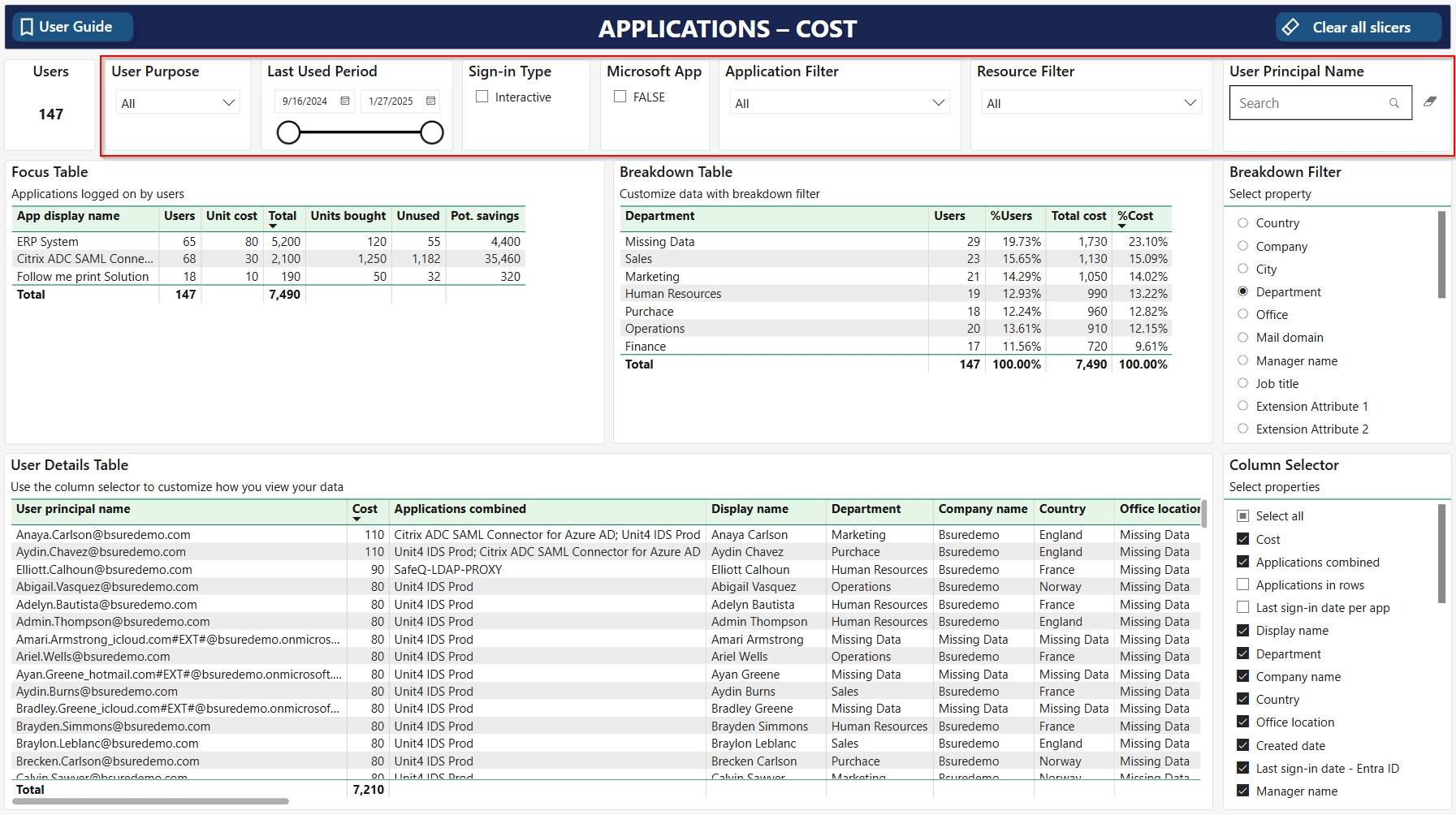
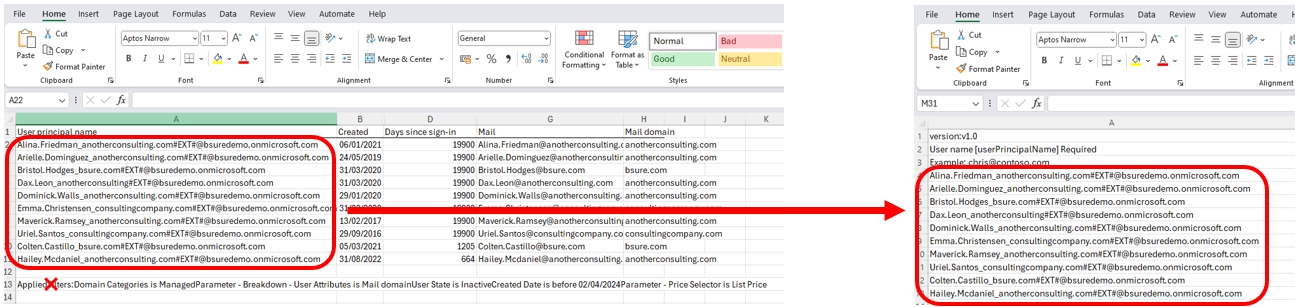
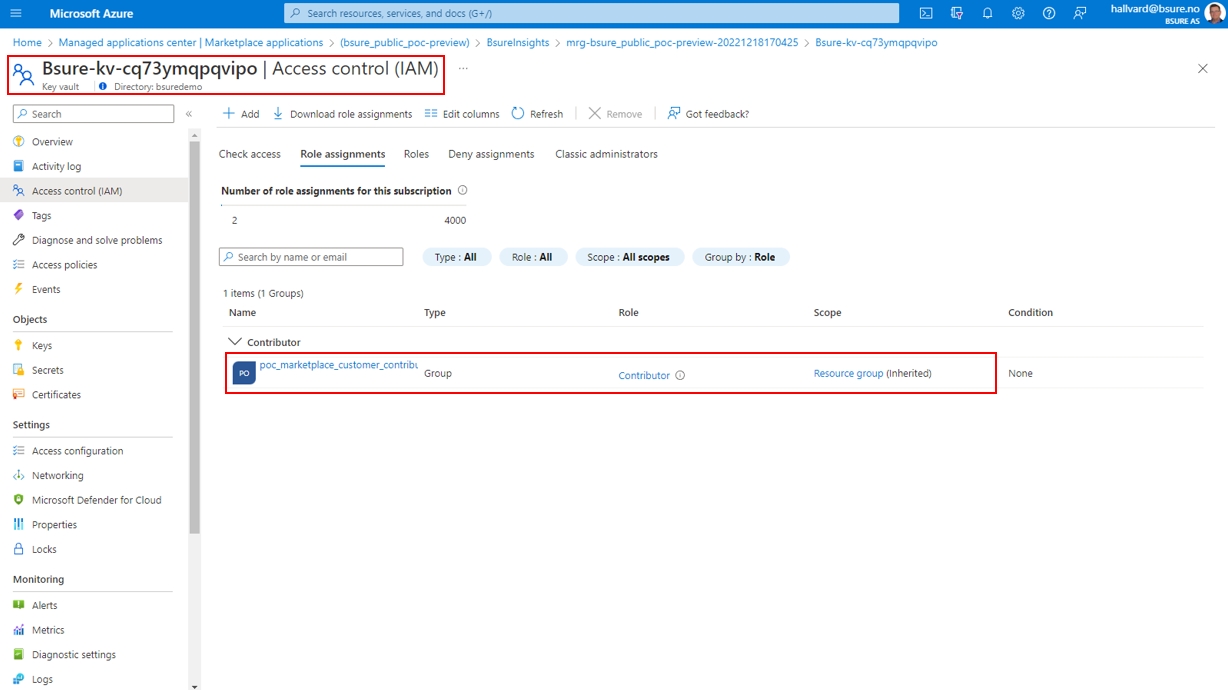
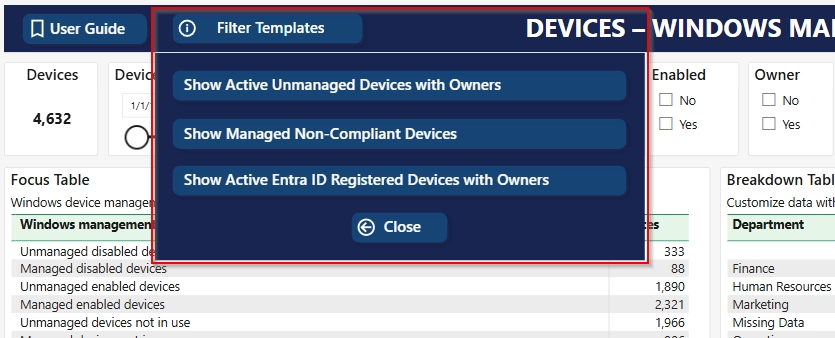
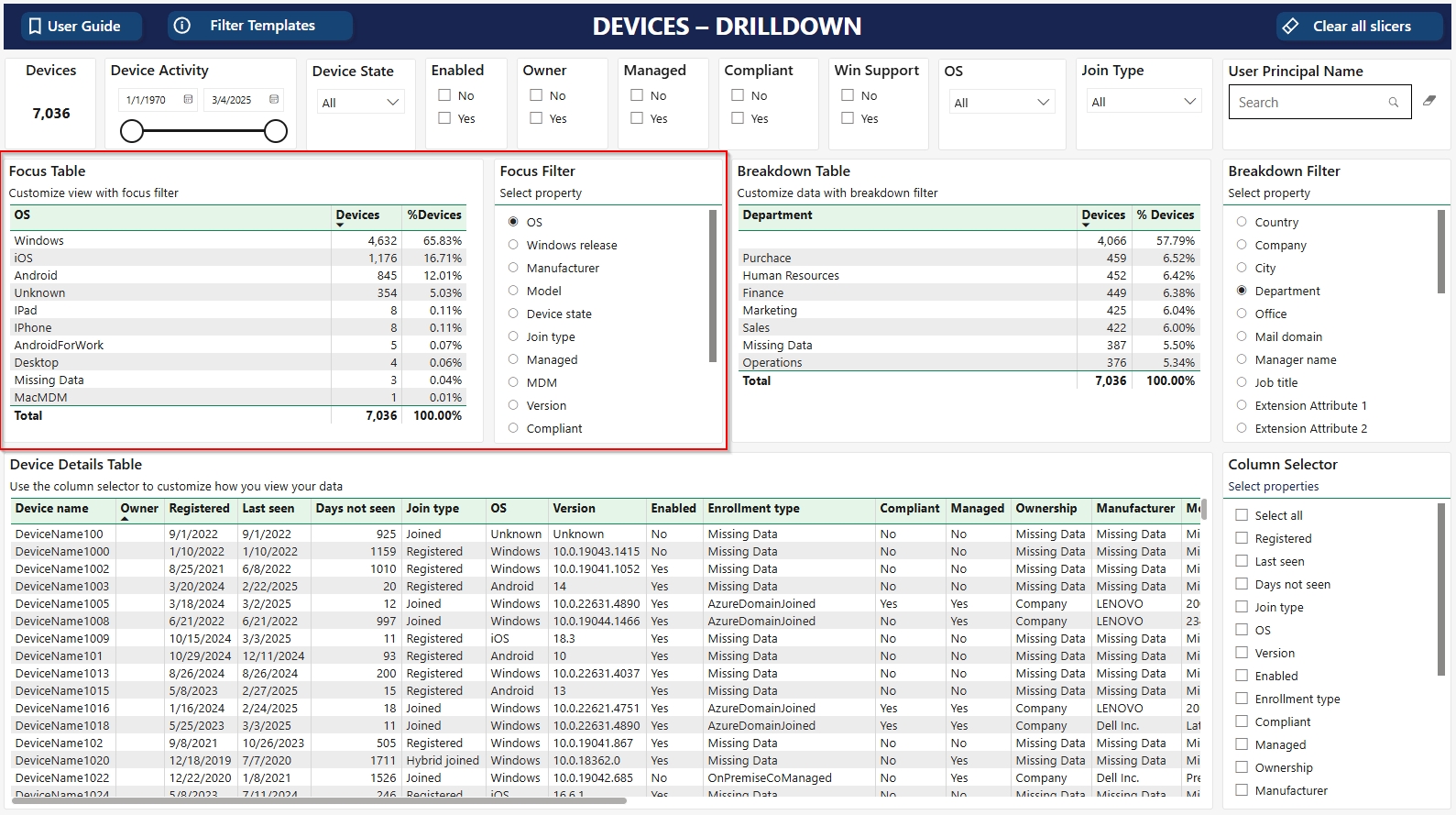
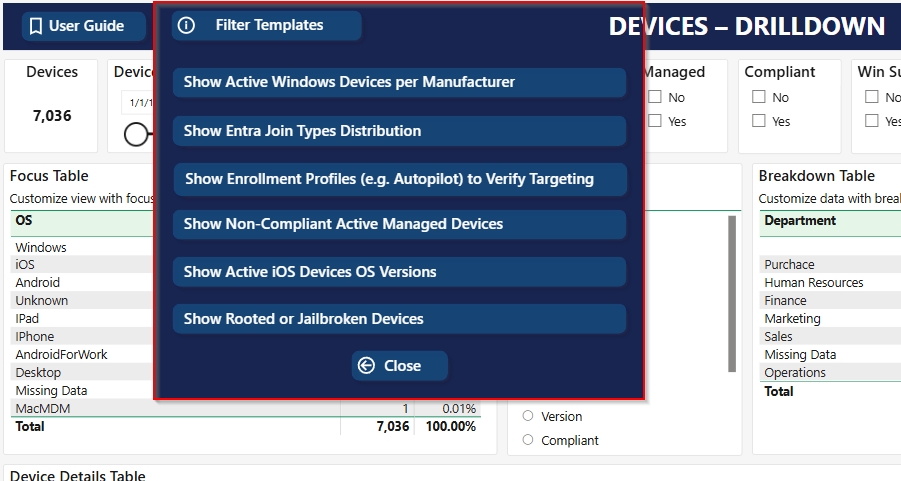
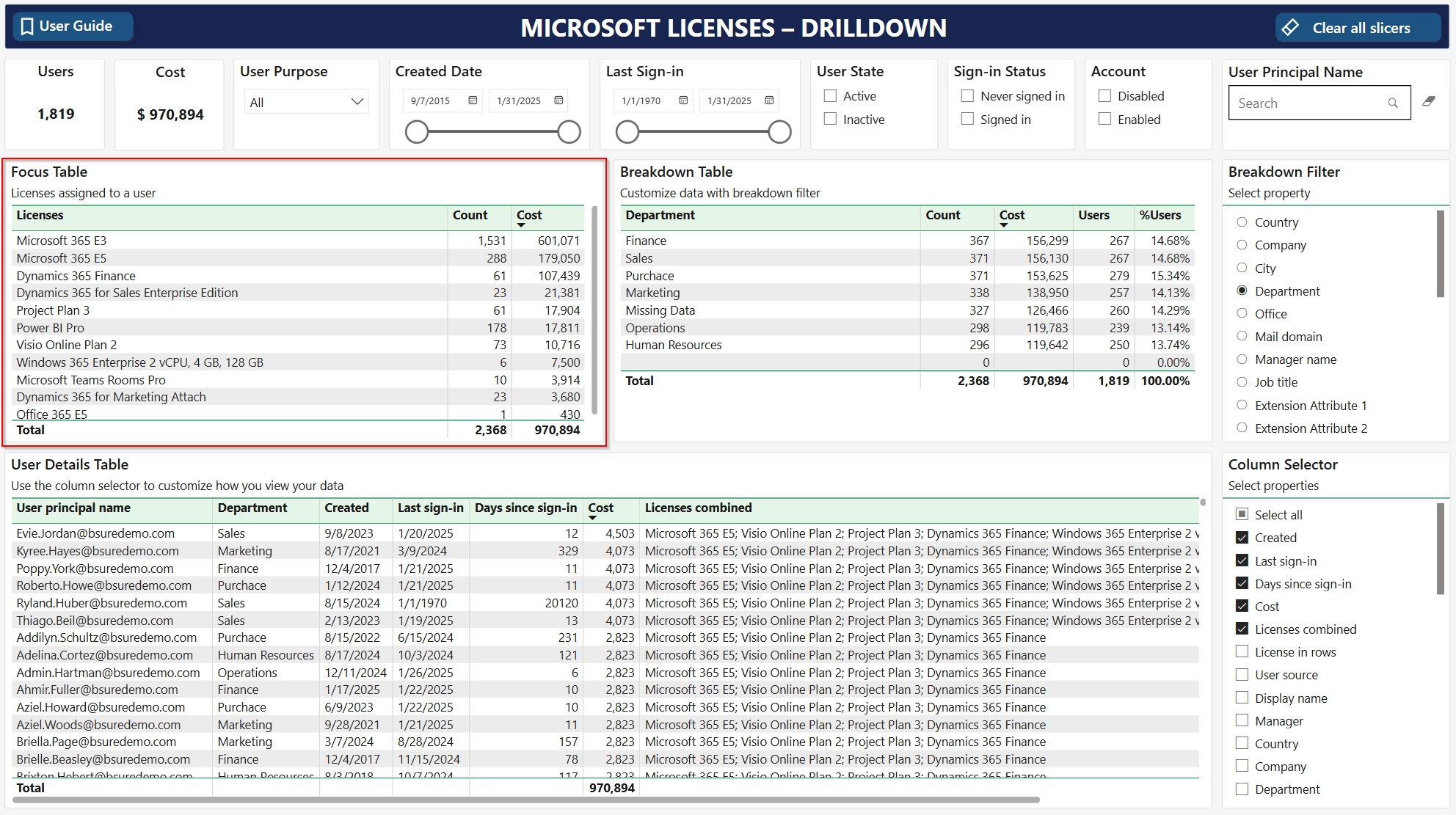
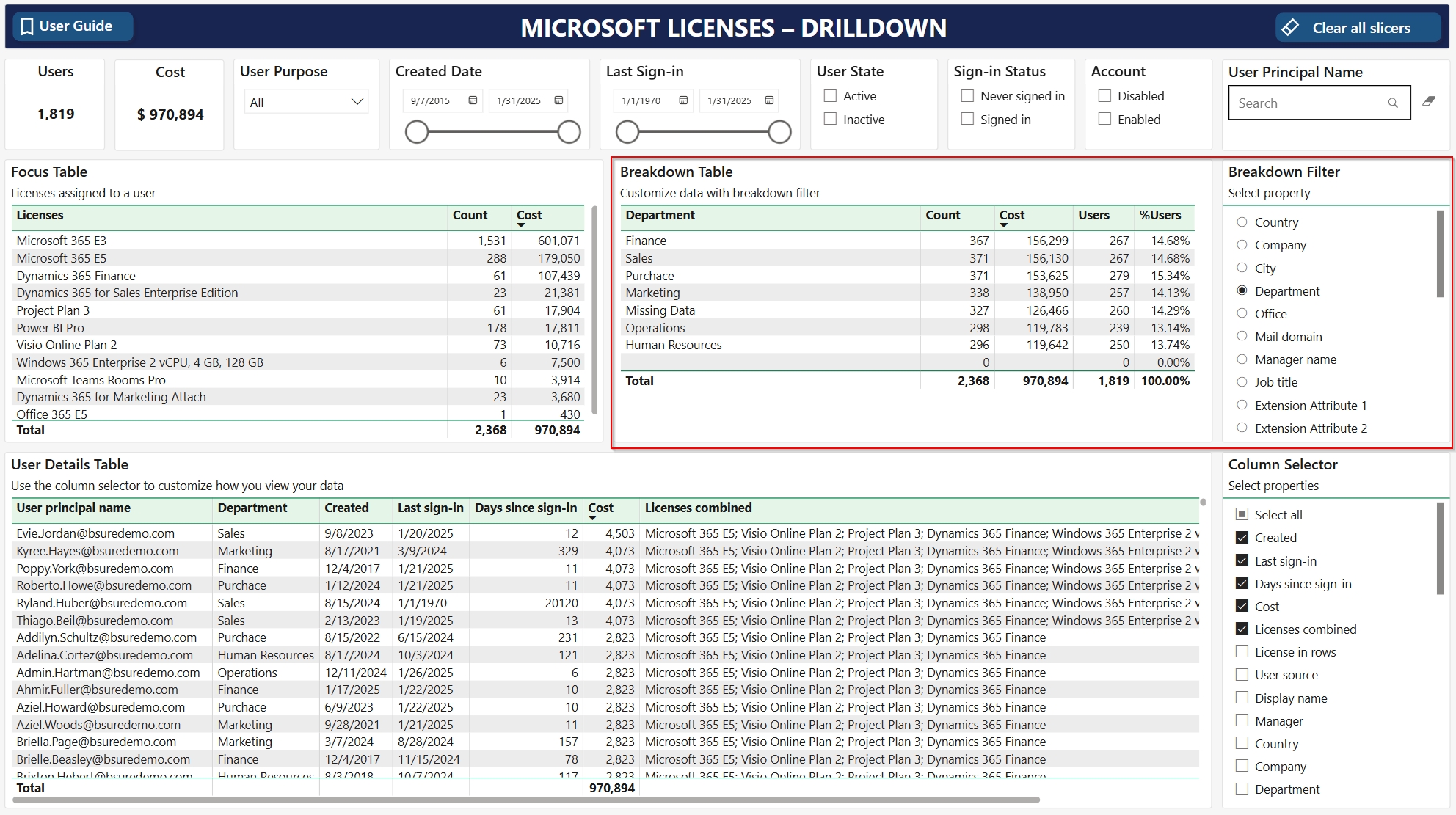
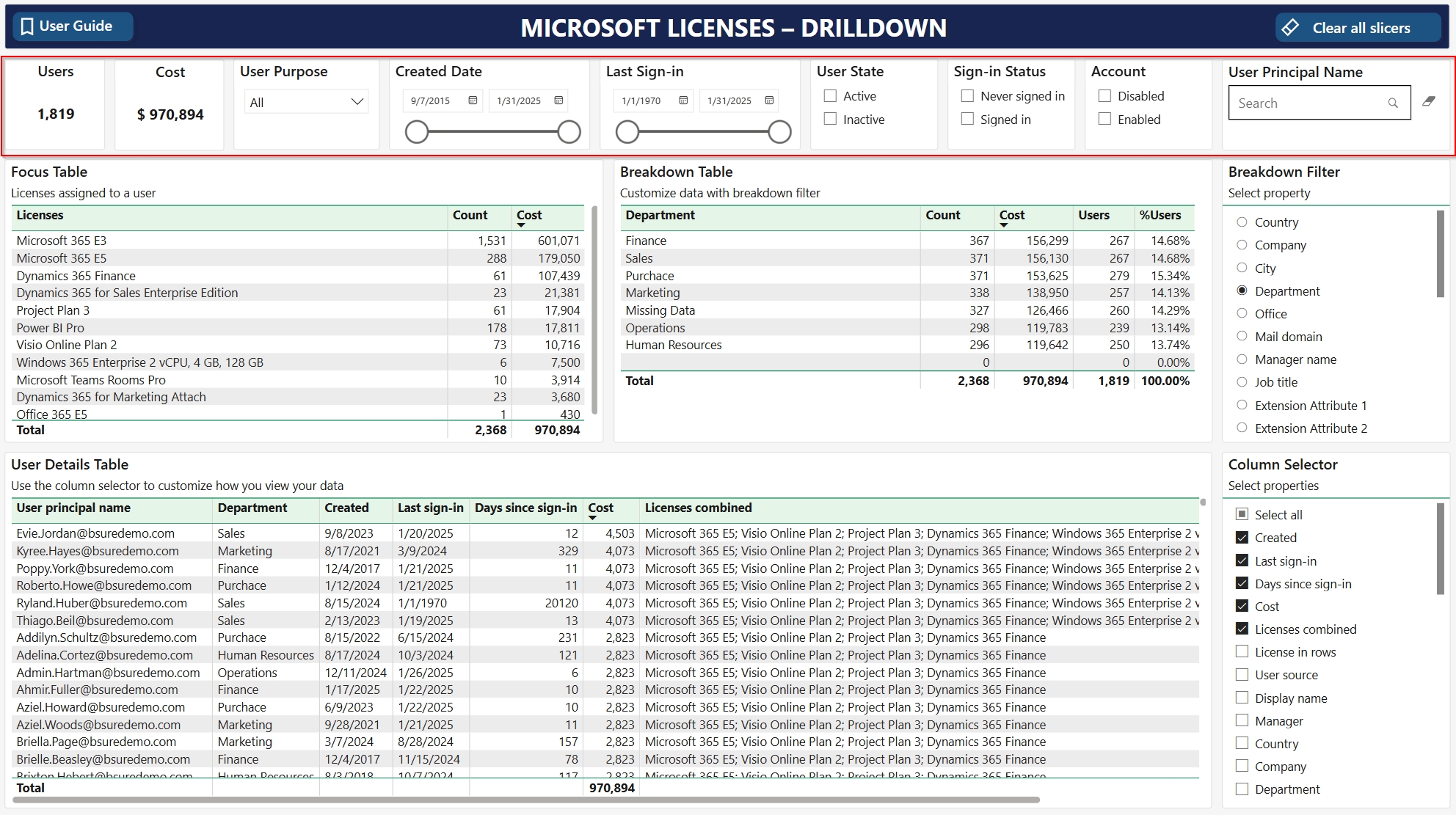
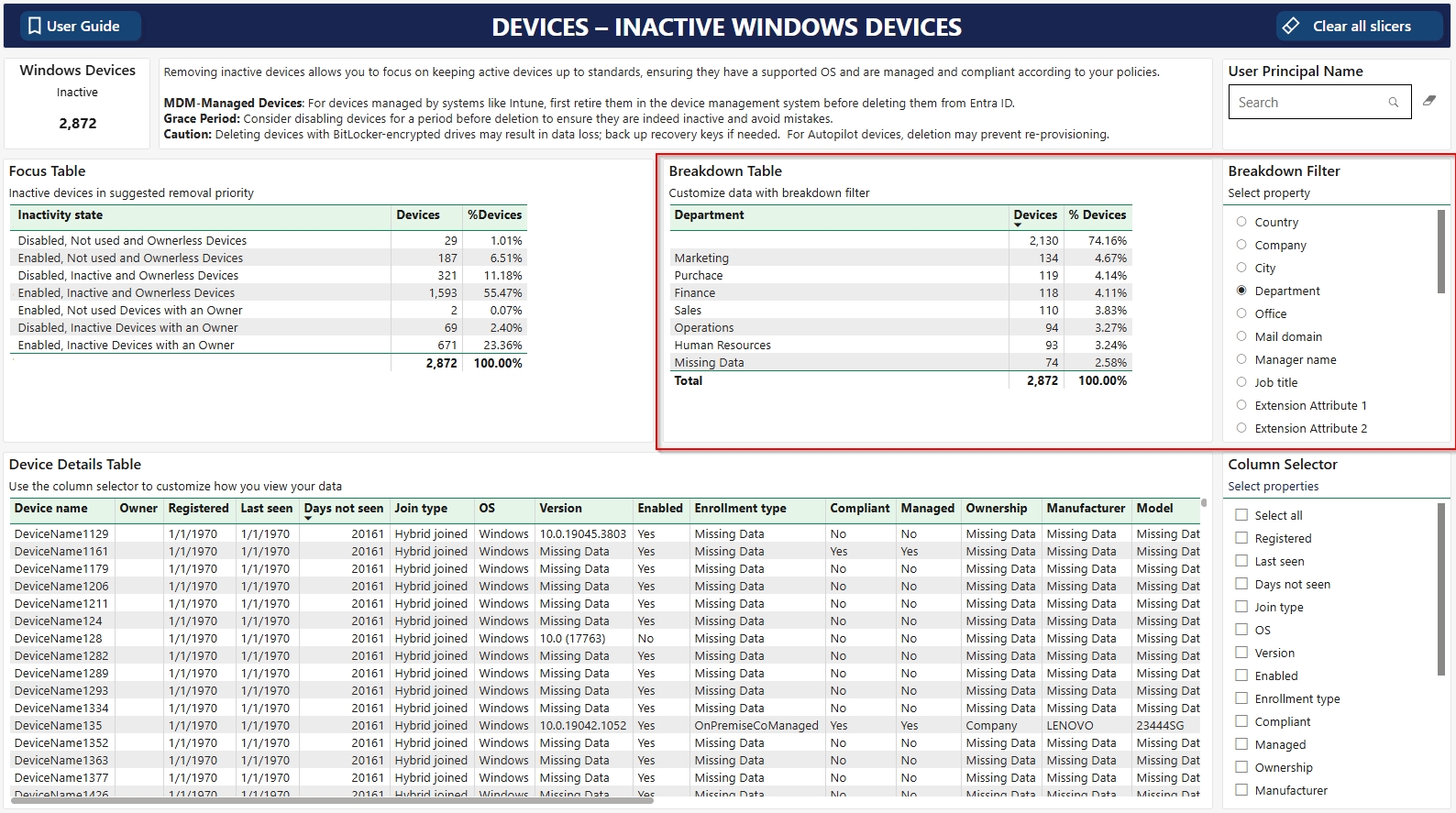
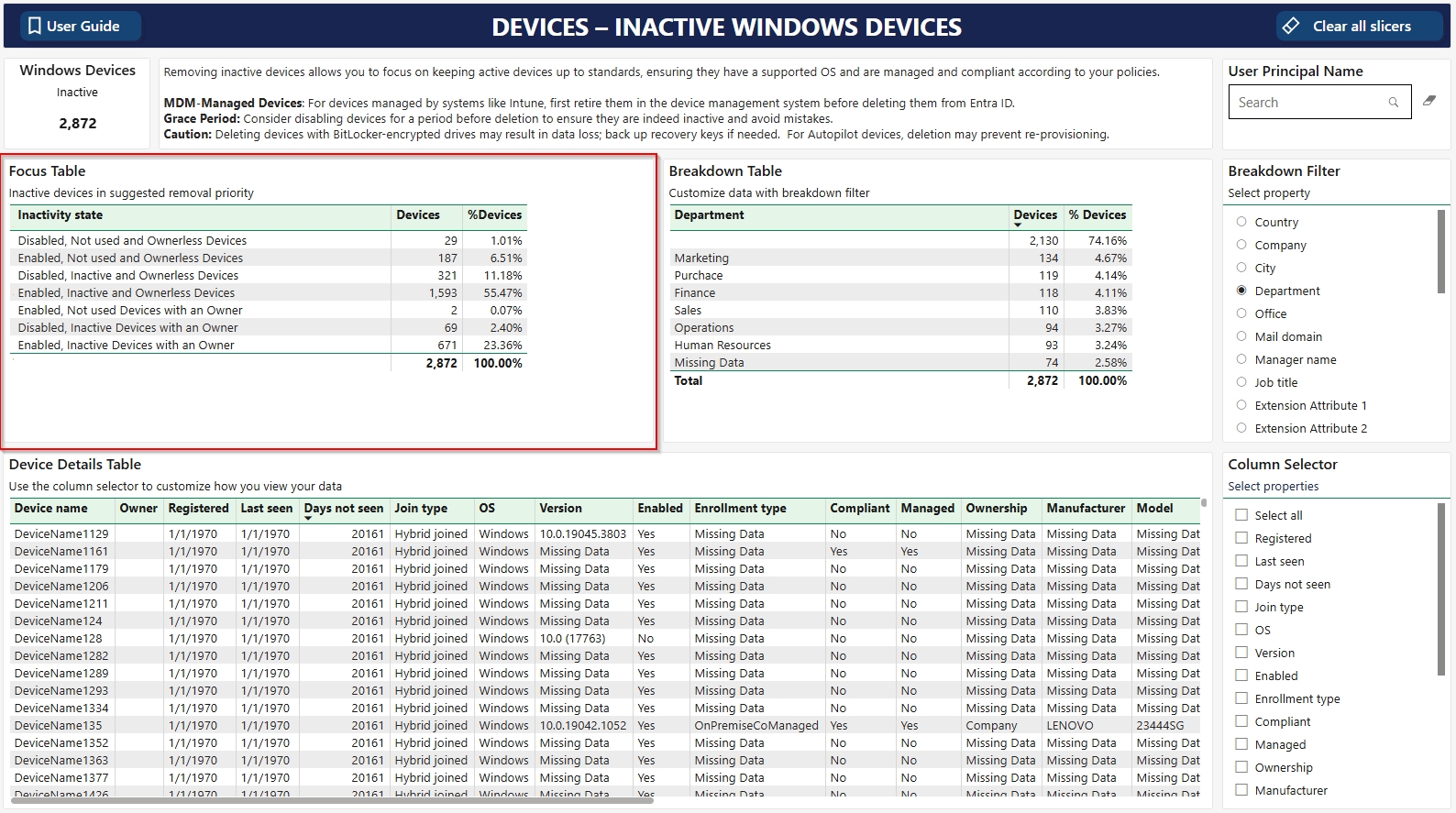
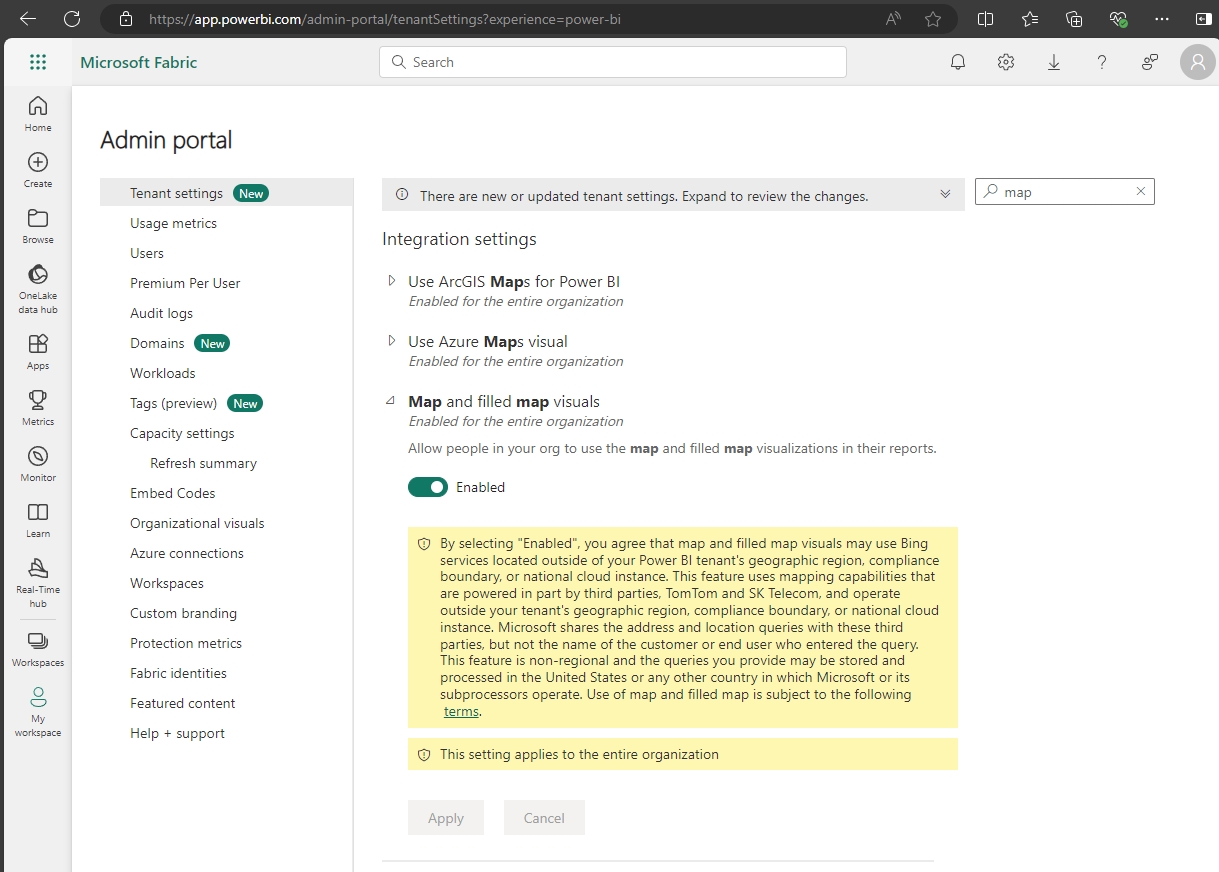
Days Not Seen
Calculated as the difference between the current date and the approximateLastSignInDateTime.
Join Type
trustType
Type of trust for the joined device. Possible values: Registered, Joined, Hybrid joined
OS
operatingSystem
The type of operating system on the device.
Version
operatingSystemVersion
The version of the operating system on the device.
Enabled
accountEnabled
True if the account is enabled; otherwise, false.
Enrollment Type
enrollmentType
Enrollment type of the device. Intune sets this property. Possible values are: unknown, userEnrollment, deviceEnrollmentManager, appleBulkWithUser, appleBulkWithoutUser, windowsAzureADJoin, windowsBulkUserless, windowsAutoEnrollment, windowsBulkAzureDomainJoin, windowsCoManagement, windowsAzureADJoinUsingDeviceAuth, appleUserEnrollment, appleUserEnrollmentWithServiceAccount. Note: This property might return other values apart from those listed.
Compliant
isCompliant
True if the device complies with Mobile Device Management (MDM) policies; otherwise, false.
Managed
isManaged
True if the device is managed by a Mobile Device Management (MDM) app; otherwise, false.
Ownership
deviceOwnership
Ownership of the device. Intune sets this property. Possible values are: unknown, company, personal.
Manufacturer
manufacturer
Manufacturer of the device.
Model
model
Model of the device.
MDM
managementType
The management channel of the device. This property is set by Intune. Possible values are: eas, mdm, easMdm, intuneClient, easIntuneClient, configurationManagerClient, configurationManagerClientMdm, configurationManagerClientMdmEas, unknown, jamf, googleCloudDevicePolicyController.
Enrollment Profile
enrollmentProfileName
Enrollment profile applied to the device. For example, Apple Device Enrollment Profile, Device enrollment - Corporate device identifiers, or Windows Autopilot profile name. This property is set by Intune.
Device Status
This is determined based on approximateLastSignInDateTime. A device is considered "Inactive" if it has not been seen 90 days.
Rooted
isRooted
True if the device is rooted or jail-broken; otherwise, false.
Windows Support
This is determined by comparing the operatingSystemVersion to Microsoft’s official Windows support lifecycle data. A device is marked as "Supported" or "Unsupported" based on whether its version is still within Microsoft’s support period.
Windows Release
This is extracted from the operatingSystemVersion to identify the specific Windows release for better categorization.
Windows Build
This is extracted from the operatingSystemVersion to display the specific build number of the Windows operating system
End of Life
This is determined by comparing the operatingSystemVersion to Microsoft’s end-of-life support dates. It indicates whether the device’s OS version has reached or passed its end-of-support date.
Windows Type
This is inferred from the operatingSystemVersion and other properties to categorize the Windows edition (e.g. Windows 10, Windows 11)
Device Name
displayName
The display name for the device.
Owner
registeredOwners
The users or service principals that are registered as owners of the device.
Registered
registrationDateTime
Date and time of when the device was registered.
Last Seen
approximateLastSignInDateTime
The timestamp representing the last time the device signed in.
"Entra ID Roles" are predefined sets of permissions and responsibilities assigned to users within the Entra ID system. These roles help control and manage access, security, and functionality for individuals or groups based on their specific needs and responsibilities. Read more about
Guests
An Entra ID Guest user account is an account that is invited to your Entra ID from another identity catalogue. It can be assigned access and permissions to almost anything in you Entra ID tenant.
Inactive users
Defined as a user that hasn't signed in or consumed data in your environment last 90 days (Not Active)
Interactive sign-ins
"Entra ID " refer to a feature or process within the Entra ID system that involves active user interaction during the sign-in or authentication process. This interaction may include responding to prompts, providing additional verification, or engaging with the system in a dynamic way to enhance security and user identification.
Last sign-in
Last sign-in is defined as the date of the user's most recent successful interactive or non-interactive sign-in. It is the property from Entra ID.
In Entra ID you will see date and time for "Last interactive sign-in" and "Last non-interactive sign-in", but these dates represent the latest sign-in attempt regardless if it was successful or not. An unsuccessful user sign-in from a browser in e.g. a conditional access blocked country would update the "Last interactive sign-in" on that specific user. In Bsure Insights we set January 1. 1970 as sign-in date if Microsoft graph returns a blank value for the property .
According to Microsoft they started populating this field December 1. 2023, but it seems like was populated from .
It is not possible fetching a successful "last sign-in" date from Entra ID for users not signed in since then. In Bsure Insights these users will have a blank Last sign-in.
Members
Entra ID Member accounts is all user accounts controlled and owned by your Entra ID. Your internal users
Missing licenses
It is possible to end up in an situation where you have assigned more licenses than you've bought. Unassigned licenses will then show a negative value
Multi-Factor Authentication (MFA)
2-step verification or Multi factor authentication means that in addition to provide username and password you need to verify that you are signing in with providing more information. The three most common kinds of factors are: - Something you know - Like a password, or a memorized PIN. - Something you have - Like a smartphone, or a secure USB key. - Something you are - Like a fingerprint, or facial recognition.
Non-interactive sign-in
A is when an app or a solution signs in on your behalf. Eg. your mail client on your phone
Overlapping licenses
Overlapping license is when a user have 2 licenses assigned that overlaps in functionality. Eg, Microsoft 365 E5 and Microsoft 365 E3 has overlapping capabilities. Microsoft 365 E5 have all the functionality that Microsoft 365 E3 has and you could remove one of these licenses without affecting end-user experience
Suspended licenses
Suspended license is a license that you once had, but you didn't renew the subscription. You don't pay for licenses from a suspended subscription.
Unassigned licenses
If You buy 100 licenses and assign only 70 of them to your end-users, you will have 30 unassigned licenses
User licenses
User licenses is a license that must be assigned to a user account. Eg. Power BI Pro and Microsoft 365 E3.
User principal name
User name used to sign in to Entra ID to consume applications and data. Same format as e-mail address.
User State/Status
We divided users into 3 categories: - Disabled (all disabled accounts regardless of when the user was in use) - Active (Enabled user and last sign-in within last 90 days) - Inactive (Enabled user with last sign-in more than 90 days ago)
Potential Monthly Cost Savings
Sum of license cost where licenses are assigned to disabled or inactive users and unassigned licenses
Potential Savings
Potential monthly cost savings divided by total license cost shown in percent
Average Cost
Total assigned license cost, regardless of user state divided on number of licensed users
Monthly user licenses overuse value
If number of assigned licenses exceeds the amount of bought licenses per license we call the cost of the exceeded amount overuse value. Happens if you buy a new number of licenses on renewal date that is less than the number of licenses assigned to users.
User source
A user attribute stating if the user is on-premises synced or not.
If a user originates in a an on-premises active directory and are synced to Entra ID using Entra ID Connect (formerly known as dirsync or aad connect) field will display "On-premises synced".
If the user was created directly in Entra ID the field will show Cloud
Important to know when you want to make changes to user objects. To change manager or other user attributes such as company etc you will have to modify them in the catalogue service displayed as user source
Billed users
All licensed users, except users with an assigned student license A student license contains the fraise Student in the license name, eg Microsoft 365 A3 for students
Active users
User objects (members or guests) in Entra ID with last interactive sign-in or last non-interactive sign-in within last 90 days.
Administrative priveleges
Entra ID Roles that gives a user (guest or member) more permissions in Entra ID
Company licenses
Company specific licenses is not related to any specific users. Eg. extra sharepoint storage
Conditional Access
Conditional access refers to a security approach in which access to a system or data is granted or denied based on specific conditions, such as user identity, device health, or location etc to enhance cybersecurity
Entra ID Roles
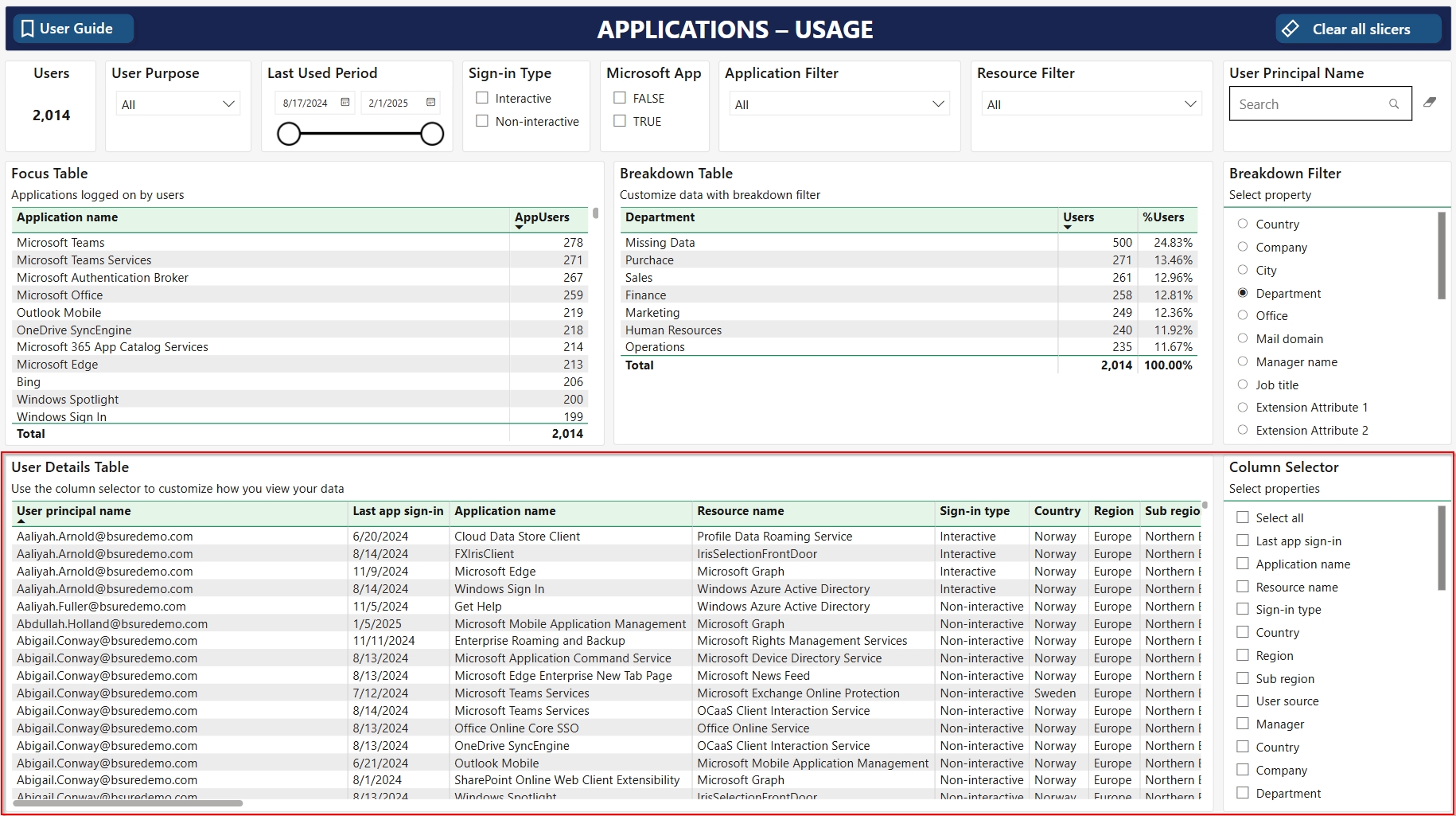
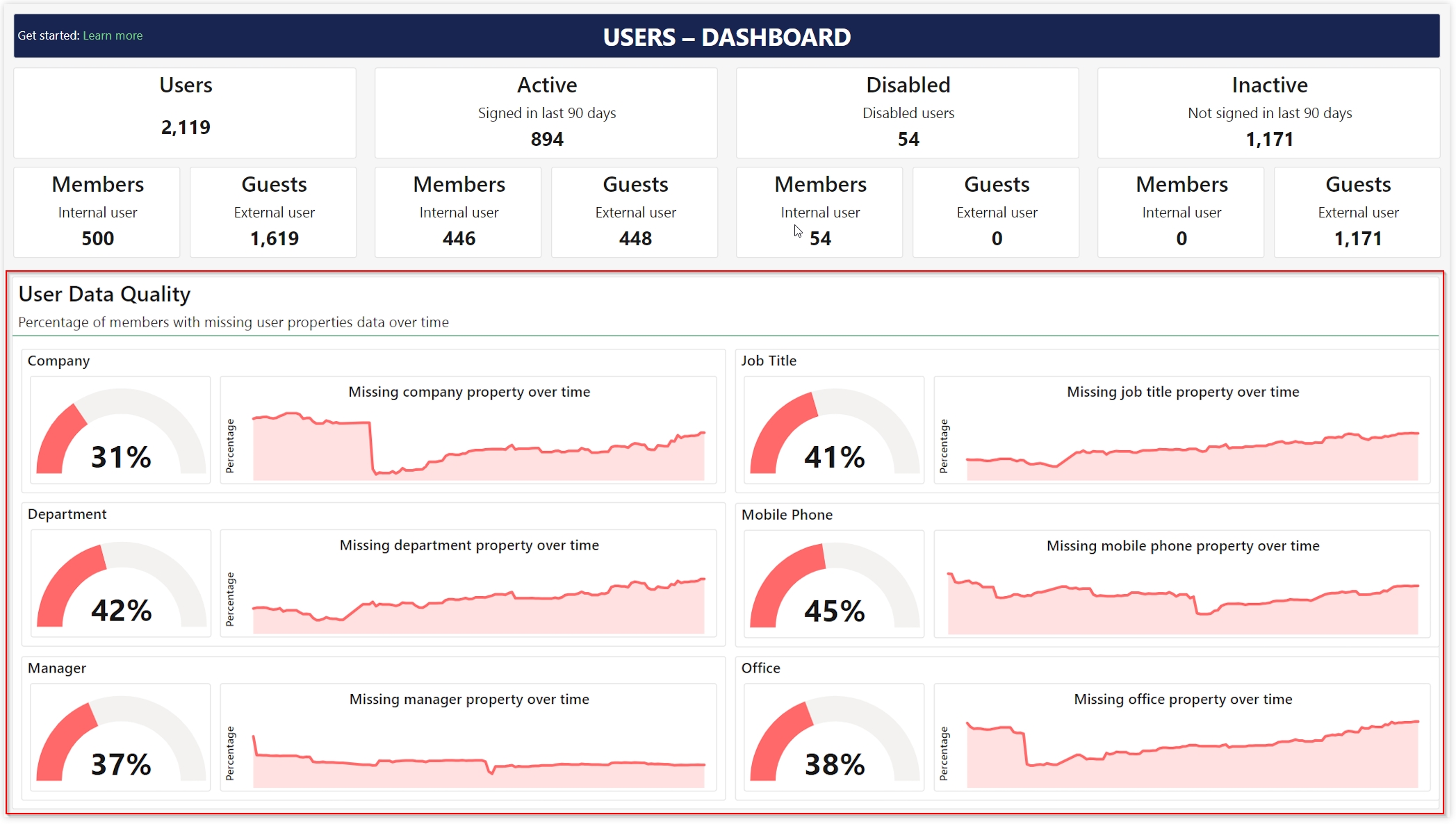
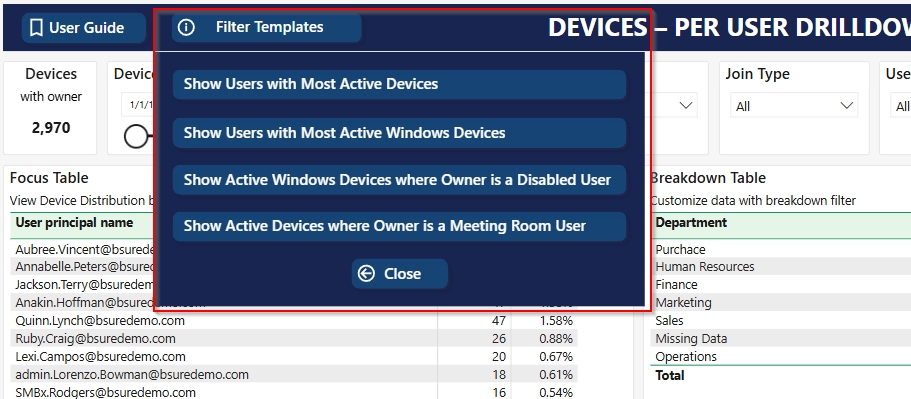
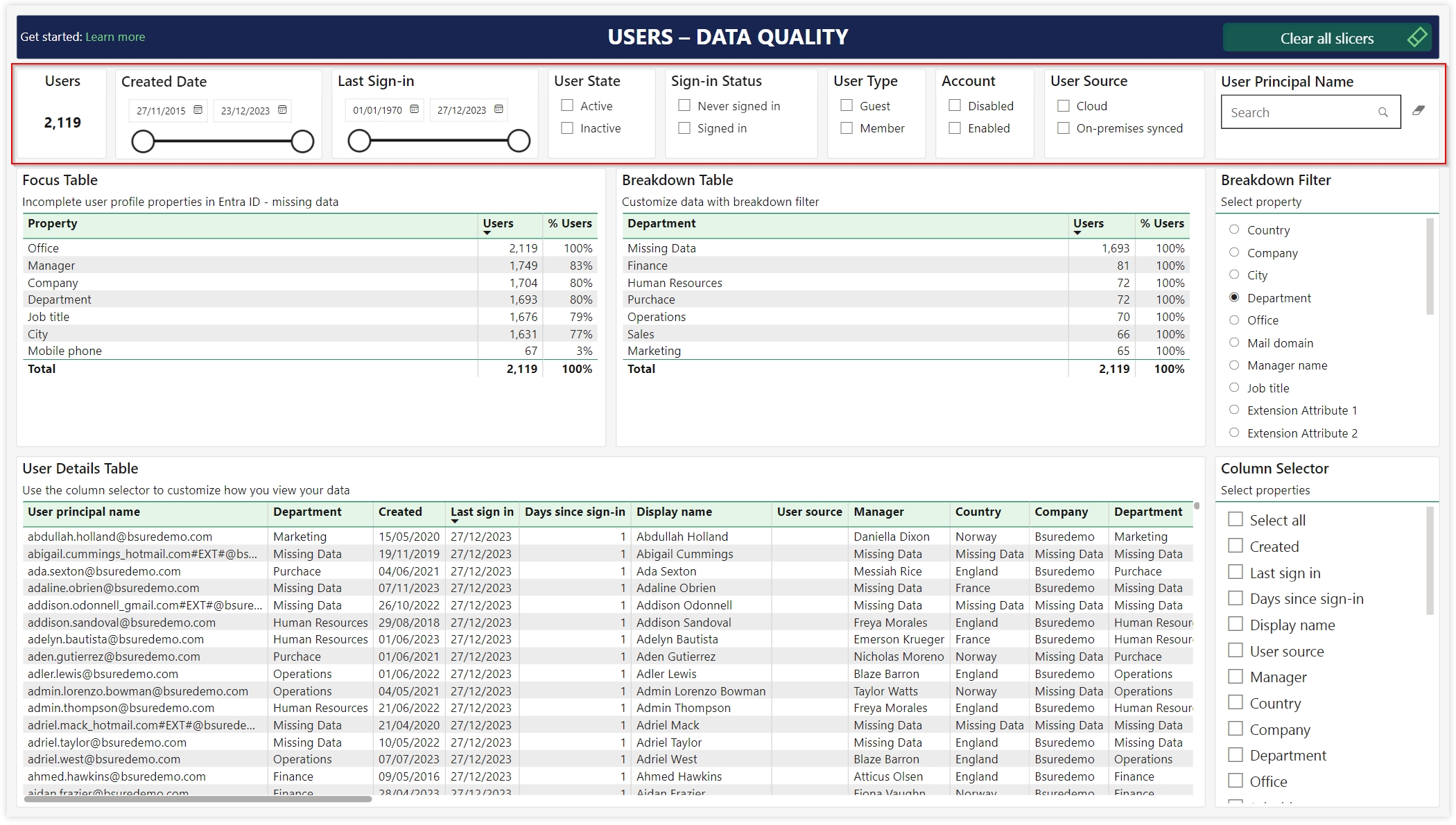
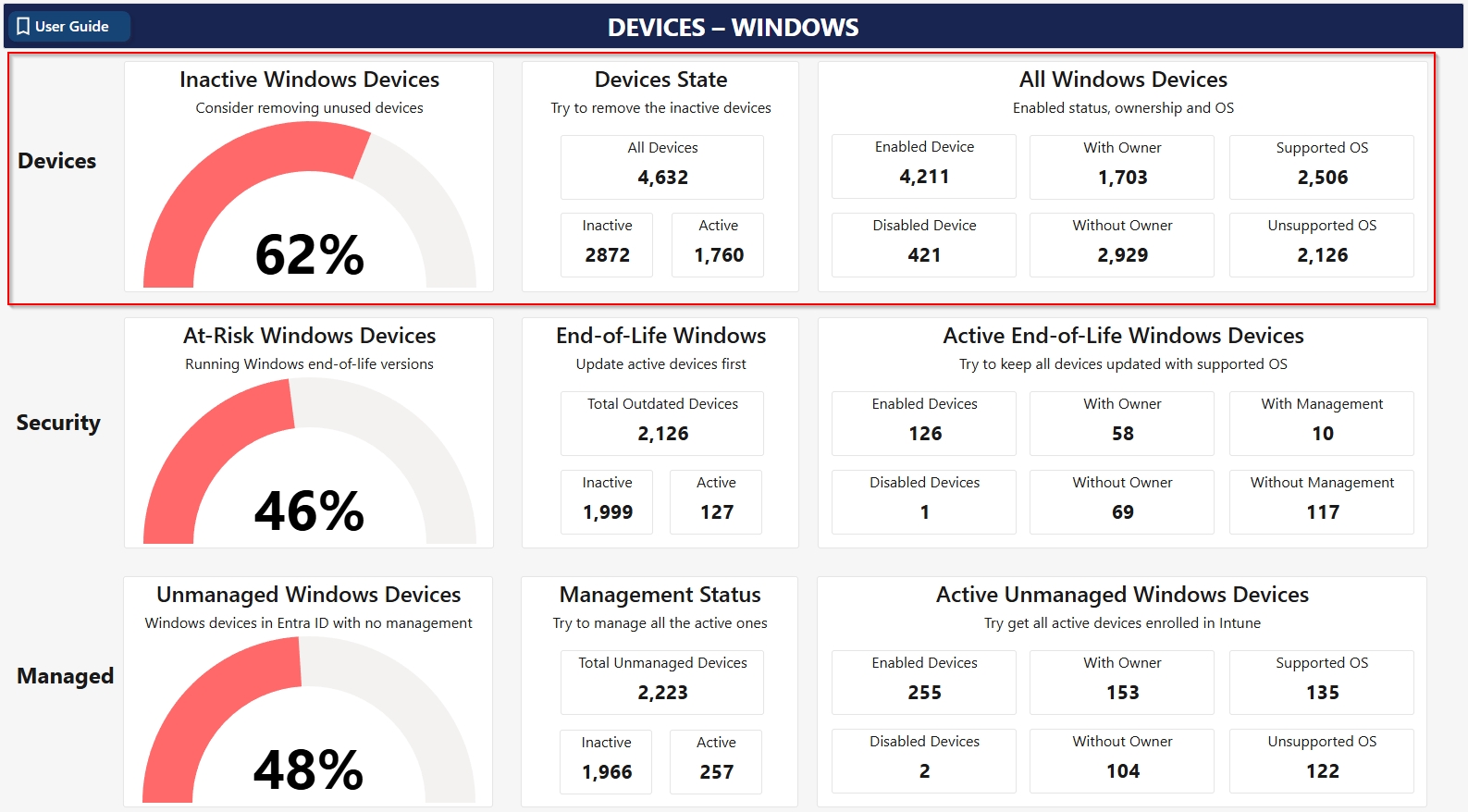
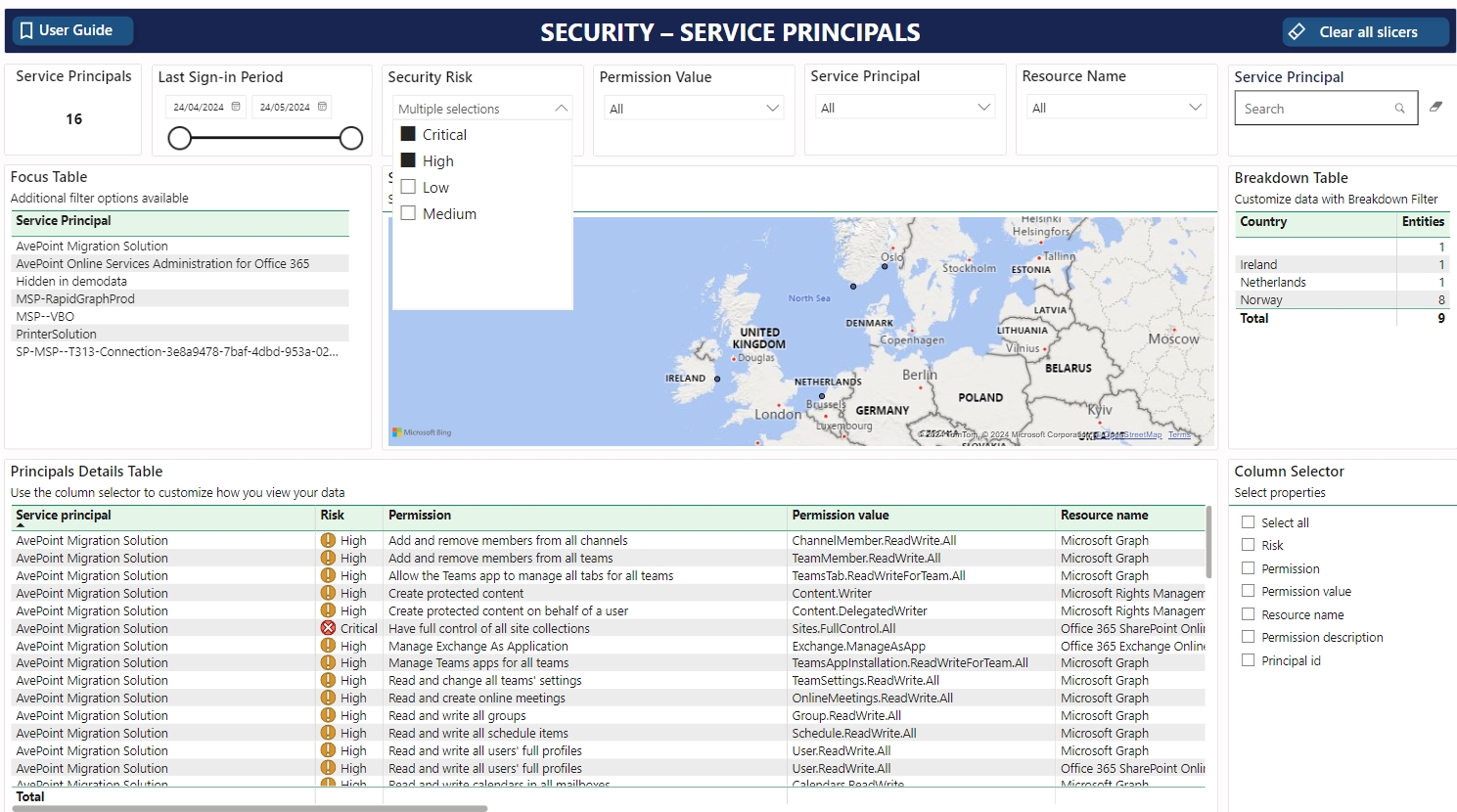
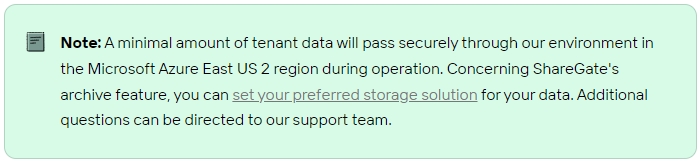
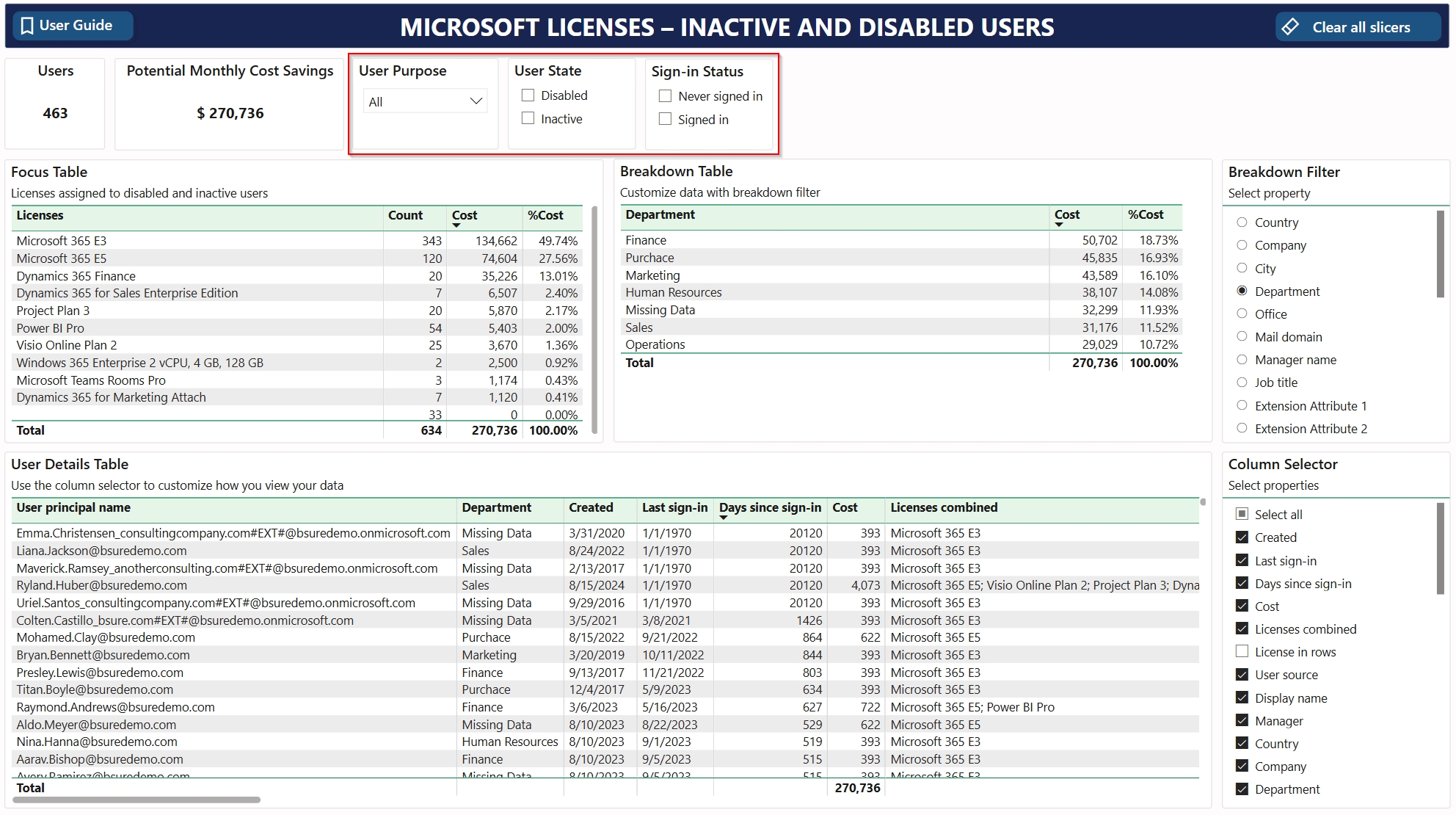
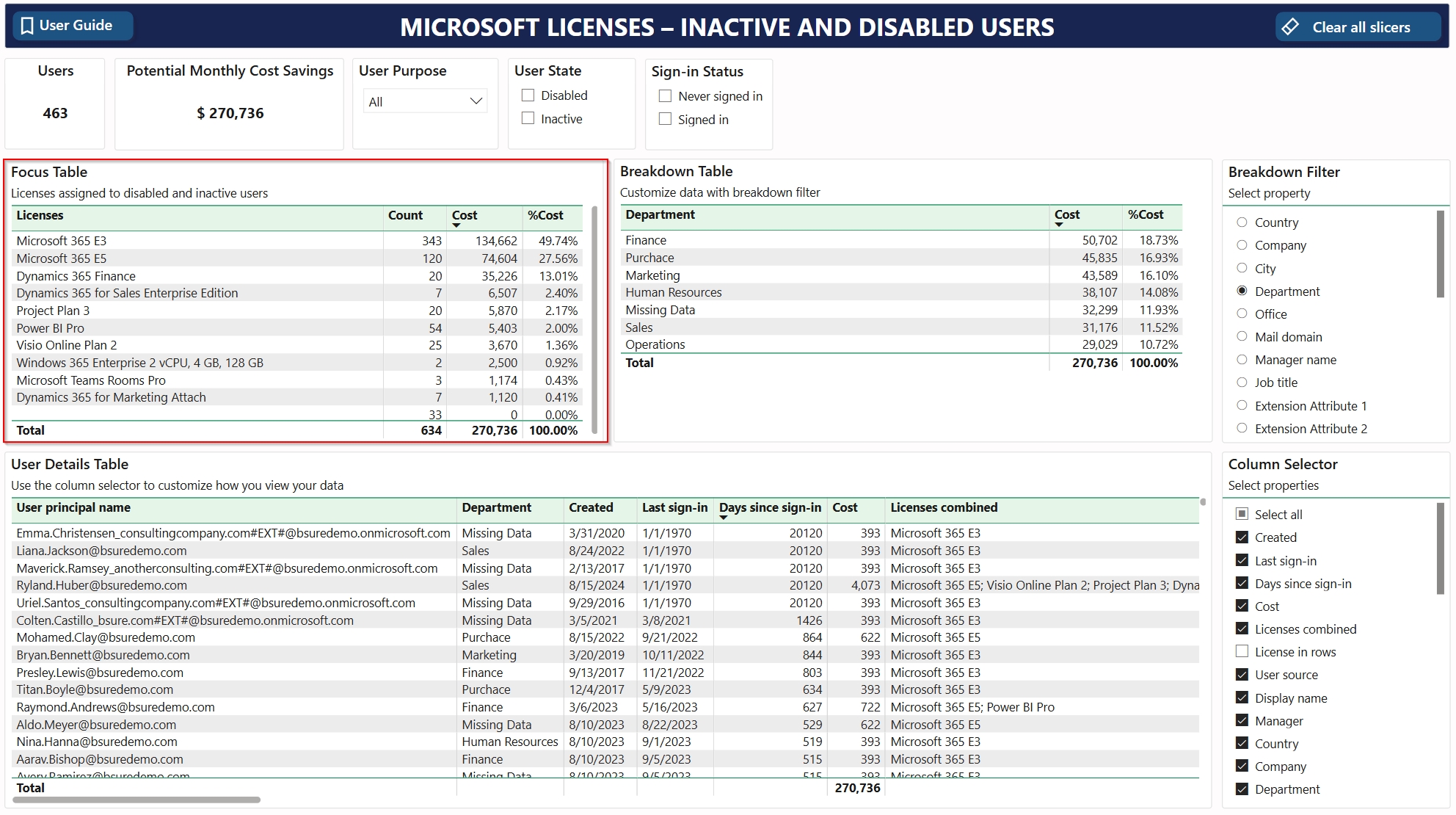
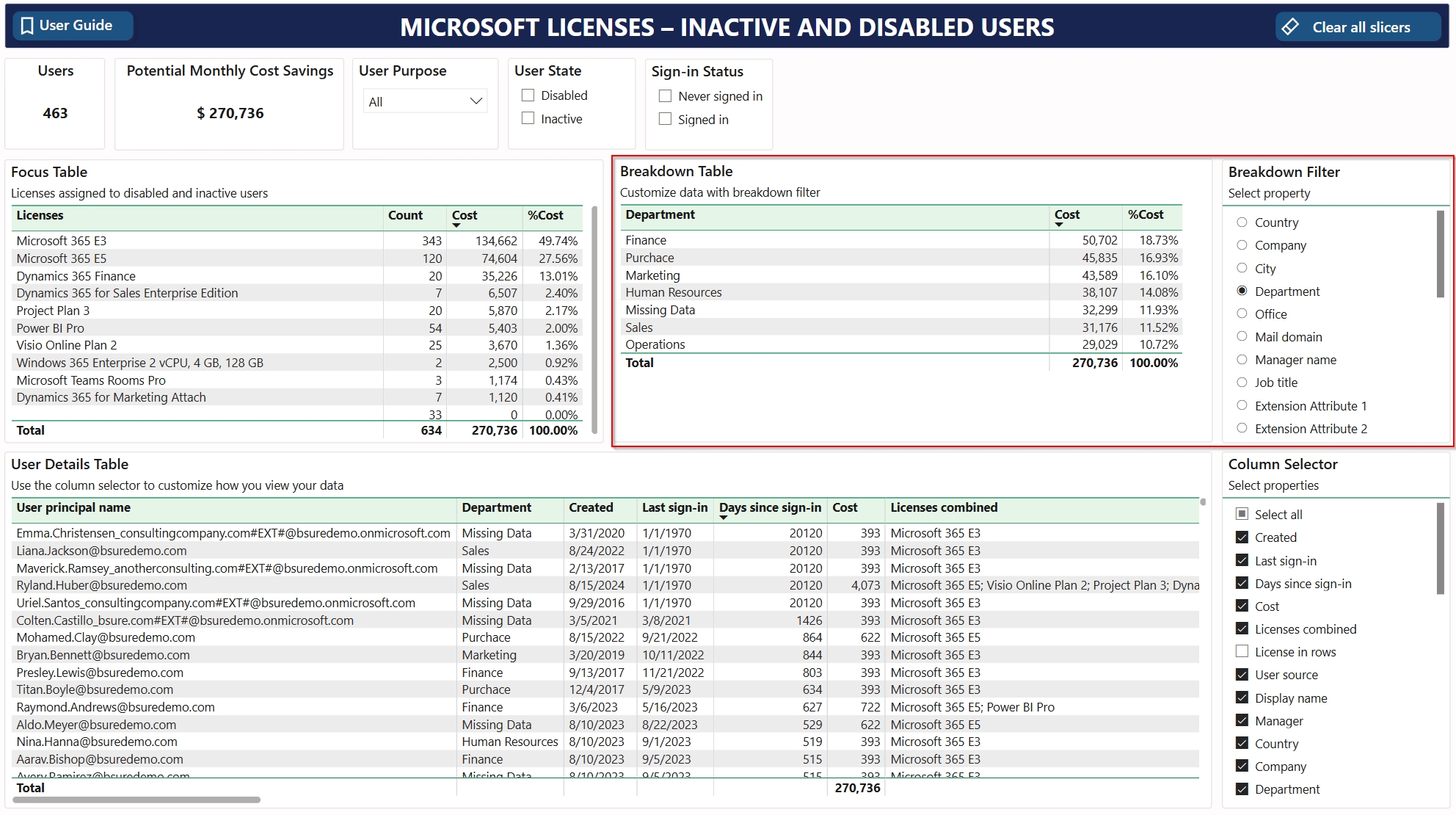
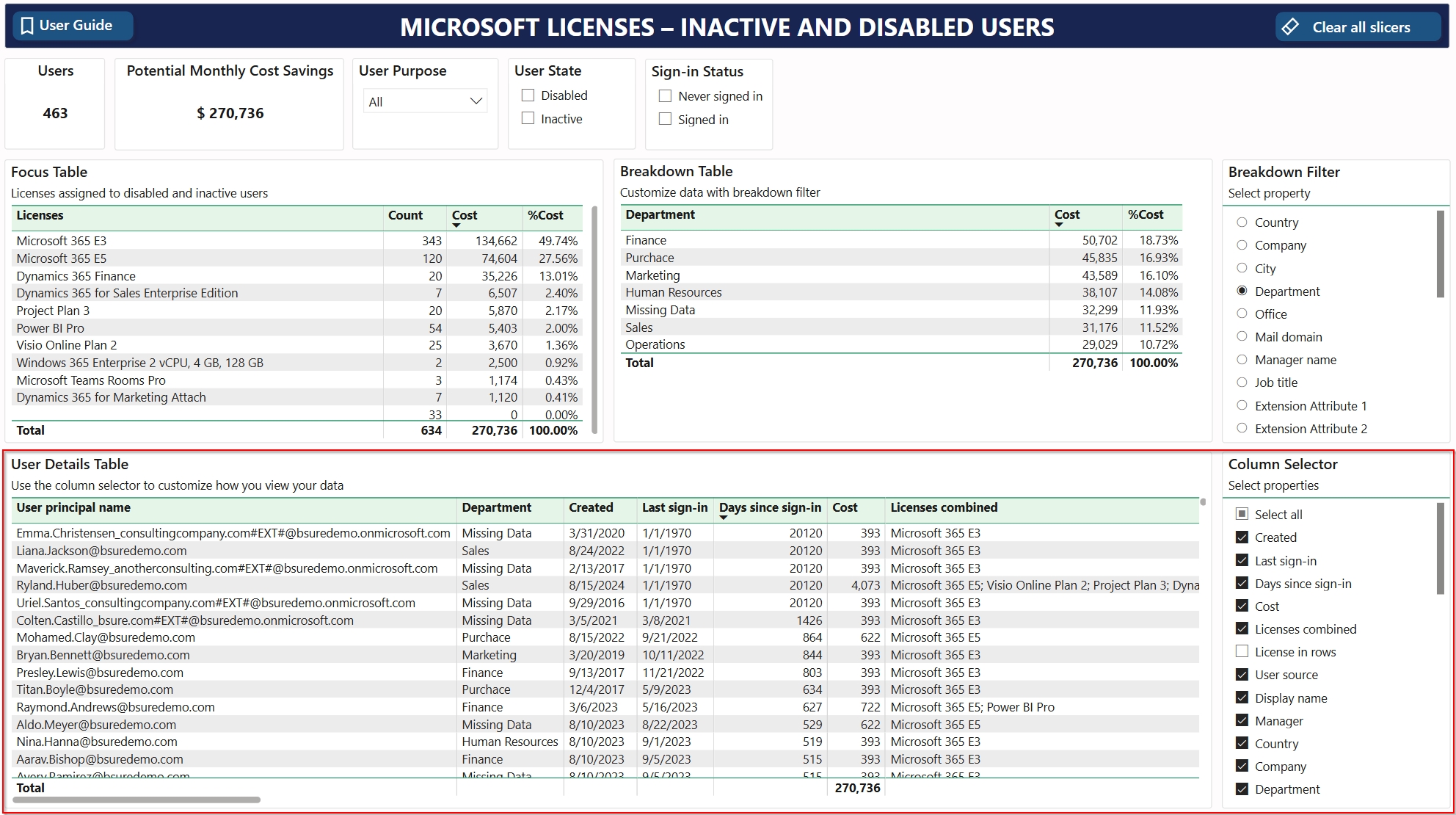
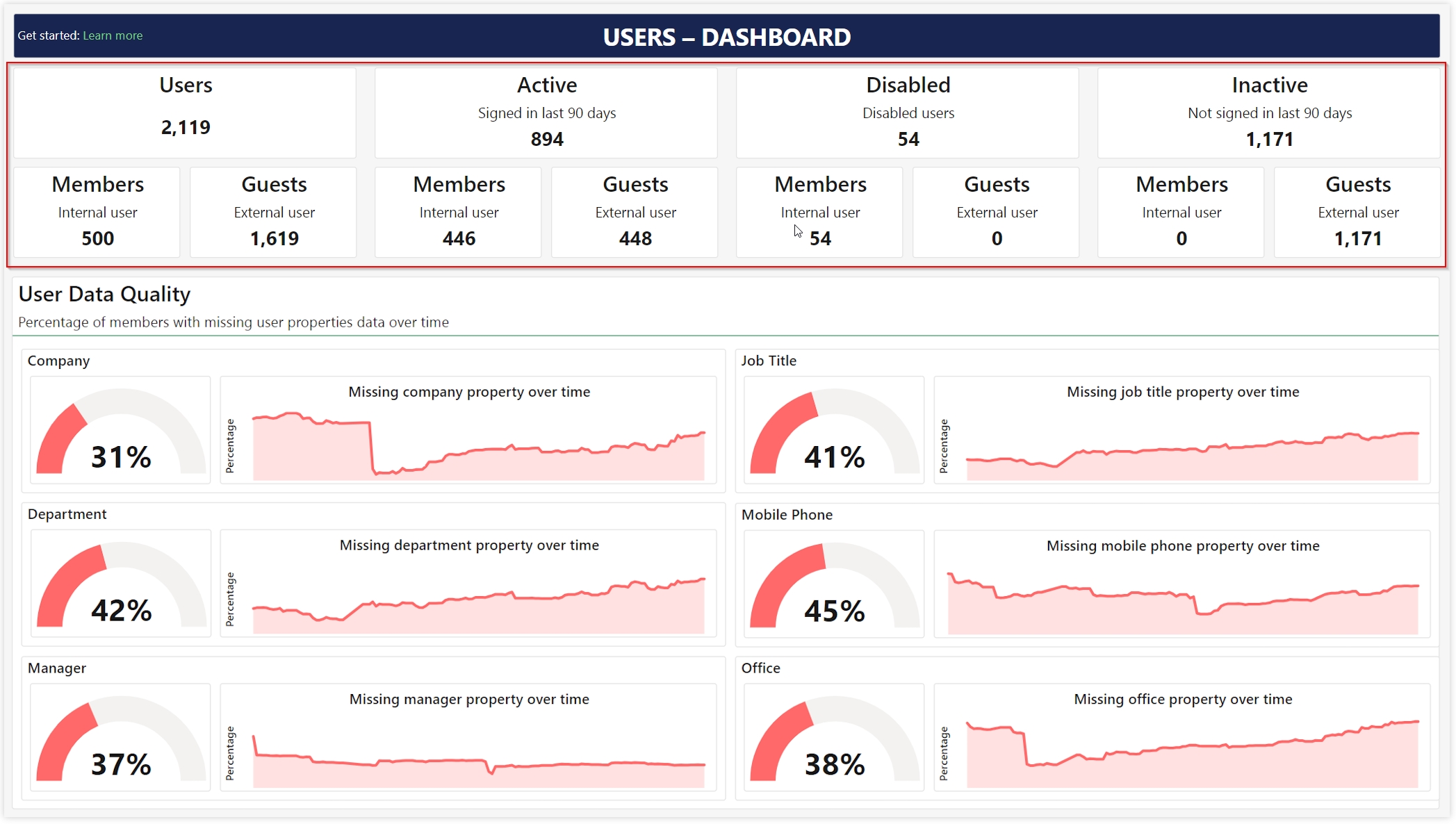
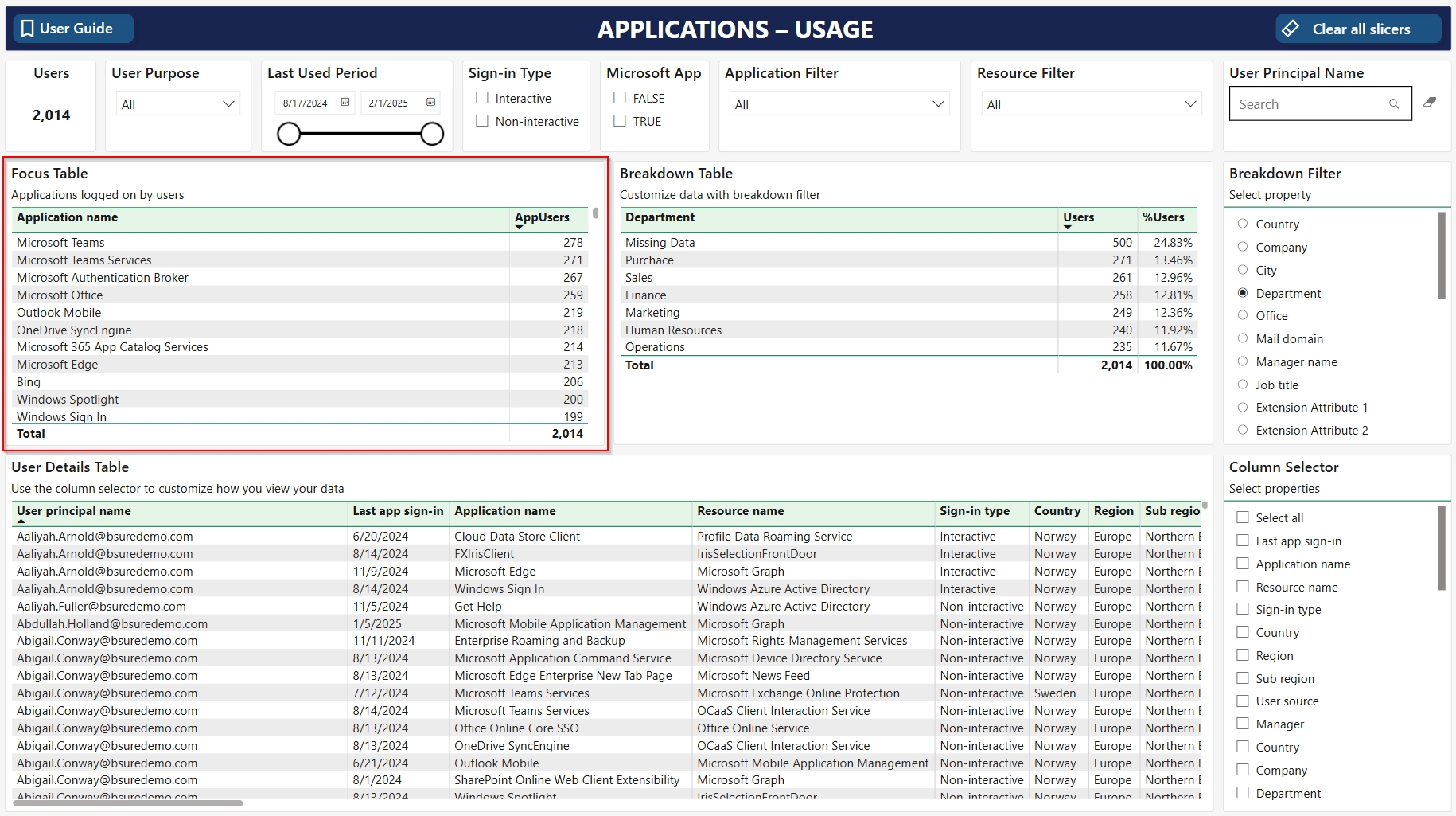
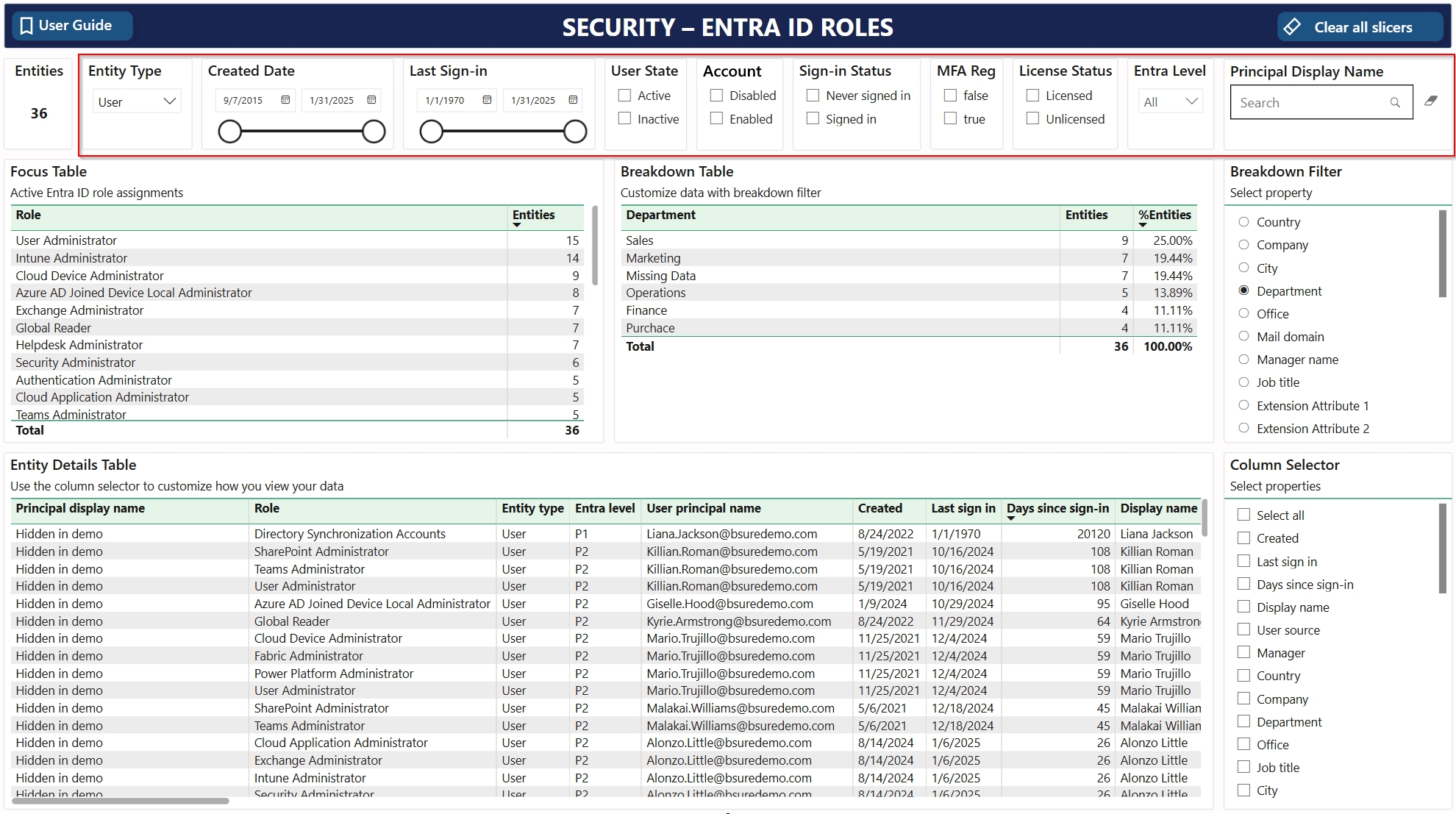
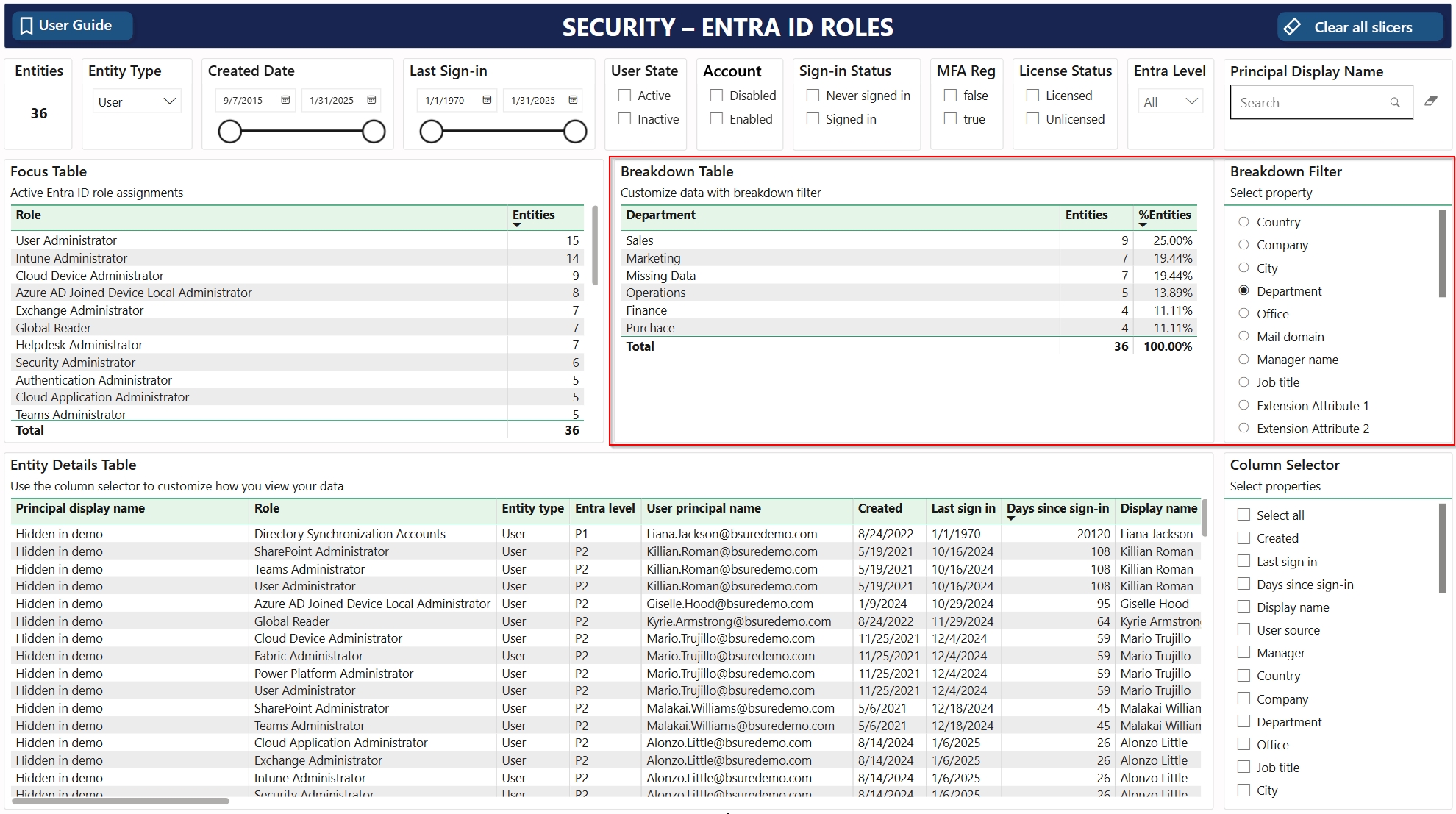
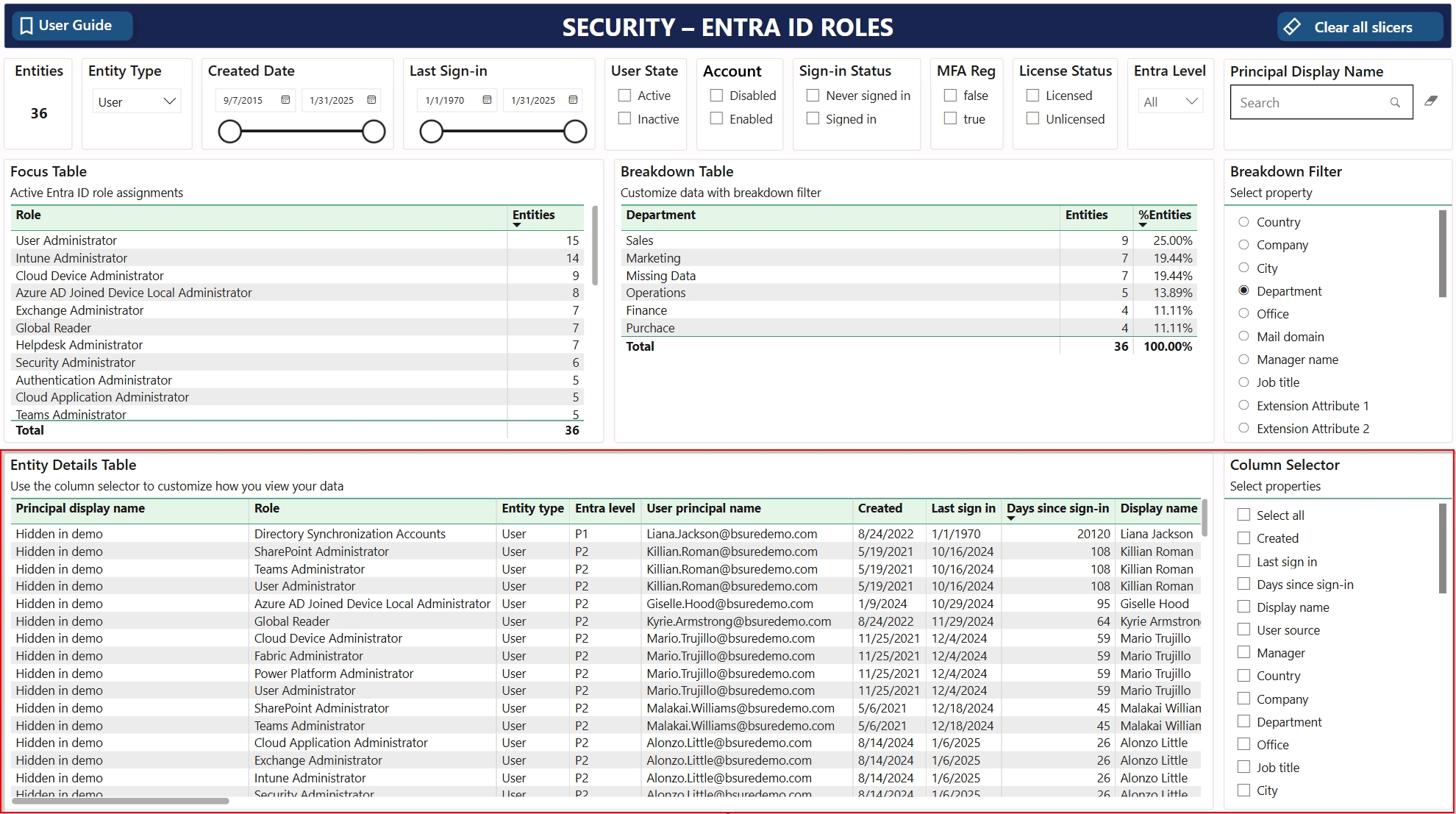
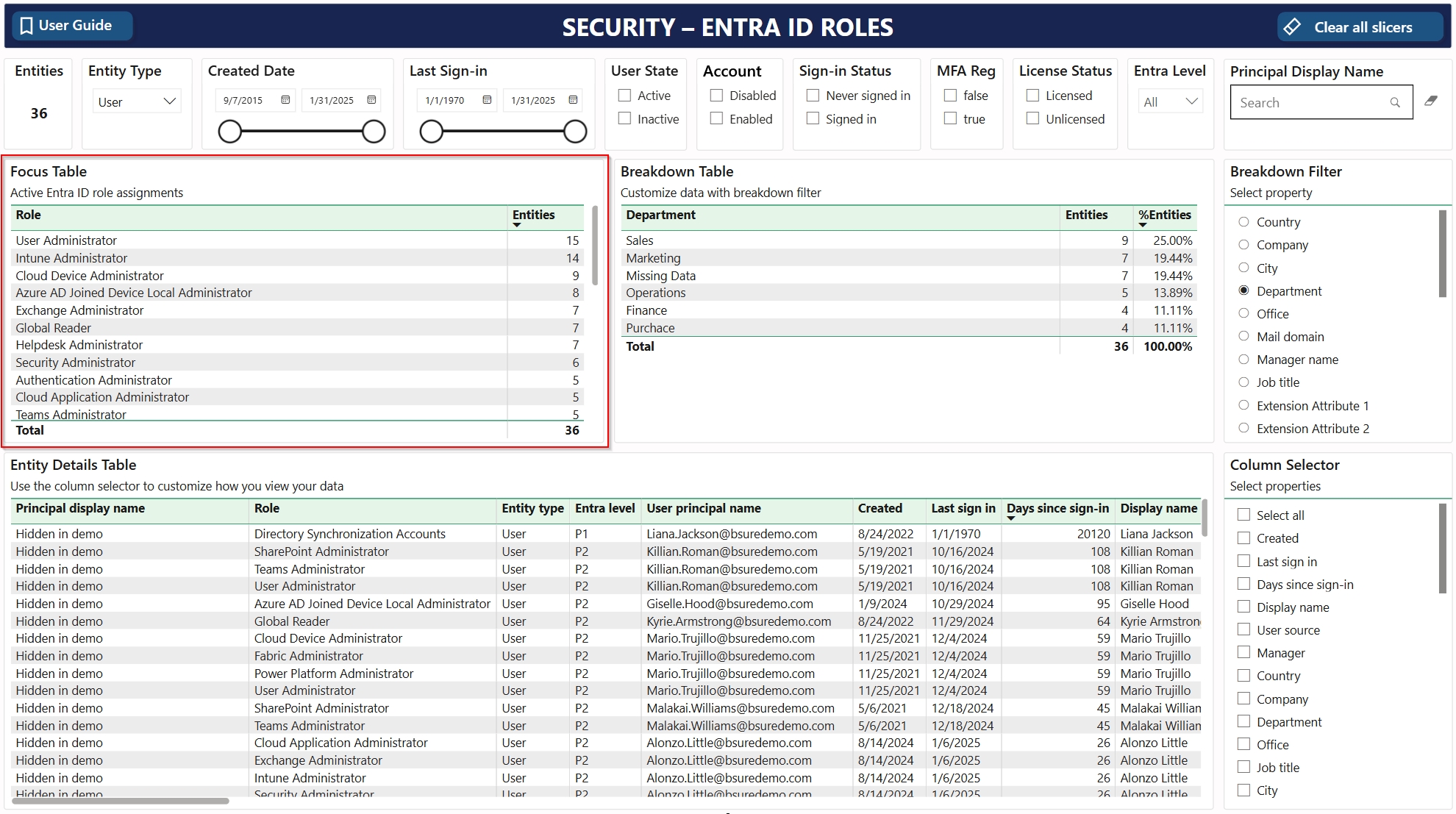
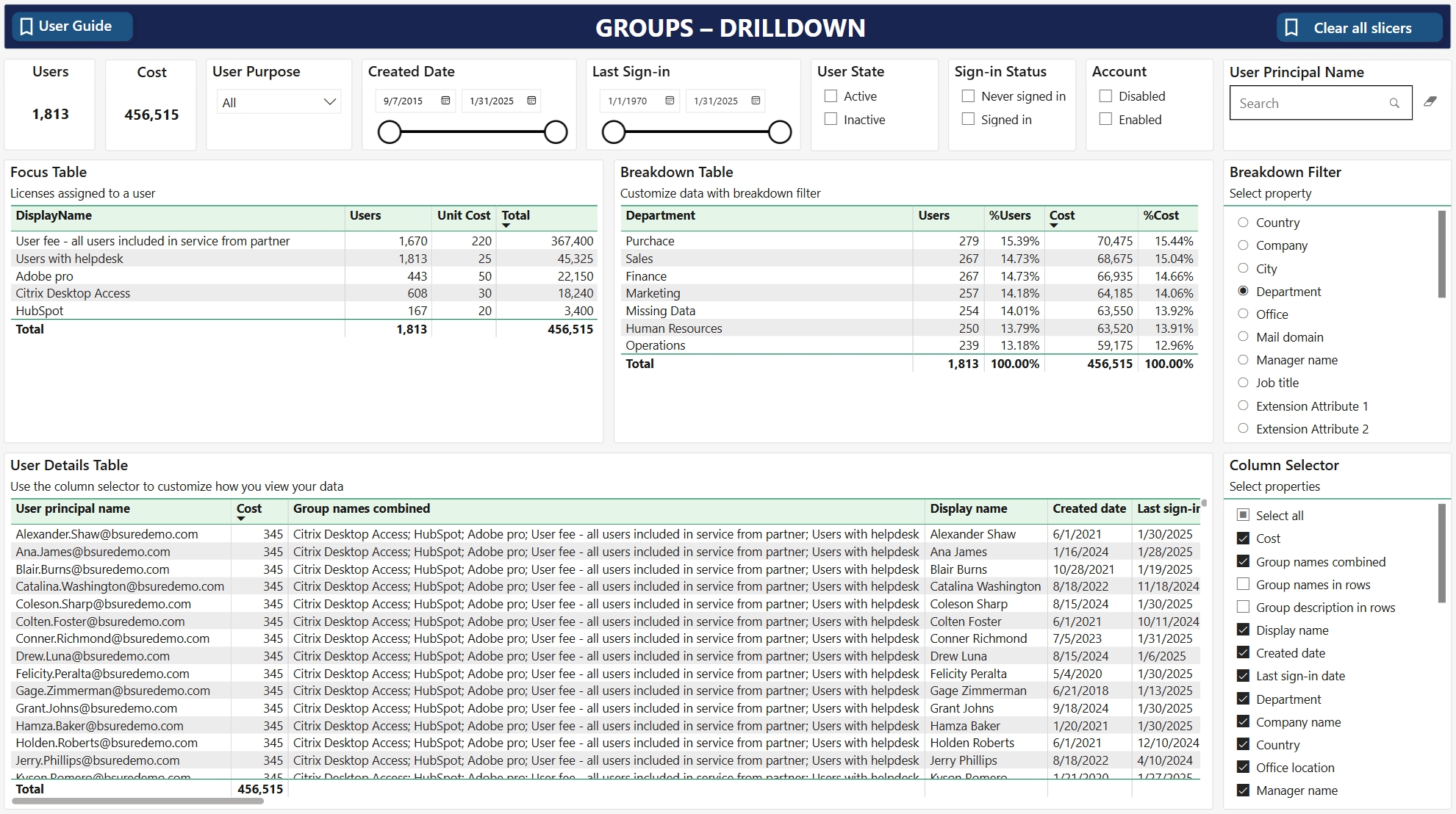
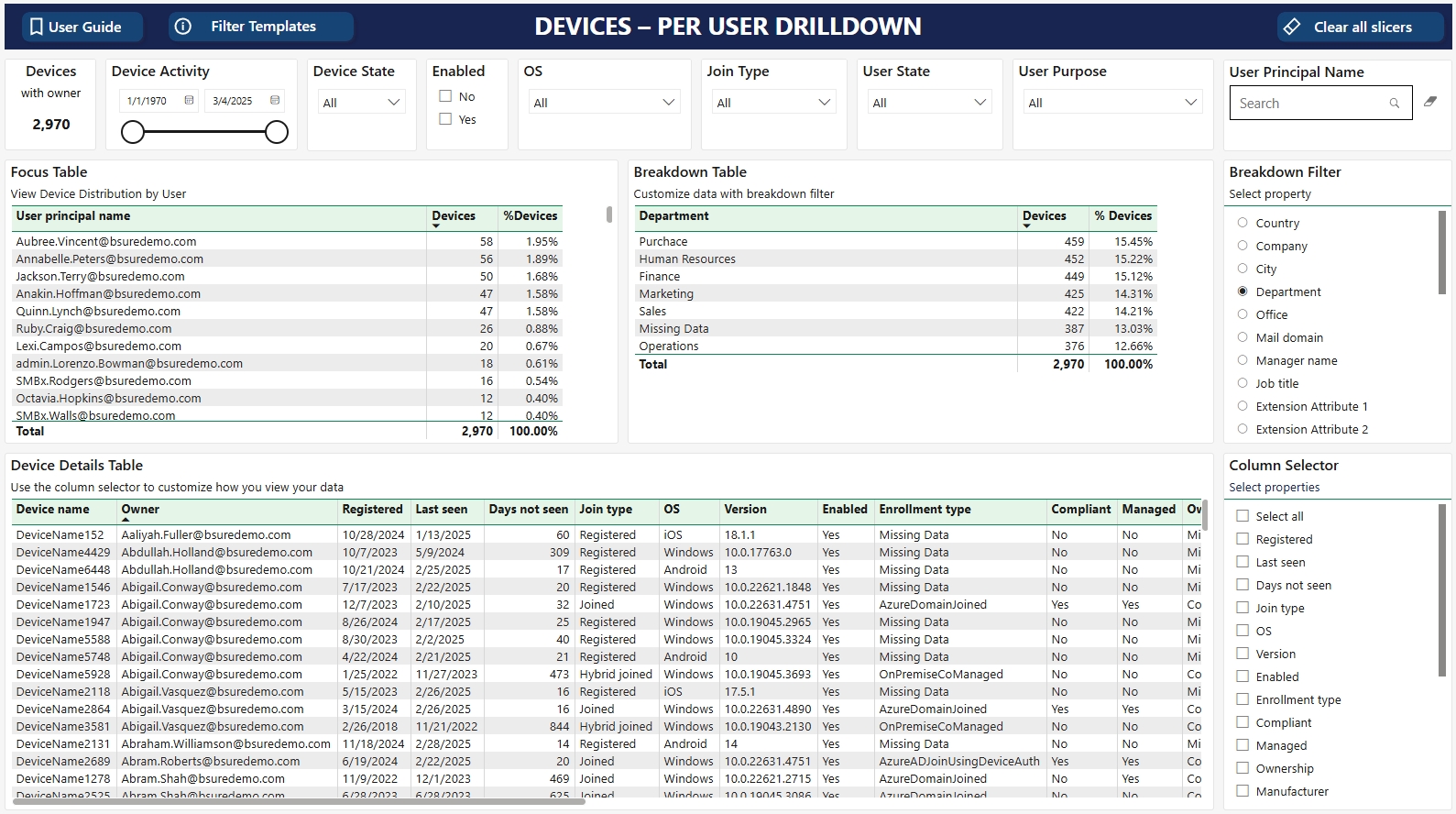
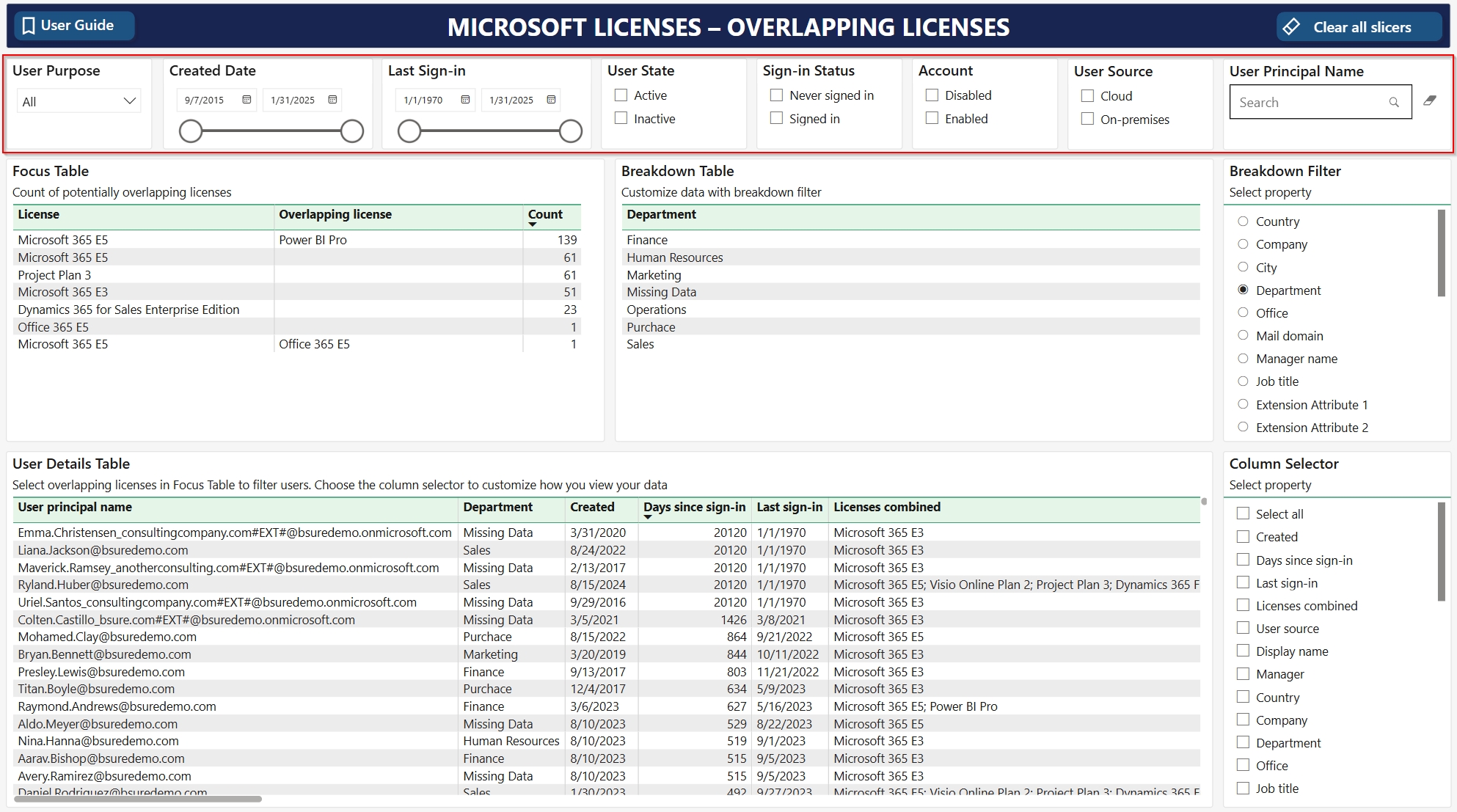
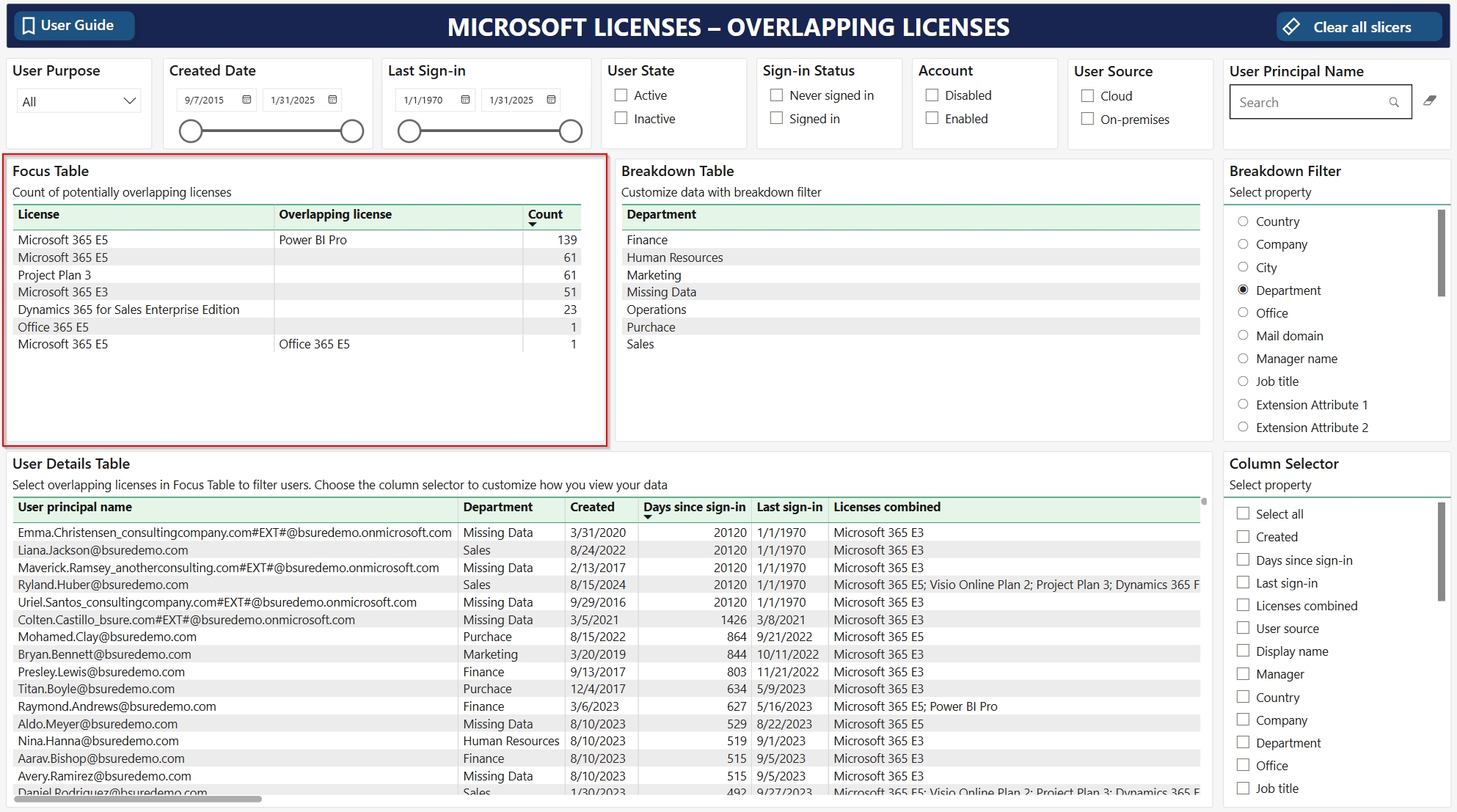
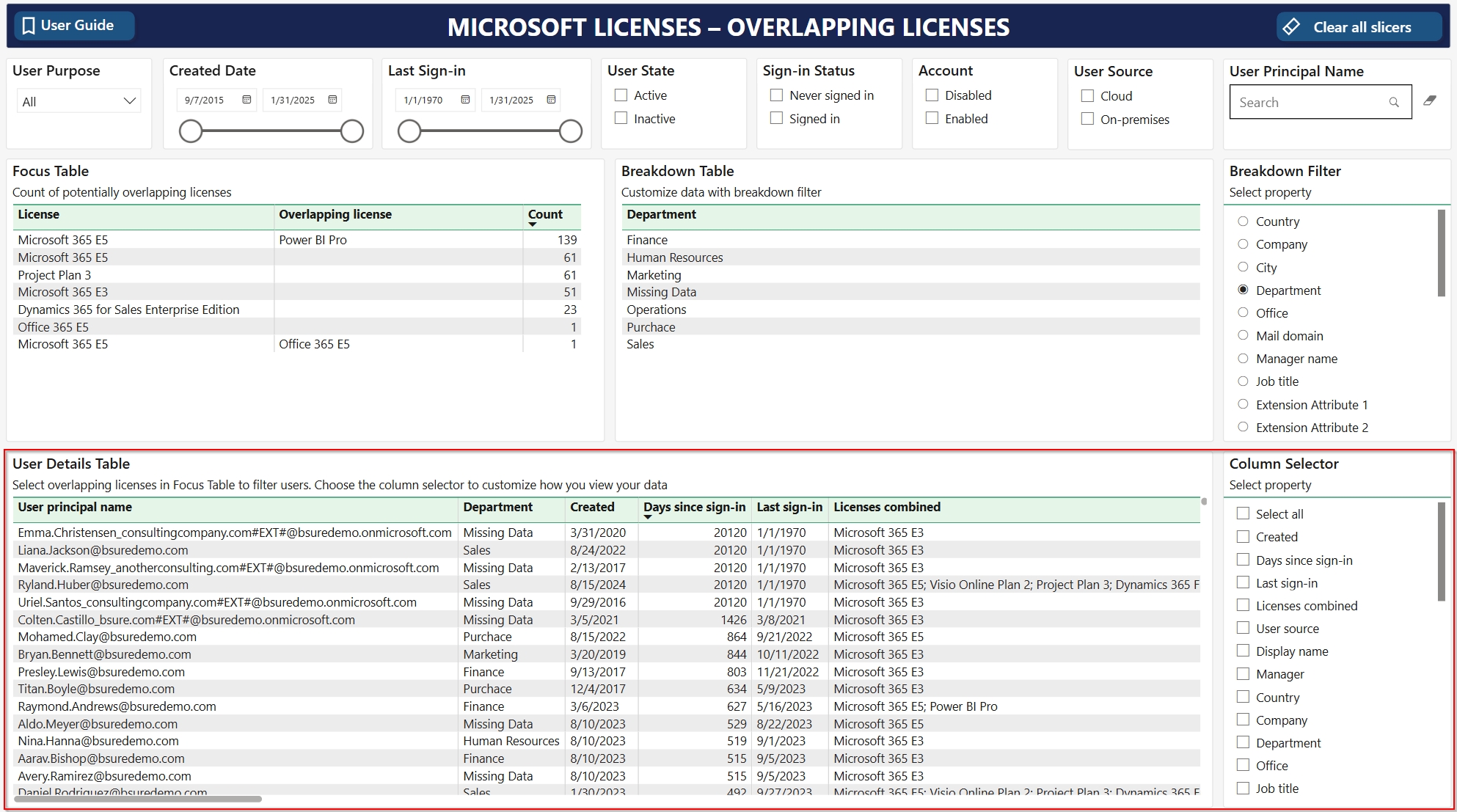
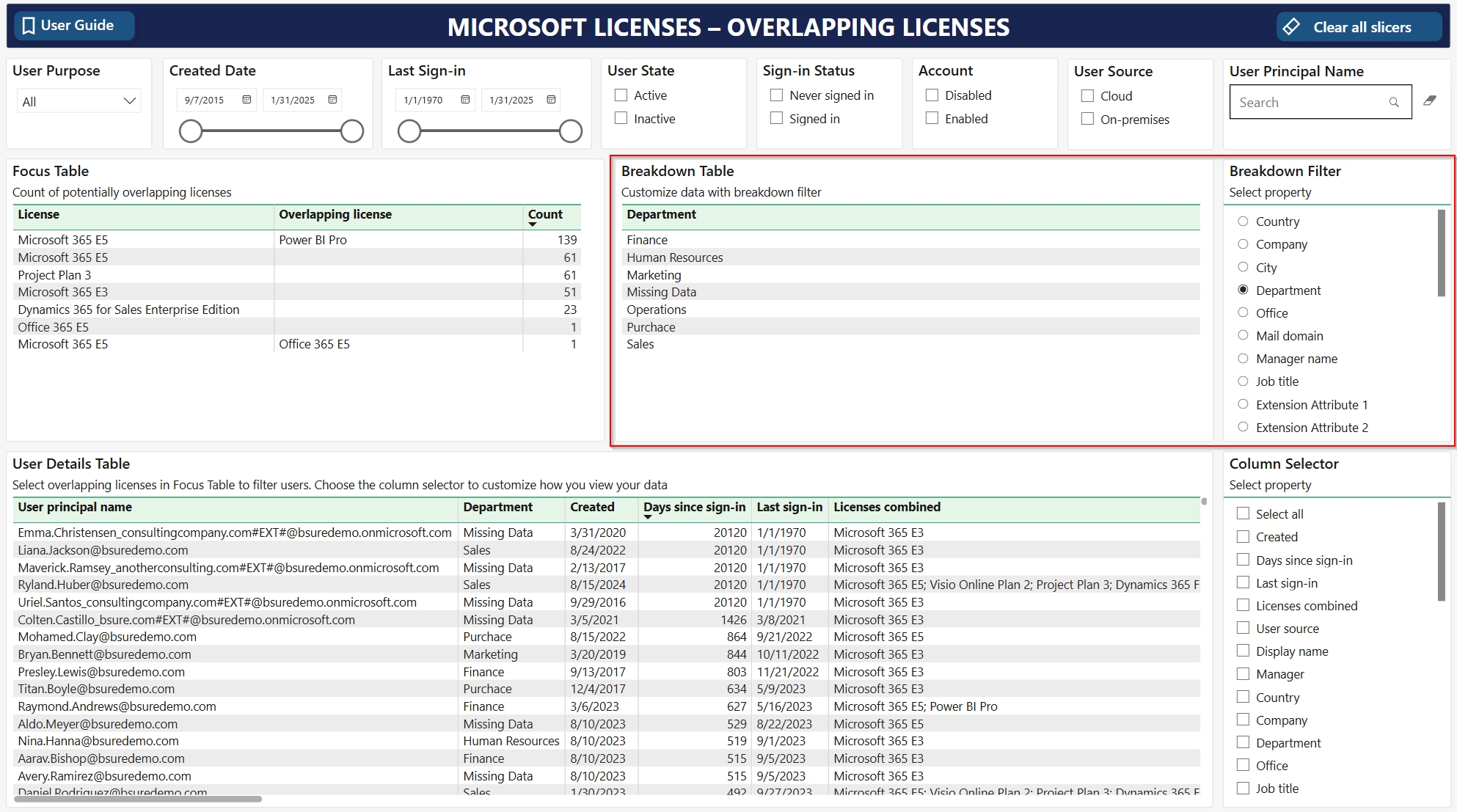
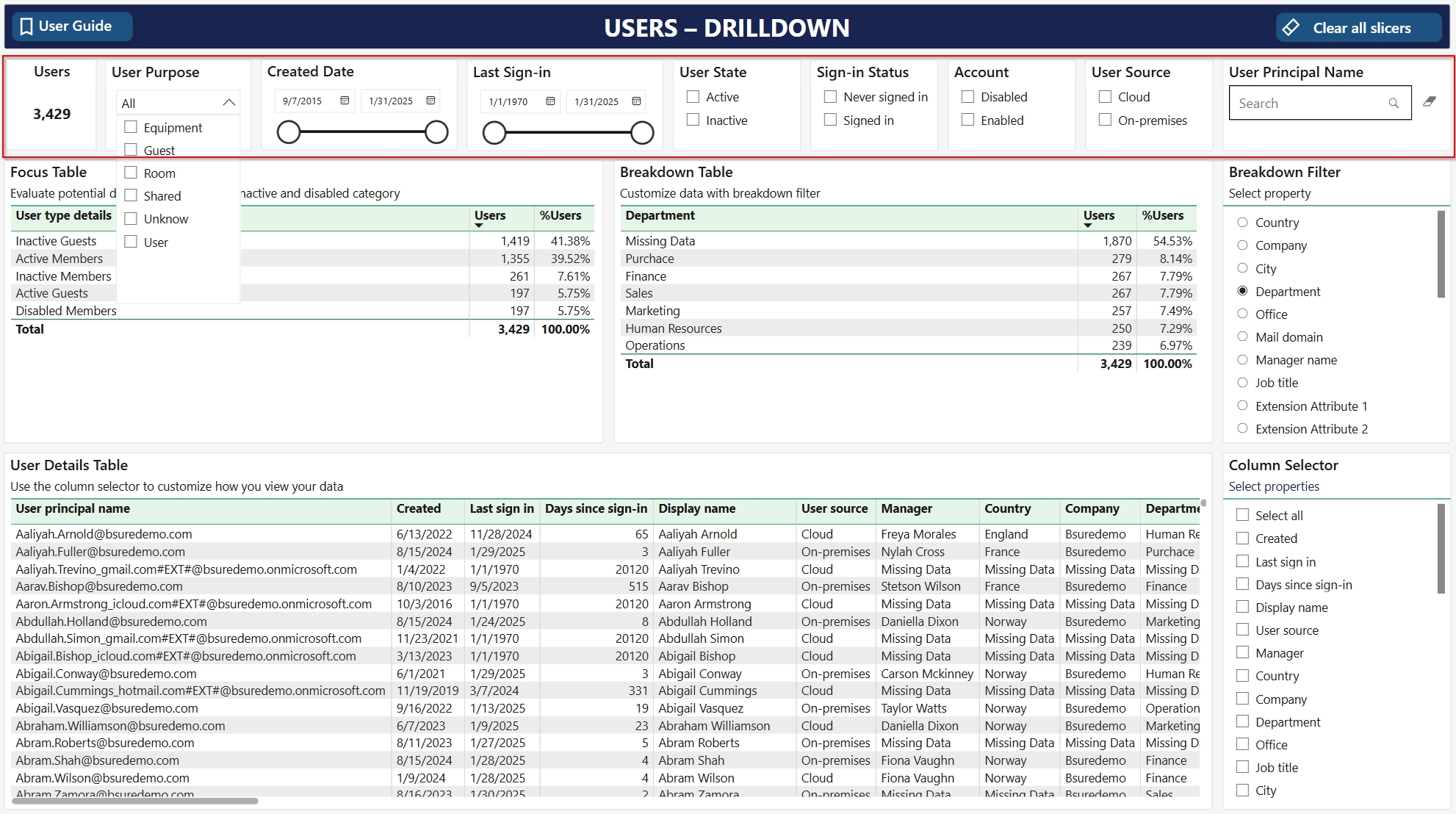
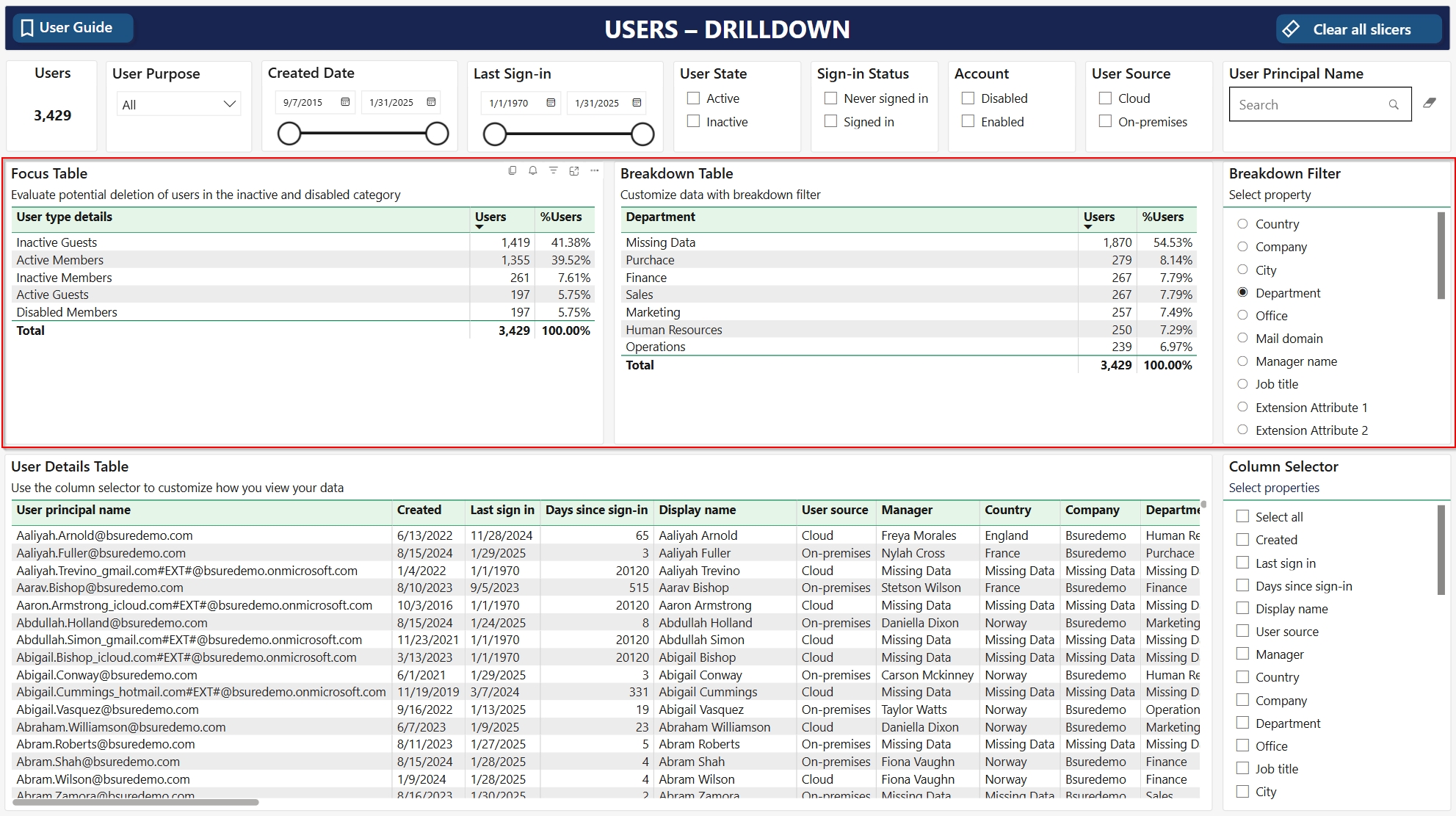
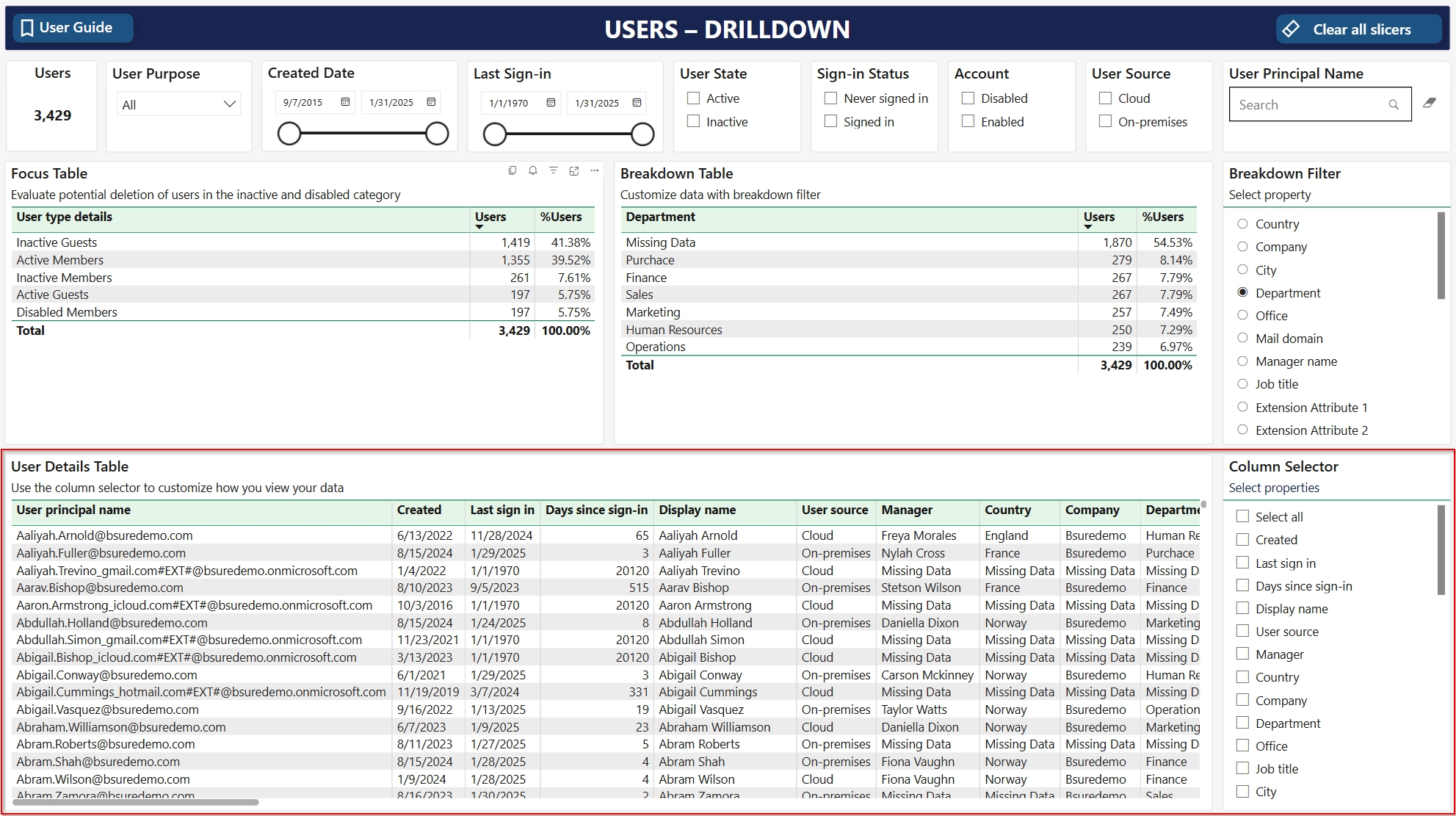
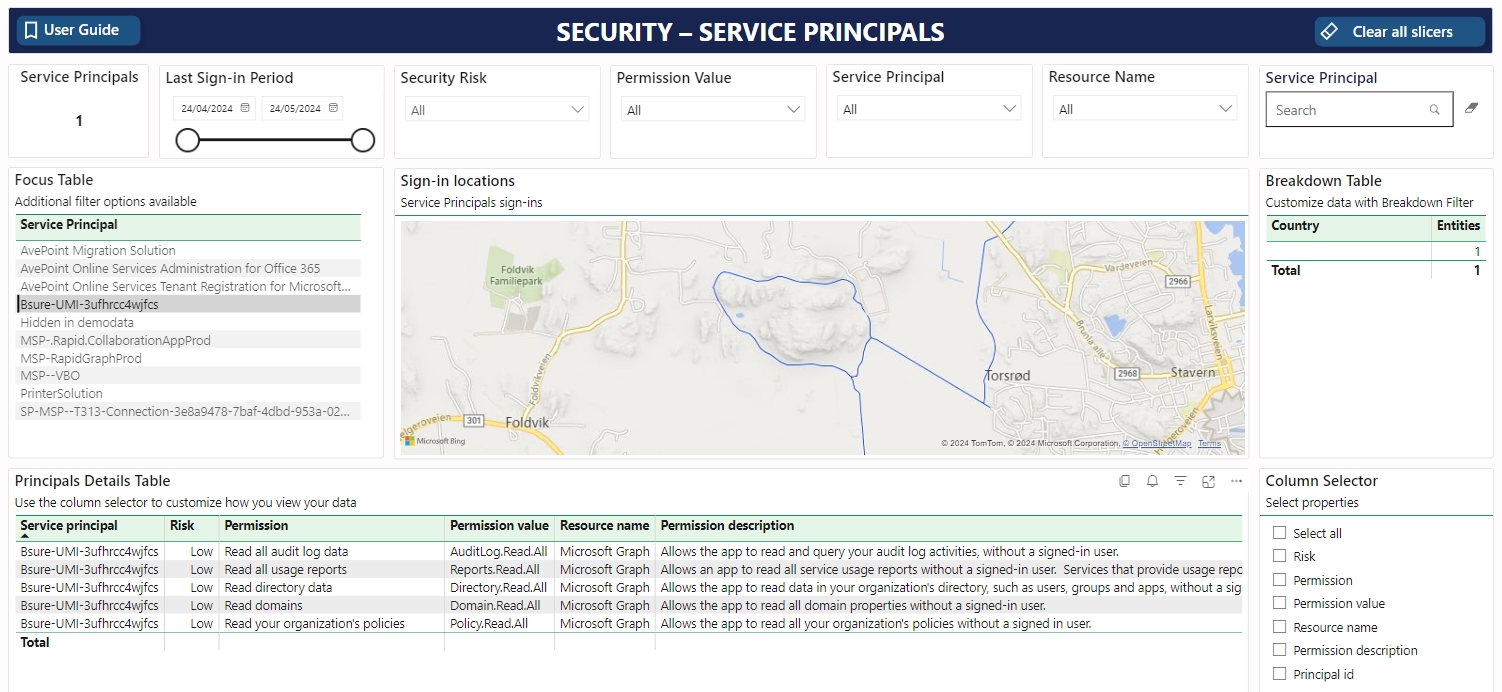
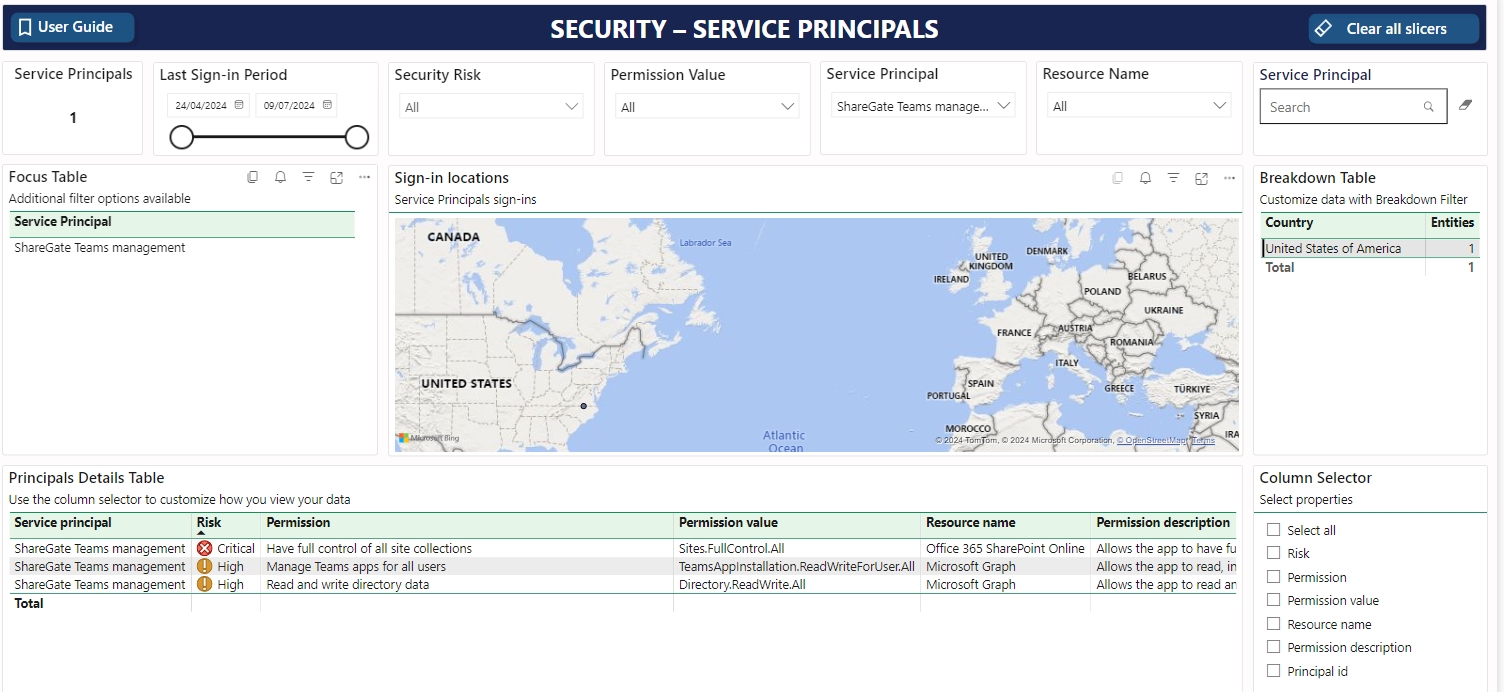
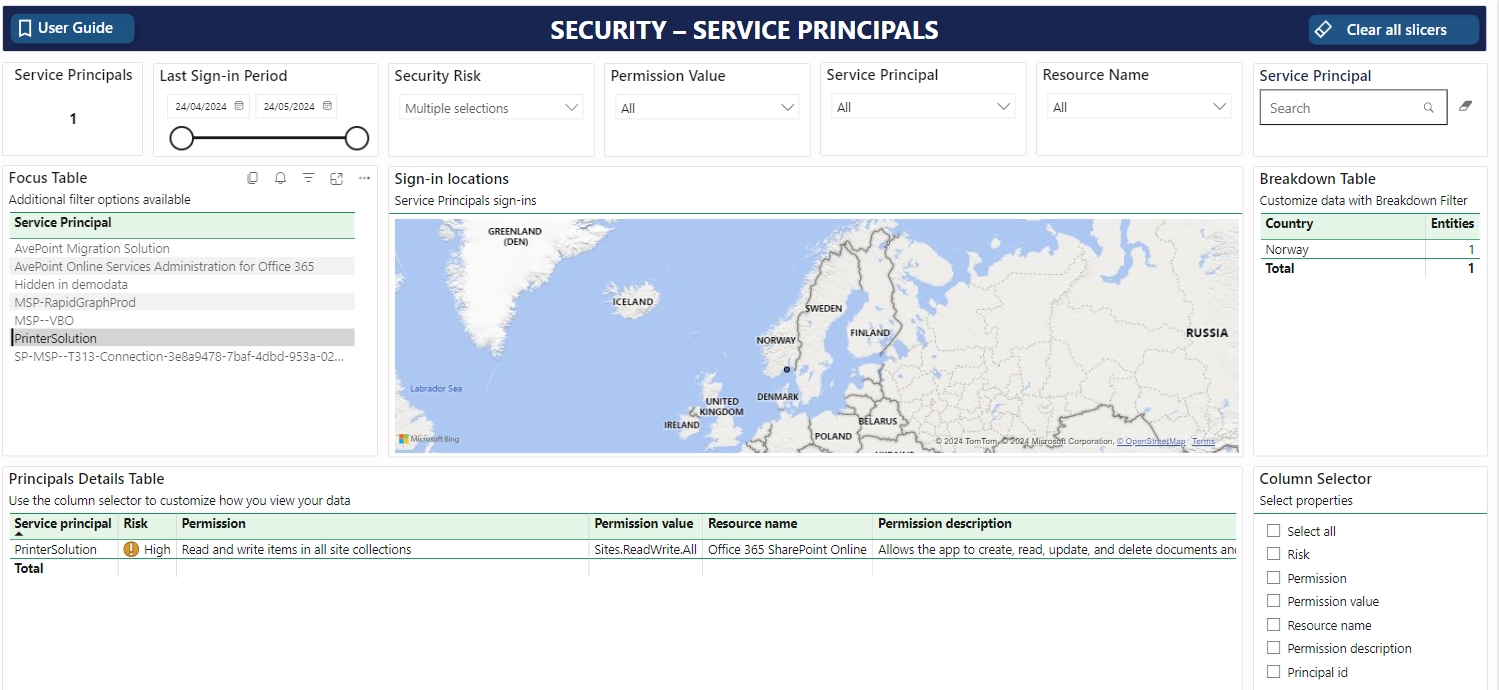
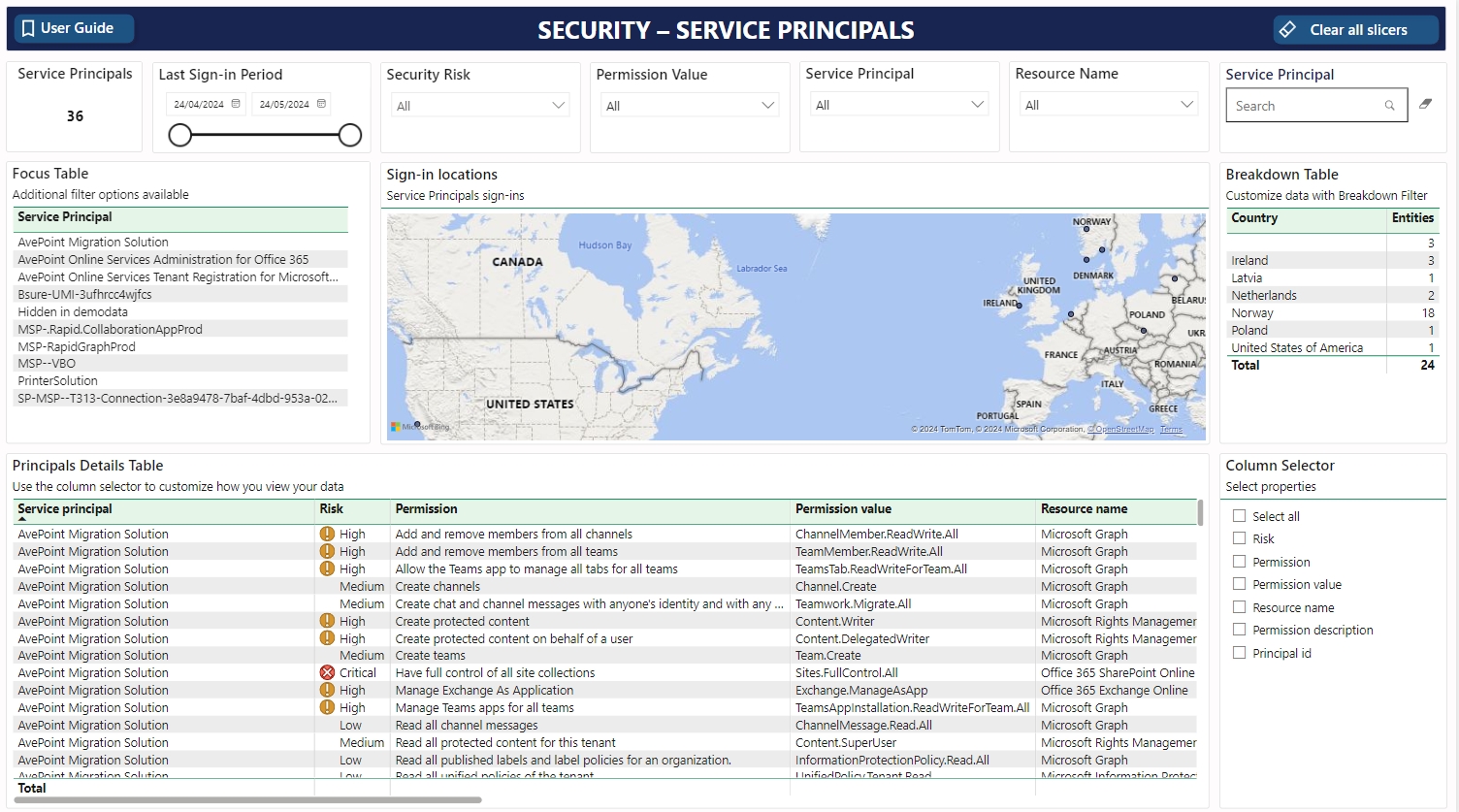
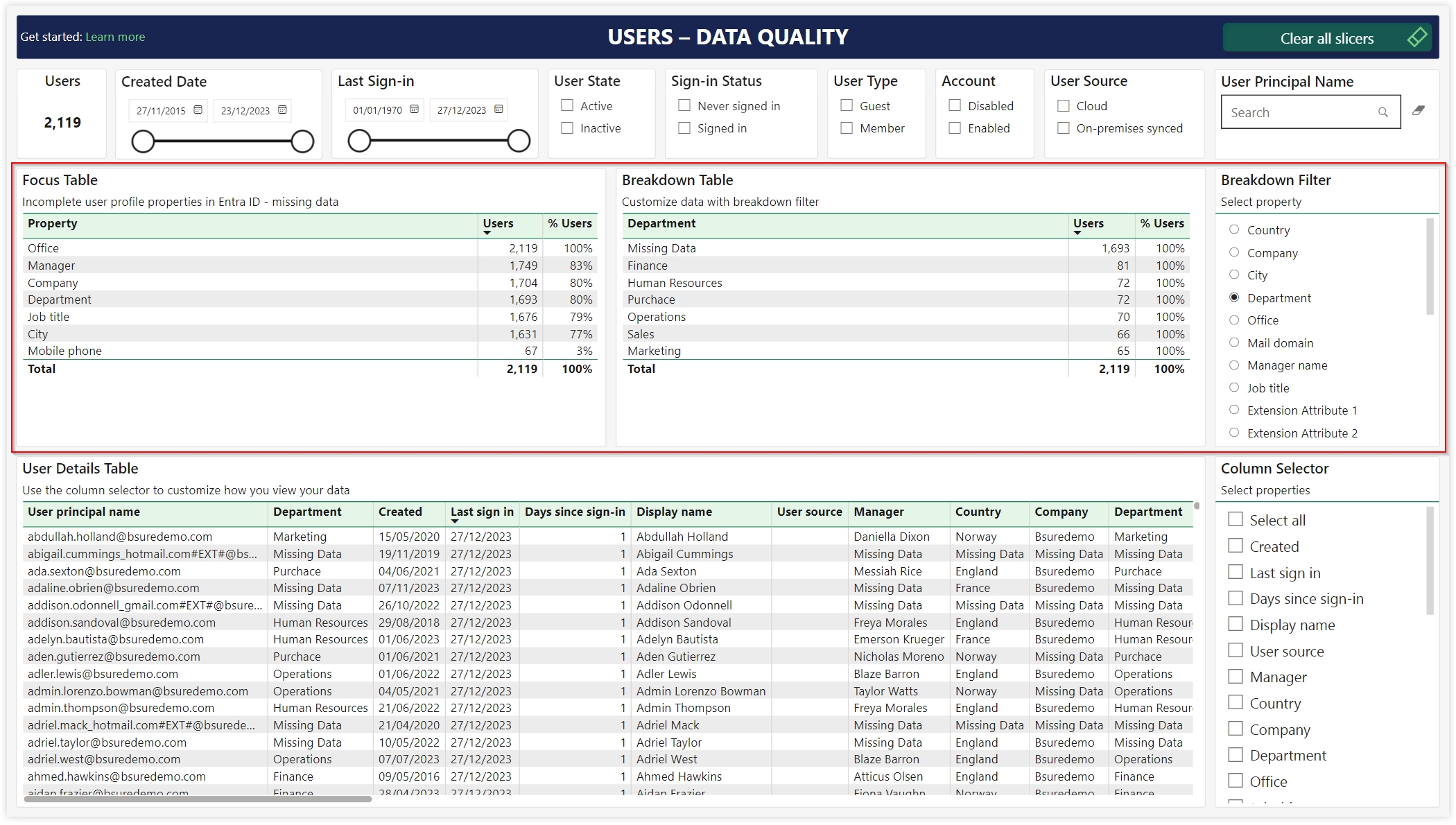
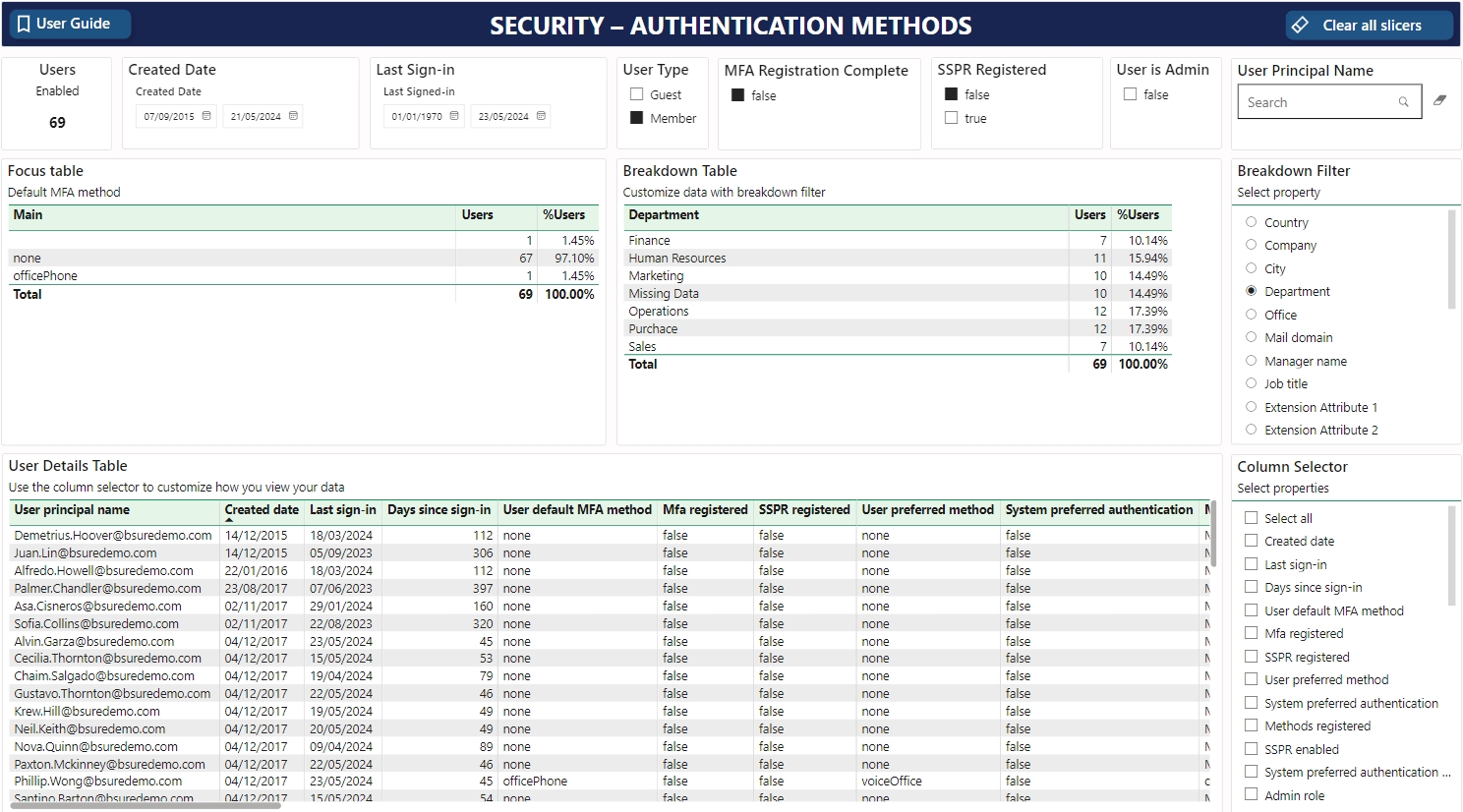
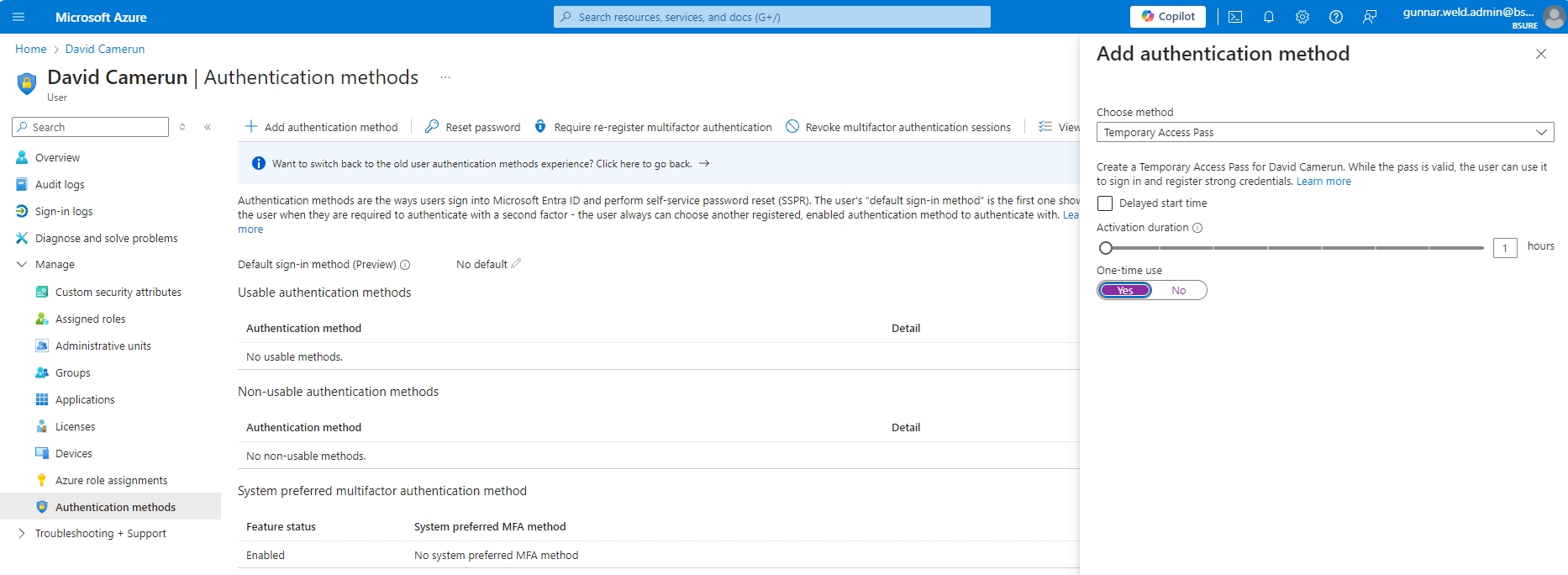
This brings us to the core of identity governance in Microsoft Entra.
Non-interactive sign-ins are often skipped from conditional access and in the Application - Sign-in Locations we do show all successful sign-ins regardless if they're interactive or non-interactive.
If you filter on interactive sign-ins in the report you can verify your conditional access policies. But remember that non-interactive sign-ins re-uses a valid token.
AI put together a well-documented, community-verified breakdown of common flows that either bypass CA completely or only partially evaluate it.
CA is only evaluated on:
Interactive sign-ins via browser or modern authentication (OAuth2 Authorization Code Flow)
Token issuance events that require a fresh auth
Apps explicitly targeted by CA
Session controls (like Sign-in Frequency, CAE)
Use the Bsure Insights Application - Sign-in Locations report and filter on non-interactive sign-ins. You can create your own favourite selecting only apps and countries you want to monitor closely.
A manual option is to use Microsoft Entra ID > Sign-in logs with the following filters:
Sign-in type = Non-interactive
Client app = Mobile apps and desktop clients or Other clients
Add Location to see IP or country
Conditional Access = Not applied or Report-only
Force reauthentication at regular intervals to make Conditional Access re-evaluation more predictable.
🔗
🔗
Allows near-real-time revocation of access when location, risk, or device state changes — even after token issuance.
🔗
🔗
Helps enforce CA on non-user service-to-service auth flows (like Power BI service principals, automation, Graph API jobs, etc.)
🔗
🔗
🧠 Note: Workload identity CA requires Microsoft Entra Workload ID license that has a list price of $3.00 workload identity/month, paid yearly (annual commitment)
Track token reuse, service principal usage, and mobile clients that bypass CA.
Monitor sign-ins using Bsure Insights reports:
Non-interactive user sign-ins :
Service Principal usage:
🔗
Legacy protocols (like SMTP, POP, IMAP, basic auth) bypass CA entirely and should be blocked unless required.
🔗
Provides real-time session controls, detection of risky activity in apps like Teams, Graph, Exchange — even when CA doesn’t fire.
🔗
🔗
Common questions and answers
Please see our support page
Entra ID
The plays a vital role during the installation of the Bsure Datacollector. You will require a highly privileged user account due to the . Although the may also be used, we've skipped that in the prior steps. This decision was influenced by the familiarity of most customers with the Global Administrator Role
Azure Subscription
When installing the Bsure Datacollector, the Azure Resource Manager has to assign permissions to certain identities. The task of assigning permissions within an Azure Subscription is reserved for the . Additionally, access to the actual resources within the subscription is required, rendering the insufficient for this purpose
Bsure Insights show users last successful sign-in date in Entra ID. Our app does not have information about when users last logged on to your on-premises Active Directory.
Hybrid customers may have users synced to Entra ID, showing as inactive in Bsure Insights, because they have not signed in to any Microsoft cloud resources recently. But they can still be active in your local AD.
To bring the last logon information from AD in to Bsure Insights, you have to add this information to a user attribute that is being synced to Entra ID.
Our recommended approach:
Run a PowerShell script against your local AD to write Last Logon date to an unused Extension Attribute.
Schedule the script to run daily, using Task Scheduler or an automation tool of your choice.
Script example:
You have to adapt this script to your local environment. Change the OU path, and change extensionattribute2 to the extension attribute you choose.
To find the Managed Application Center, enter "Managed Application Center" into the search bar at the top of the page on . Then, select the "Managed Application Center" option from the search results.
Navigate to "All Applications" and find the application you installed. The name of the application will be the same as the one you selected during the installation process. Click on the application name to access the Managed Application.
Click on the "Delete" button and confirm your action to initiate the deletion process.
Last sign-in date for users is defined as the date of the user's most recent successful interactive or non-interactive sign-in. It is the property from Entra ID.
In Entra ID you will see date and time for "Last interactive sign-in" and "Last non-interactive sign-in":
These dates represent the latest sign-in attempt regardless if it was successful or not. An unsuccessful user sign-in from a browser in e.g. a conditional access blocked country would update the "Last interactive sign-in" on that specific user, ref
In Bsure Insights we set a blank sign-in date if Microsoft graph returns a blank value for the property .
According to Microsoft they started populating this field December 1. 2023, but it seems like was populated from .
It is not possible to provide a "last sign-in" date for users not signed in since then, and in Bsure Insights reports they will have a blank "Last sign-in", since we simply don't know when or if they ever signed in successfully.
Bsure Insights data collector store the latest successful unique sign-in, unique combination of appId, location_countryOrRegion and userid. It also stores when sign-in event happened, and resourcename, resourceid, applicationname and sign-in type (interactive or non-interactive) related to that unique sign-in event.
Meaning we only store the latest successful sign-in a specific user made to a specific app from a specific country.
Bsure will add this capability in the customer app later. If you would like to rename the the url to a more friendly one, like bsure.yourorg.com, now, please contact us at
Process takes approximately 15 minutes. You would need access to your DNS hosting "yourorg.com" and Entra ID as an Application Owner or higher.
We will then schedule a meeting for 30 minutes to configure your wanted custom domain name.
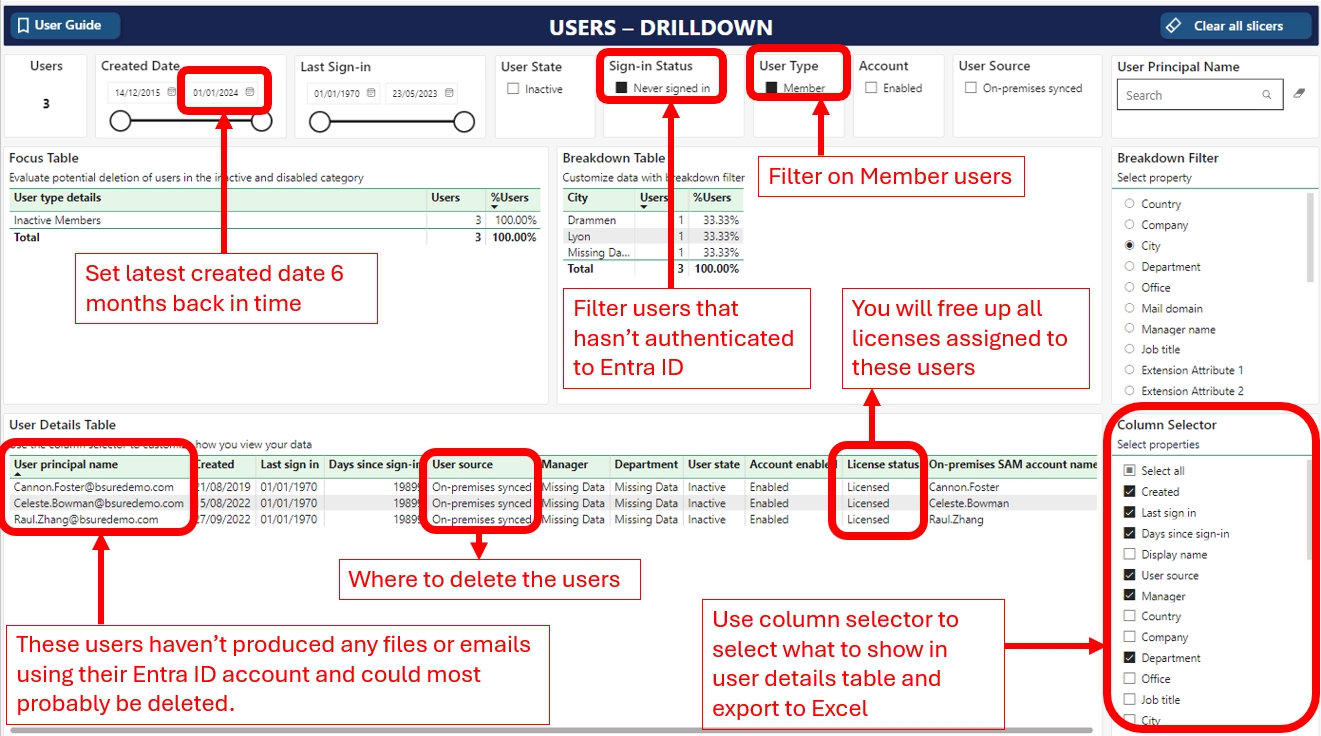
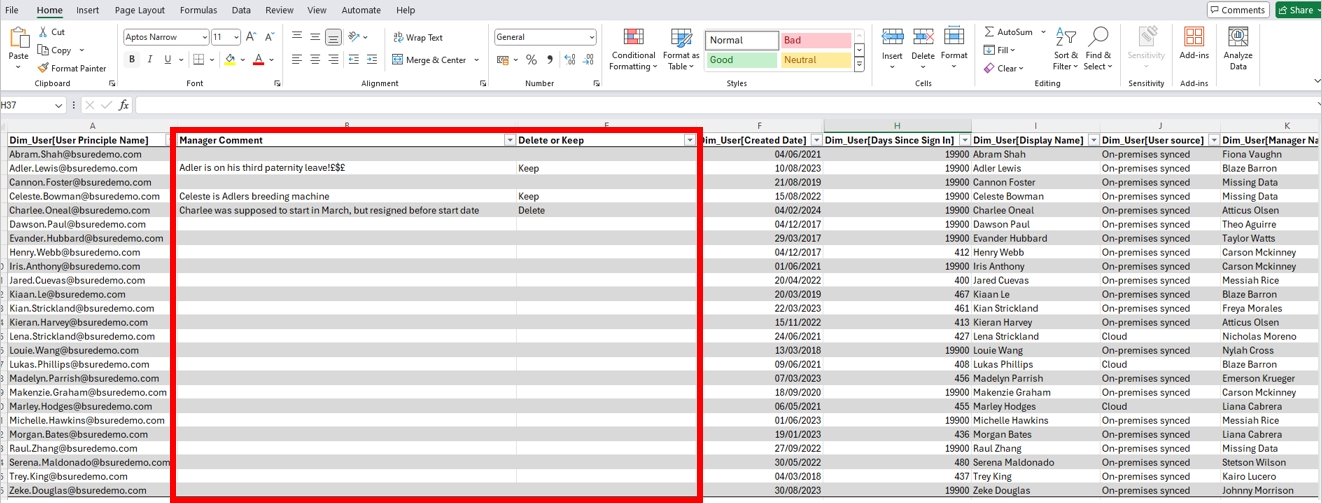
Report showing active, inactive and disabled member users. Entra ID Member accounts are all user accounts controlled and owned by your Entra ID. Your internal users.
Users: Showing the total number of users according to your filtering selections.
User Purpose: Filter on the type of Exchange Online mailbox connected to the user.
User - A user account with a mailbox. Shared - A shared mailbox user. Room - A user with a mailbox that represents a conference room. Equipment - A user with a mailbox that represents a piece of equipment. Others - A mailbox was found but the user purpose is not specified. Unknown - User has no Exchange Online mailbox, or we were not able to read it.
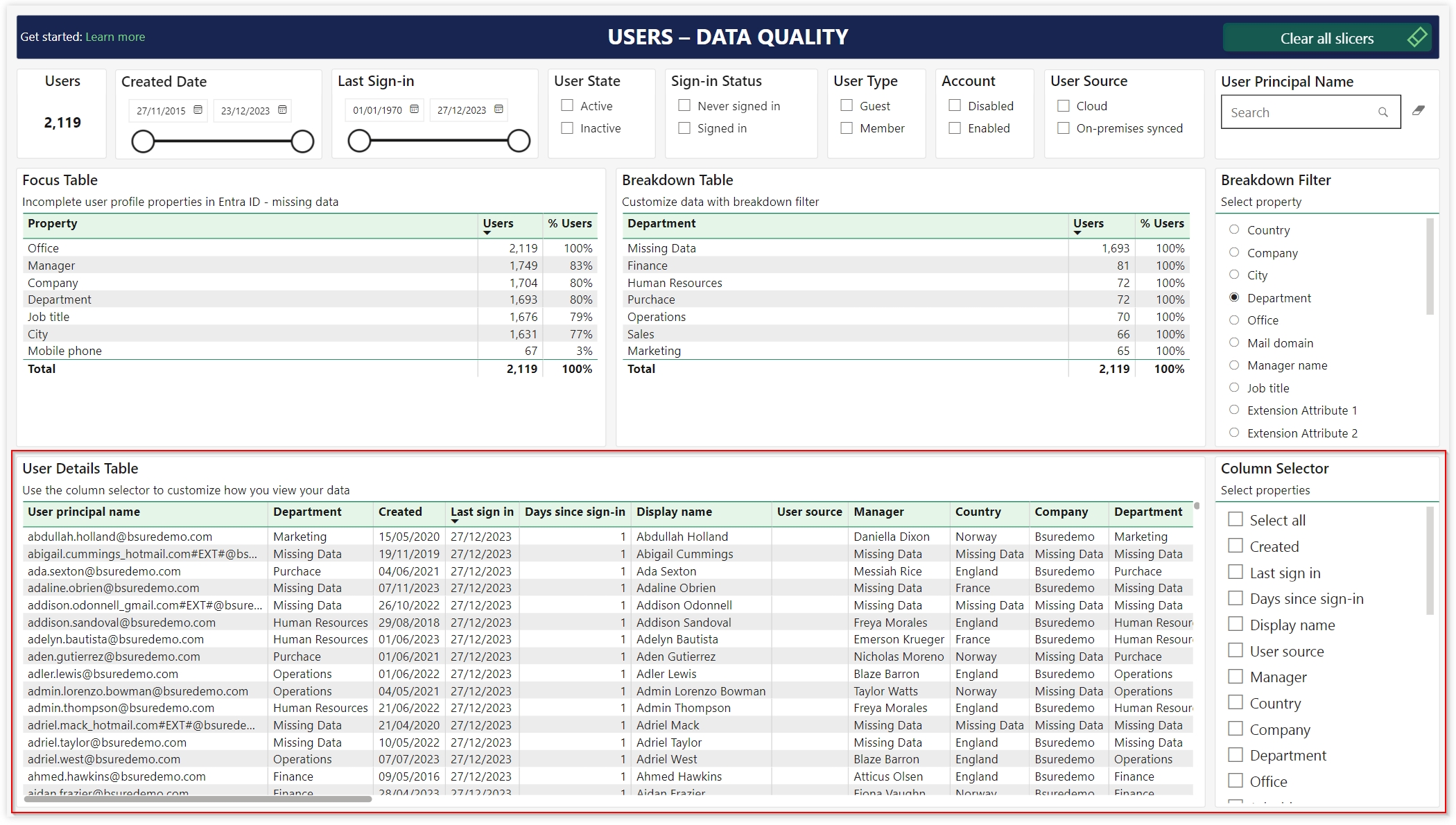
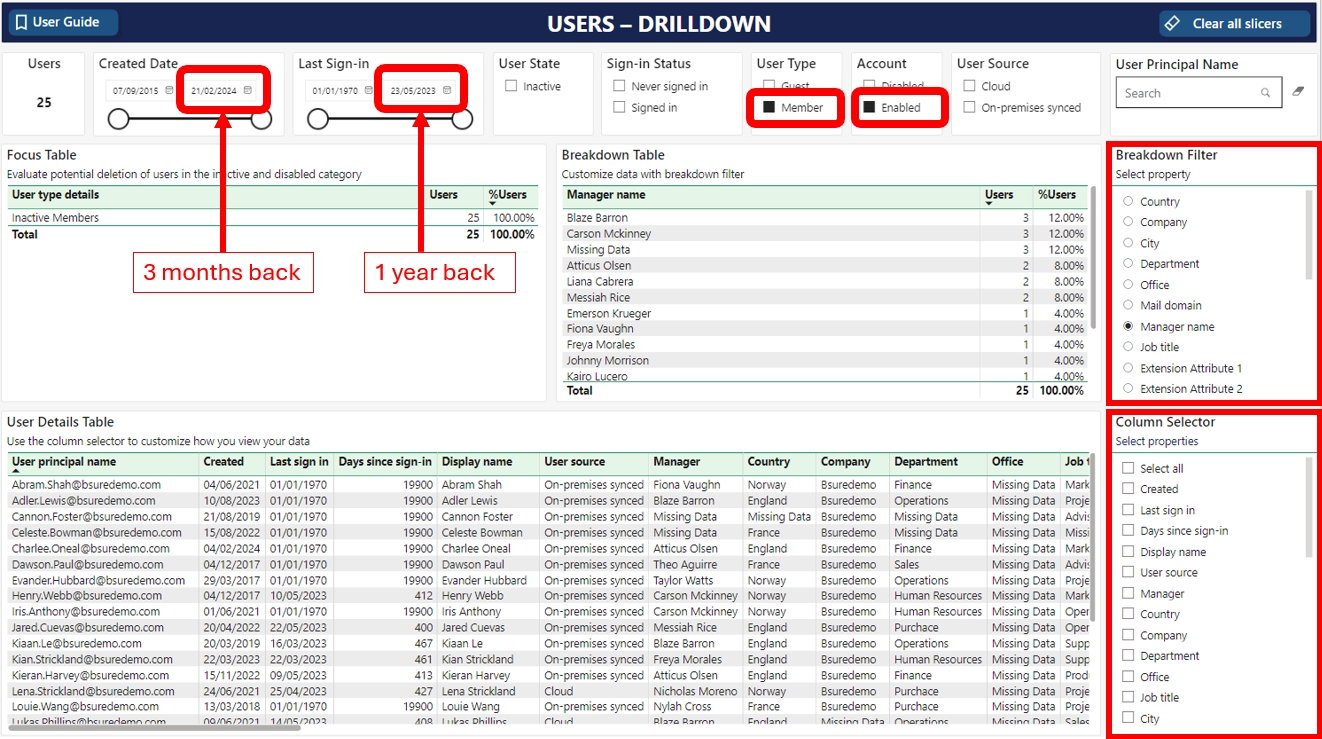
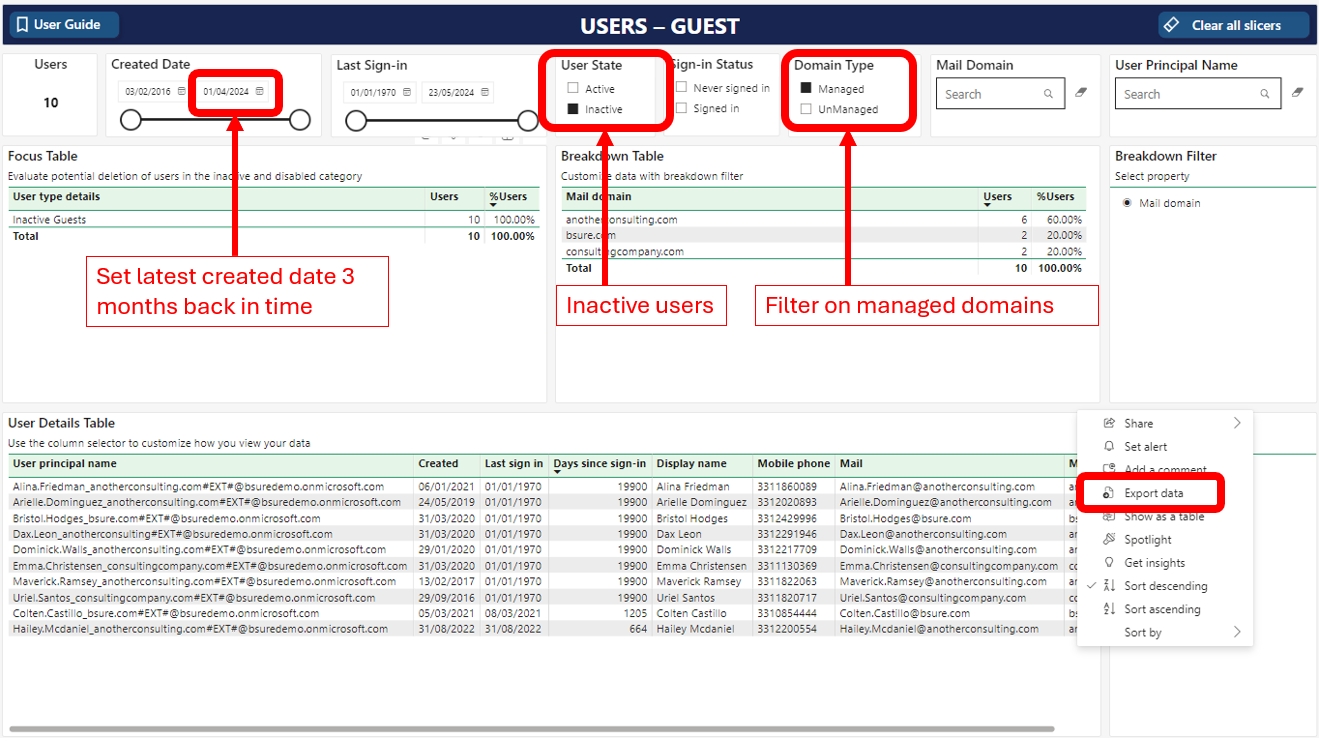
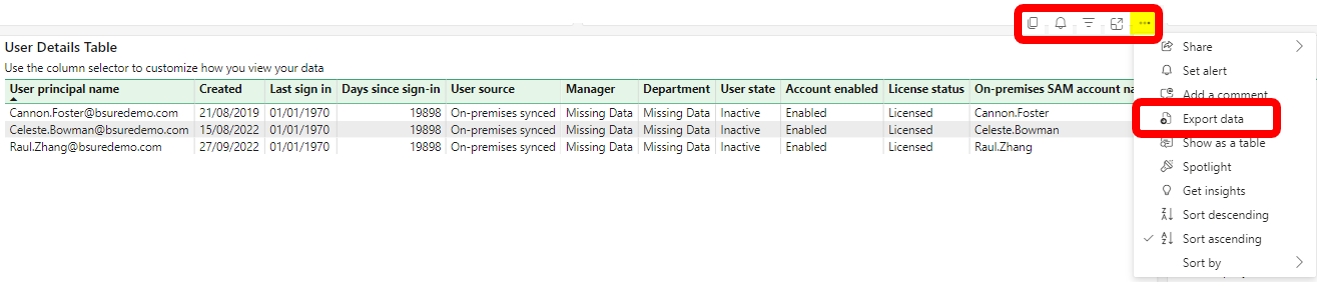
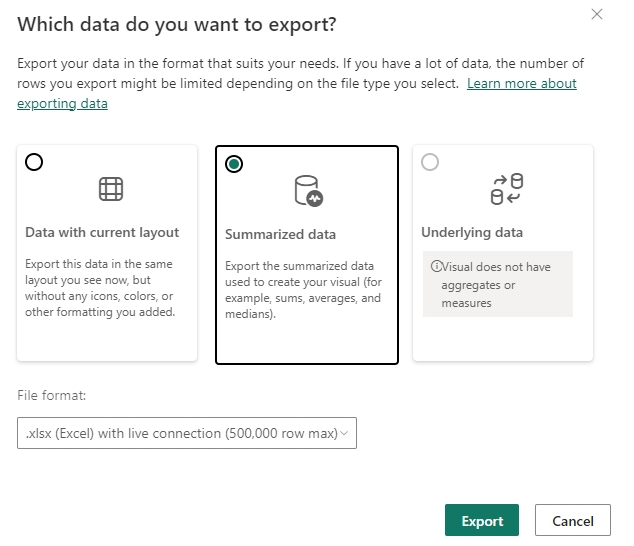
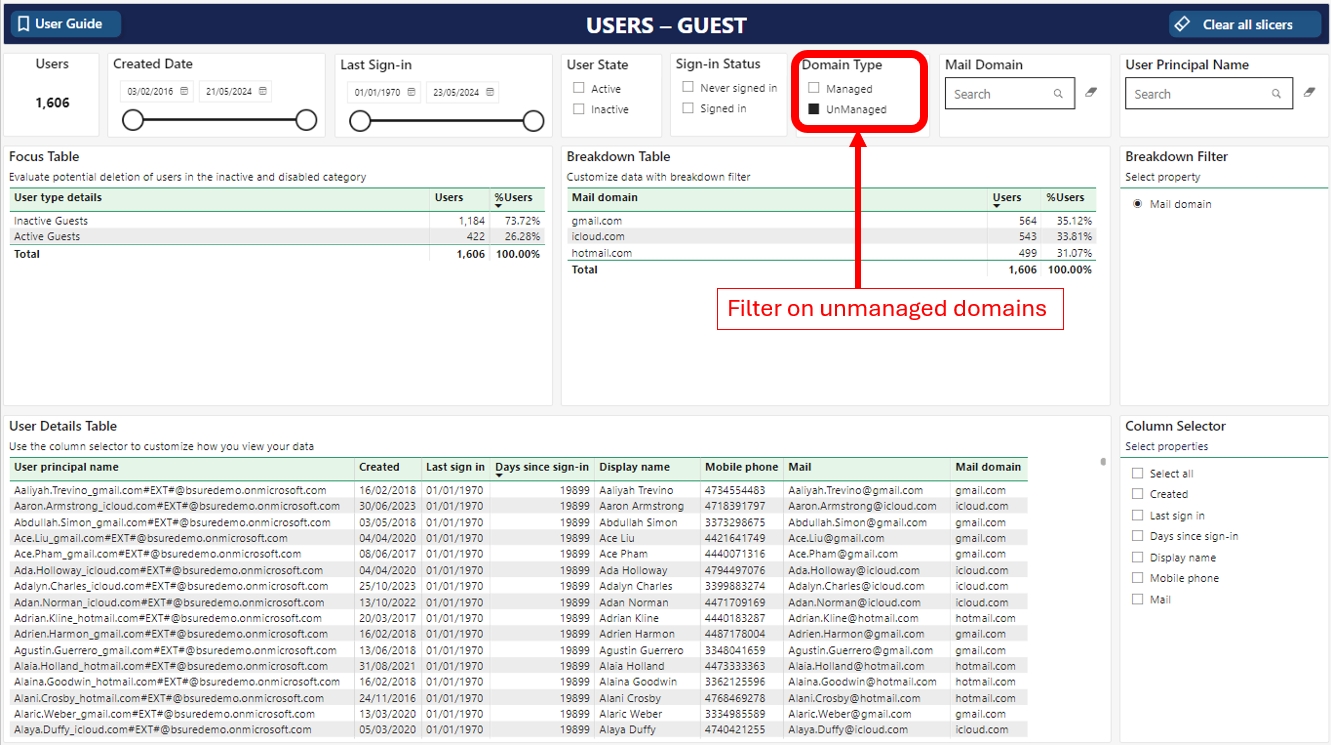
❌ No
Teams mobile, Outlook, etc. silently renew tokens
Brokered flows (e.g. MSAL via broker)
⚠️ Partially
Some CA policies enforced, but location/Risk may be skipped
Device registration (PRT issuing)
⚠️ Partial / Outside CA scope
Conditional Access not evaluated at this stage
OAuth2 client credentials flow
❌ No
No user context = CA not evaluated
SAML token federation
⚠️ Partial, if CA not scoped right
CA applies only if cloud app is covered
Azure AD Graph / Microsoft Graph (background)
Refresh/token reuse
❌ Usually skipped
Especially when used by services, background jobs
Exchange ActiveSync (legacy)
Basic/legacy auth
❌ Not CA compatible
Must be blocked via legacy auth CA
Outlook mobile background sync
Refresh, brokered auth
❌ Mostly skipped
Appears in non-interactive logs
Power BI dataset refresh (using SPN)
Service principal
⚠️ Requires workload CA
No user context by default
Azure Automation Runbooks (with SPN)
Client credentials
❌ Skips CA completely
Needs workload identity CA to control
Device Registration (DSReg)
PRT issuance via WS-Trust
❌ Outside CA scope
Happens before CA is evaluated
Windows Hello for Business
PRT or token reuse
❌ No CA enforcement
Happens below auth stack
Sign-in Type
Conditional Access Applies?
Notes
Interactive user sign-in (UI prompt)
✅ Yes
Full evaluation of CA policies
Non-interactive user sign-in
⚠️ Partially / No
Often skipped unless CA conditions are met to force reauthentication
Service principal (workload identity)
⚠️ Only with workload CA policies
Must be explicitly configured
Token refresh using refresh token
❌ No
Reuses valid token, no re-evaluation unless forced
Service / App
Flow Type
CA Enforcement
Notes
Microsoft Authentication Broker
Brokered token renewal
❌ Often skipped
Used in mobile and hybrid auth
Microsoft Mobile Application Management
App-token + MAM check-in
❌ Often skipped
From Intune-managed mobile apps
Microsoft Teams mobile client
Silent token renewal
❌ Skipped unless token expires or session control used
Can appear from blocked countries
Background apps / mobile clients
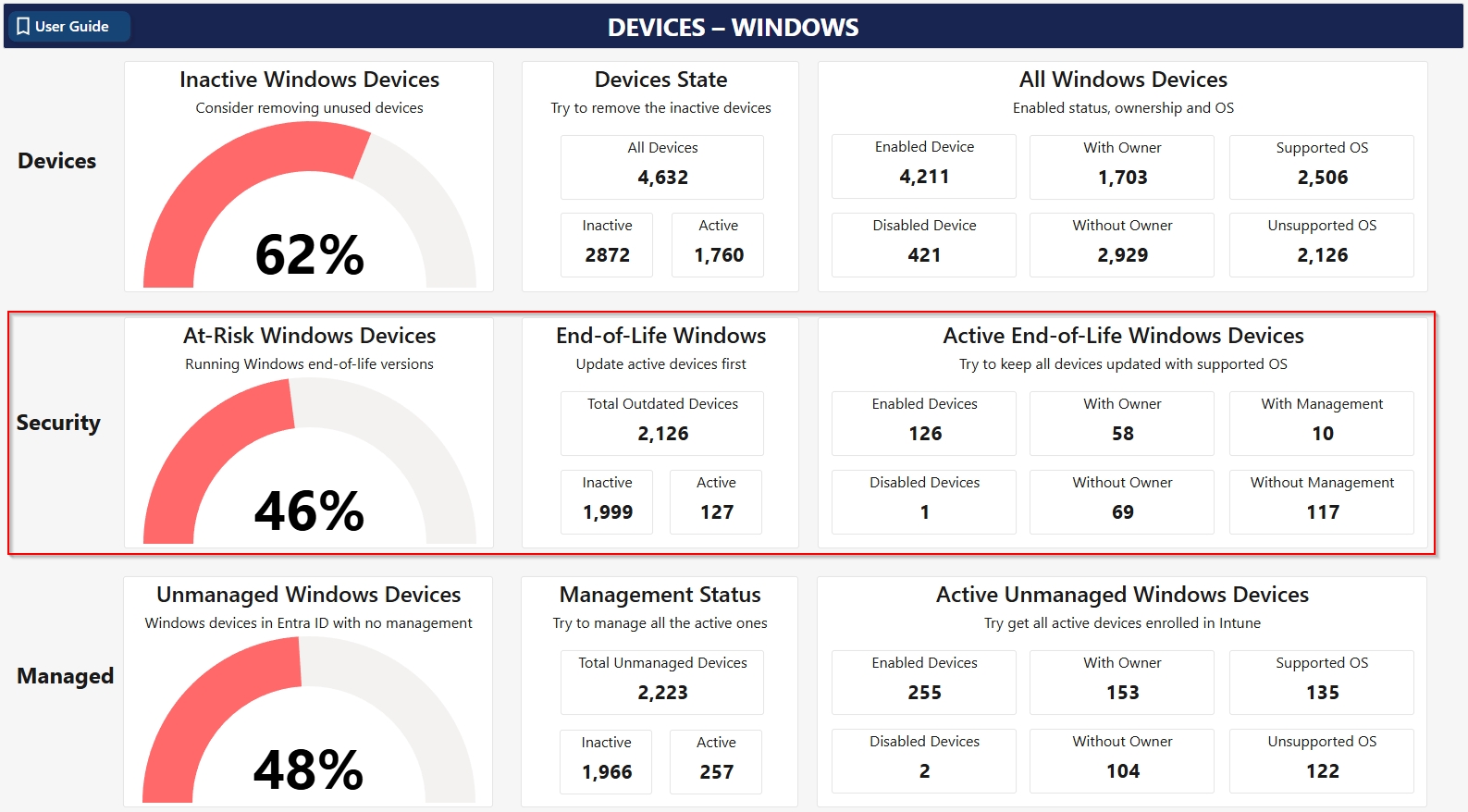
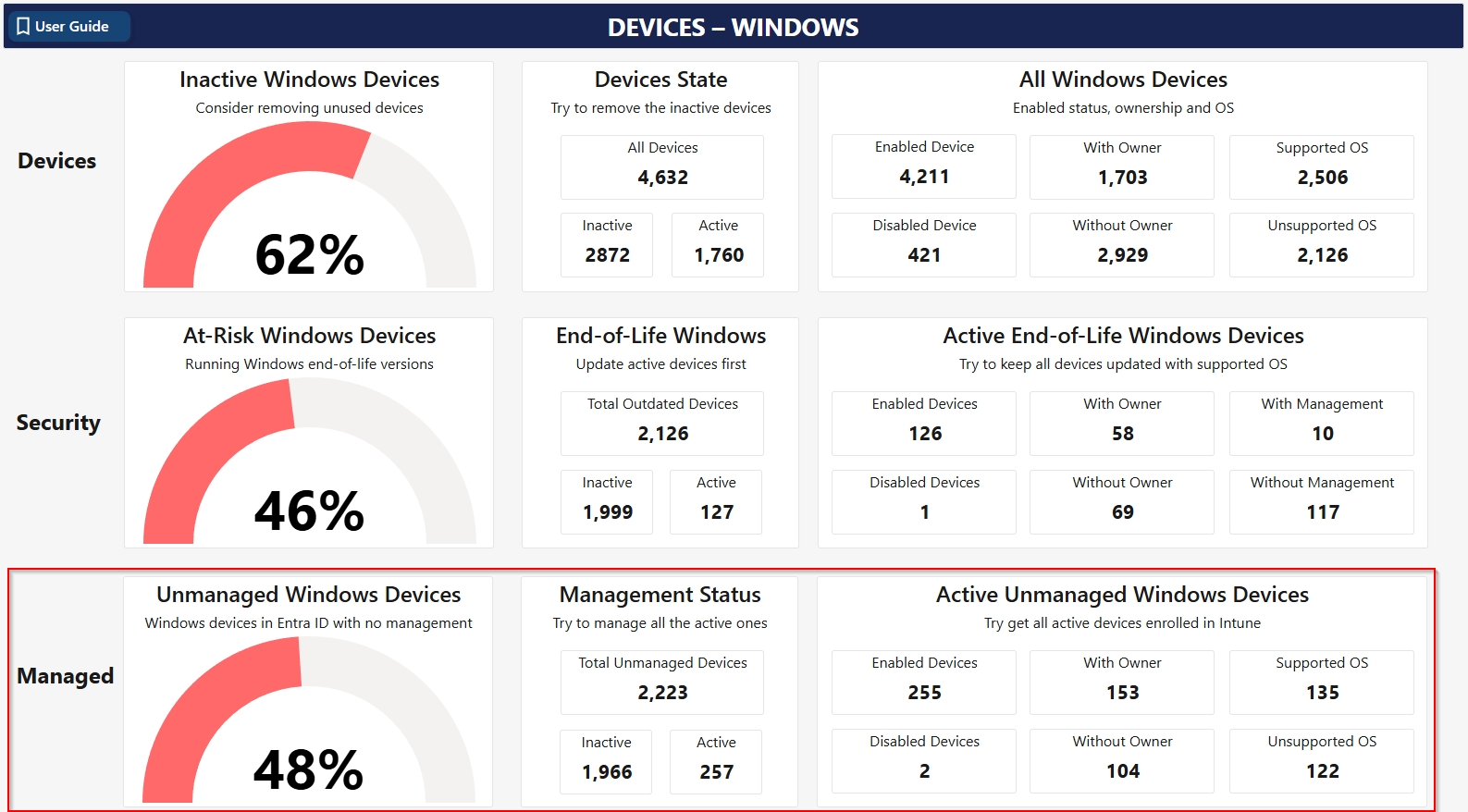
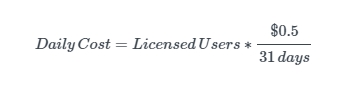
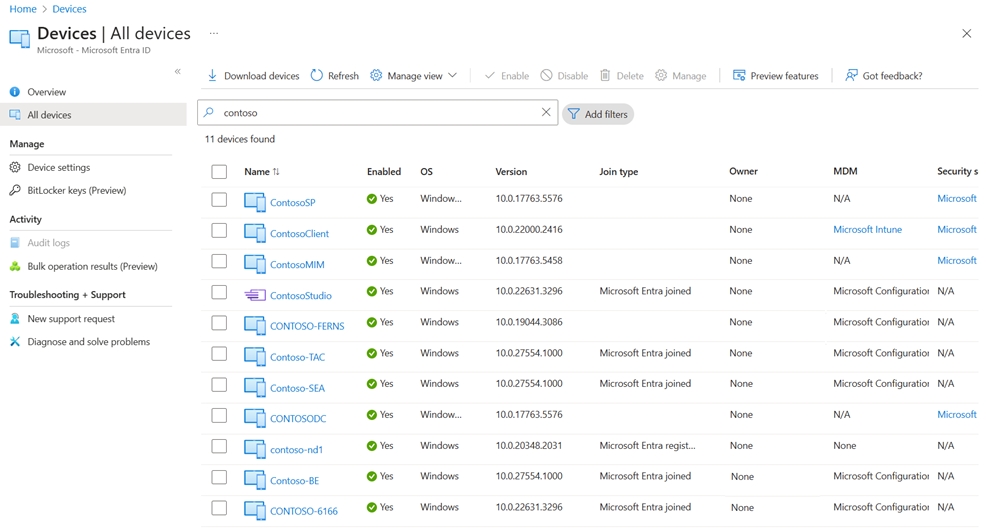
Created Date & Last Sign-in Date: Set periods for when users where created or their last sign-in date.
User State: - Active - users having signed in the last 90 days - Inactive - users that has not signed in the last 90 days
Sign-in Status: Filter for users that have Never signed in and users that have Signed in.
Account: Filter for showing Disabled or Enabled users - or both.
User Source: Filter for showing if the users are Cloud native (created in your Entra ID) or if they are On-premises synced from your on-premises Active Directory.
User Principal Name: Free text search for a user name. Report will update accordingly.
Focus Table: The focus table shows the distribution of Active, Inactive and Disabled member accounts in your tenant.
Breakdown Table and Filter: Use the Breakdown filter to see the distribution of member users based on selected user properties.
The user details table lists all member users in scope of your filtering selection. The table has a default set of columns. You can change these to your preferences using the column selector.
Add custom domain name to customerapp
Bsure
Configure DNS
You
Add certificate and binding
Bsure
Change env variable on customerapp
Bsure
Change redirect url on app registration
You
The sign-in locations reports will give you insights into from where your users consume your Entra ID applications
Filter alternatives
User Purpose: Filter on the type of Exchange Online mailbox connected to the user.
User - A user account with a mailbox.
Guest - The user purpose for guest users is set to Guest.
Shared - A shared mailbox user.
Room - A user with a mailbox that represents a conference room.
Equipment - A user with a mailbox that represents a piece of equipment.
Others - A mailbox was found but the user purpose is not specified.
Unknown - User has no Exchange Online mailbox, or we were not able to read it.
Last used period: Helps you filter on the time period you want to look into for application usage
Sign-in Type: Select to view Interactive or Non-interactive sign-ins - or both.
Microsoft app: Gives you the opportunity to filter between Microsoft apps and third party apps. Read more on
Application filter: This filter includes all available apps, so you can choose a single app to filter on
Resource filter: Filter on the resources consumed
User principal name: Free search for user principal names
Focus table - Application sign-in locations
In the focus table we display unique sign-ins to the chosen applications in different countries. On the right side there is a map showing the sign-ins in the different countries with blue dots.
The I with a circle tells you that you can display data in a different way in the focus table. By clicking the blue filter panel on the right side you can view the different options and choose the one that suits you
Breakdown table - additional filter available for different user properties
This table shows the distribution of logins for the chosen user property in the breakdown filter
Breakdown filter: Choose the preferred property you want to filter by, by using the breakdown filter on the right side. We have also included Extension attributes as this is often used by companies
User details table - Application sign-in location
In this table you can drill down on the specific users and which applications they have been authenticated towards since Bsure was installed and from where.
The column selector on the right hand side gives you the opportunity to choose which information is the most interesting to see.
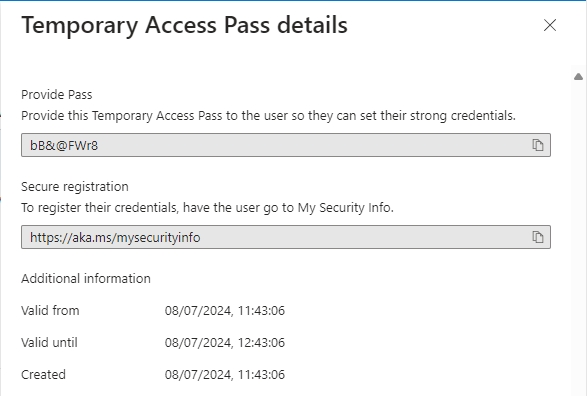
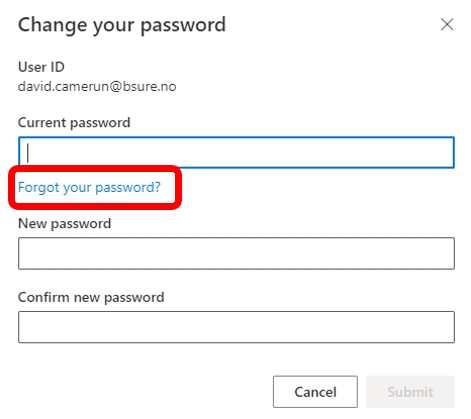
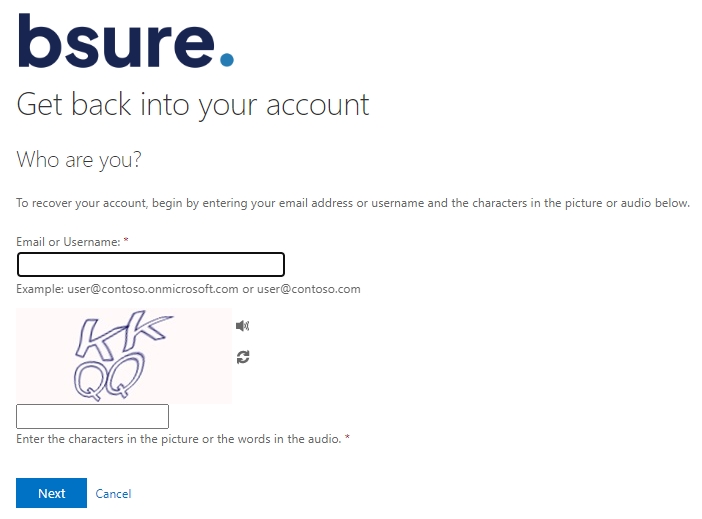
#Import ActiveDirectory module
Import-Module ActiveDirectory

#Set Organizational Unit (OU) where users are located
$ouPath = "OU=Users,OU=Bsure, dc=bsuredemo,dc=local"

#Set the root log path
$logRootPath = "C:\temp\"

#Set the extension attribute to update
$extensionAttribute = "extensionAttribute2"

#Create a unique log file
$logFile = "$logRootPath\ADUserUpdate_$(Get-Date -Format 'yyyyMMddHHmmss').log"

#Start transcript
Start-Transcript -Path $logFile -Append

#Enable verbose logging
$VerbosePreference = "Continue"

#Delete log files older than 30 days
Get-ChildItem -Path $logRootPath -Filter "ADUserUpdate_*.log" | Where-Object { $_.LastWriteTime -lt (Get-Date).AddDays(-30) } | Remove-Item -Force

#Get users and add values to $users
$users = Get-ADuser -Filter * -SearchBase $ouPath -Properties lastLogonTimestamp, $extensionAttribute

#Cycle every user, reformat date and time from lastlogontimestamp and write to to extensionattributeXX
$totalUsers = $users.Count
$currentUser = 0

ForEach ($user in $users){
    $currentUser++
    Write-Output "Processing user $currentUser of $totalUsers"

    try {
        #Check for null lastLogonTimestamp
        if ($user.lastLogonTimestamp -ne $null) {
            #Make human readable using UTC
            $lastLogonTimestamp = [datetime]::FromFileTimeUtc($user.lastLogonTimestamp)

            #Change date format to ISO 8601
            $formatteddate = $lastLogonTimestamp.ToString("yyyy-MM-dd")

            #write last logon date to extensionattributeXX"
            Set-ADUser $user -Replace @{$extensionAttribute=$formatteddate} -Verbose

            Write-Output "Updated user: $($user.SamAccountName) with date; $formatteddate"
        } else {
            Write-Output "Skipped user: $($user.SamAccountName) because lastLogonTimestamp was null"
        }
    } catch {
        Write-Output "Failed to update user: $($user.SamAccountName) with error: $_"
    }
}

Write-Output "Job complete"

#Stop transcript
Stop-Transcript
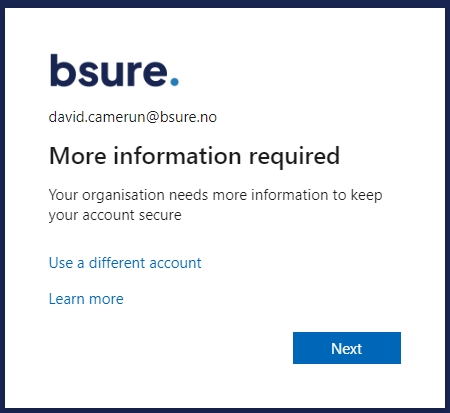
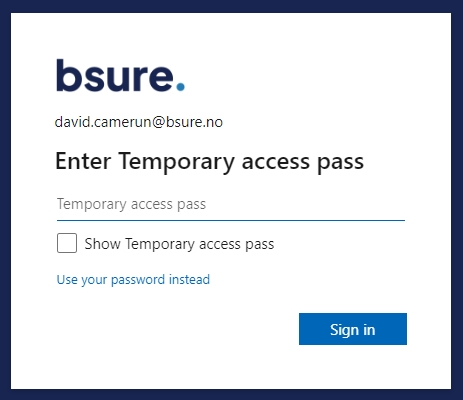
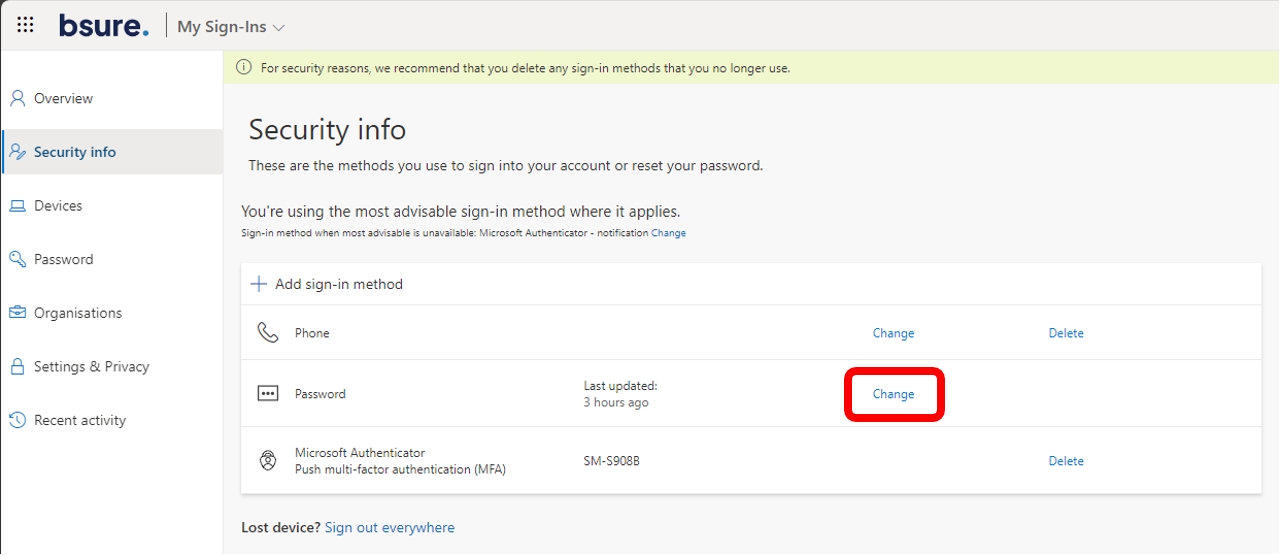
If you want to change for how long you want to store history within Bsure Insights, please follow this guide
The page will display what's set by You or someone within your organisation.
User data: Keeps track of attributes and licenses assigned per day for the specified period
Sign-In data: Keeps track of sign-ins to applications for that specific amount of time.
You have the option to select commonly used values or type in your own.

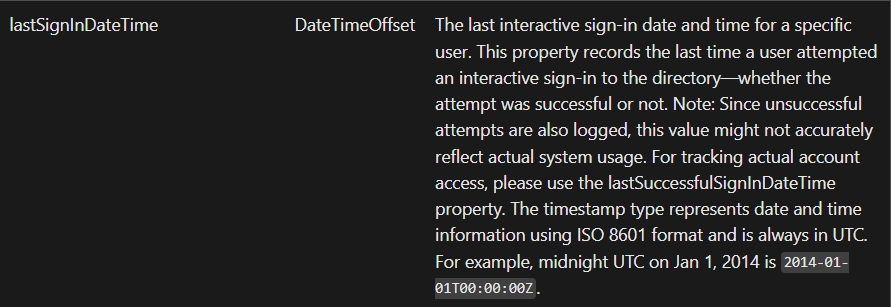
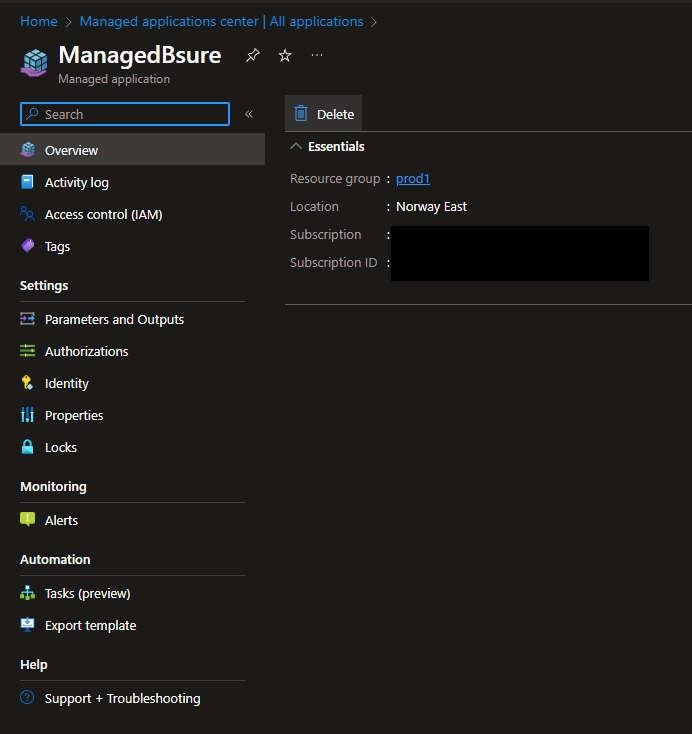
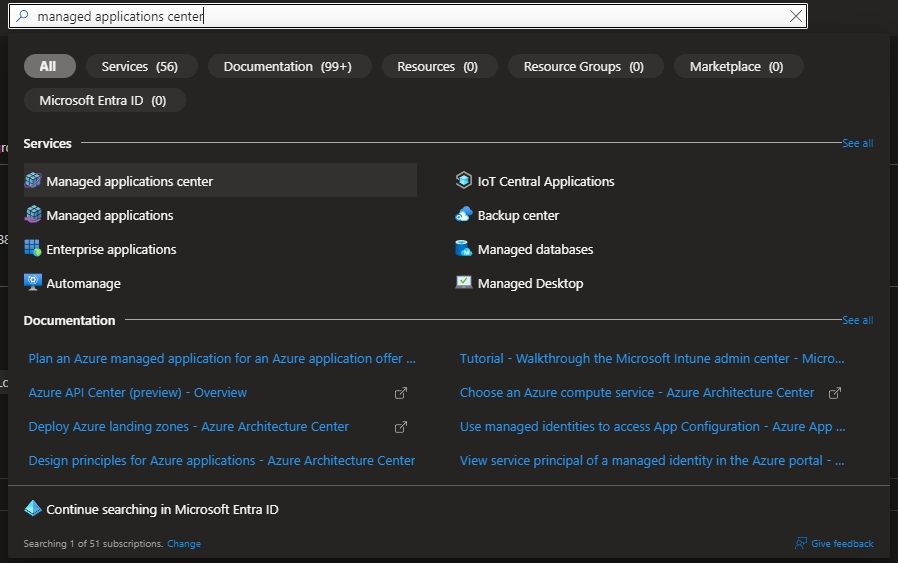
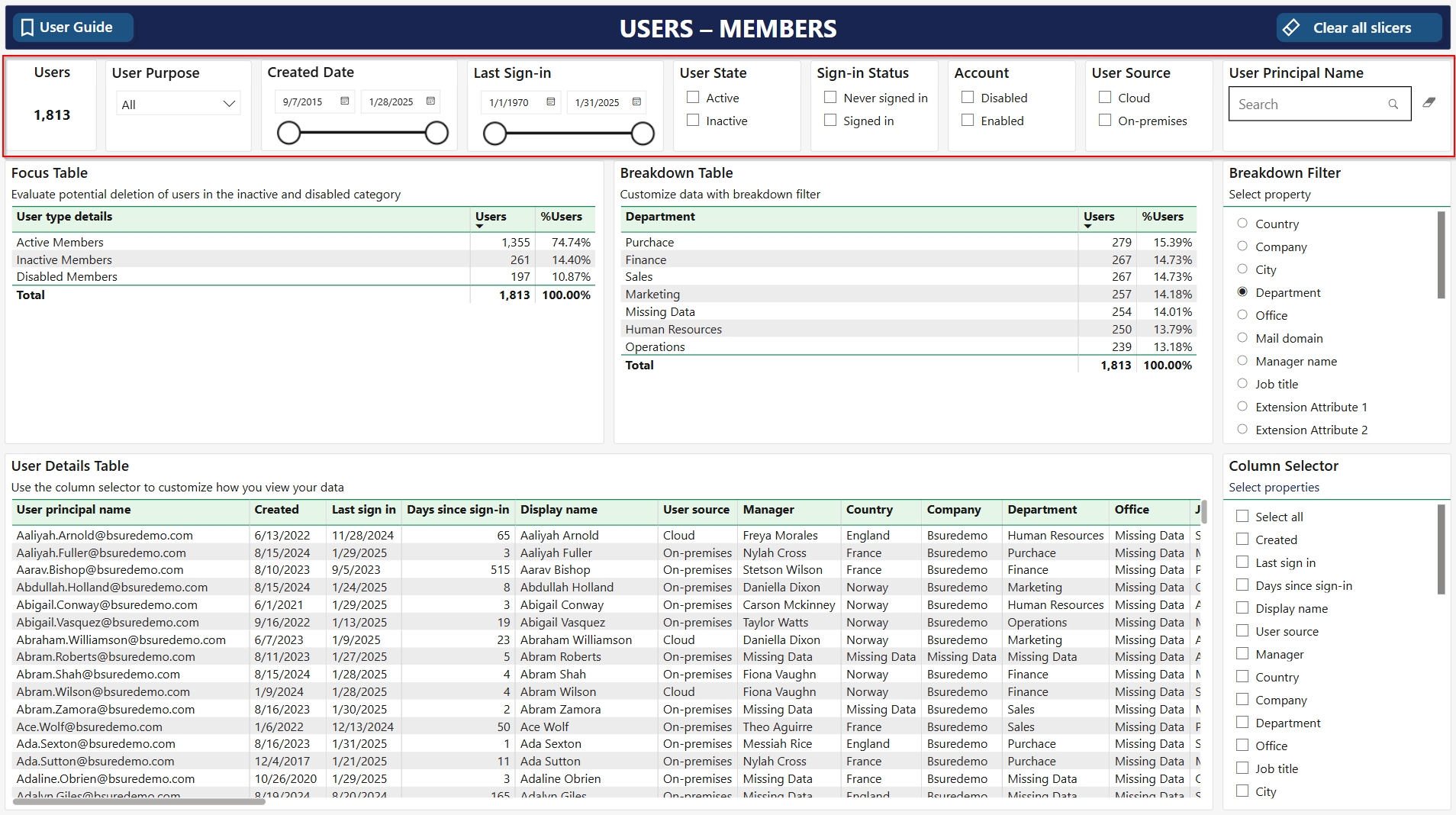
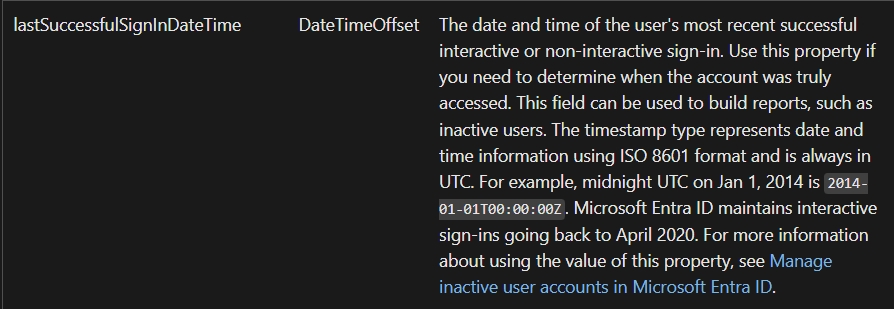
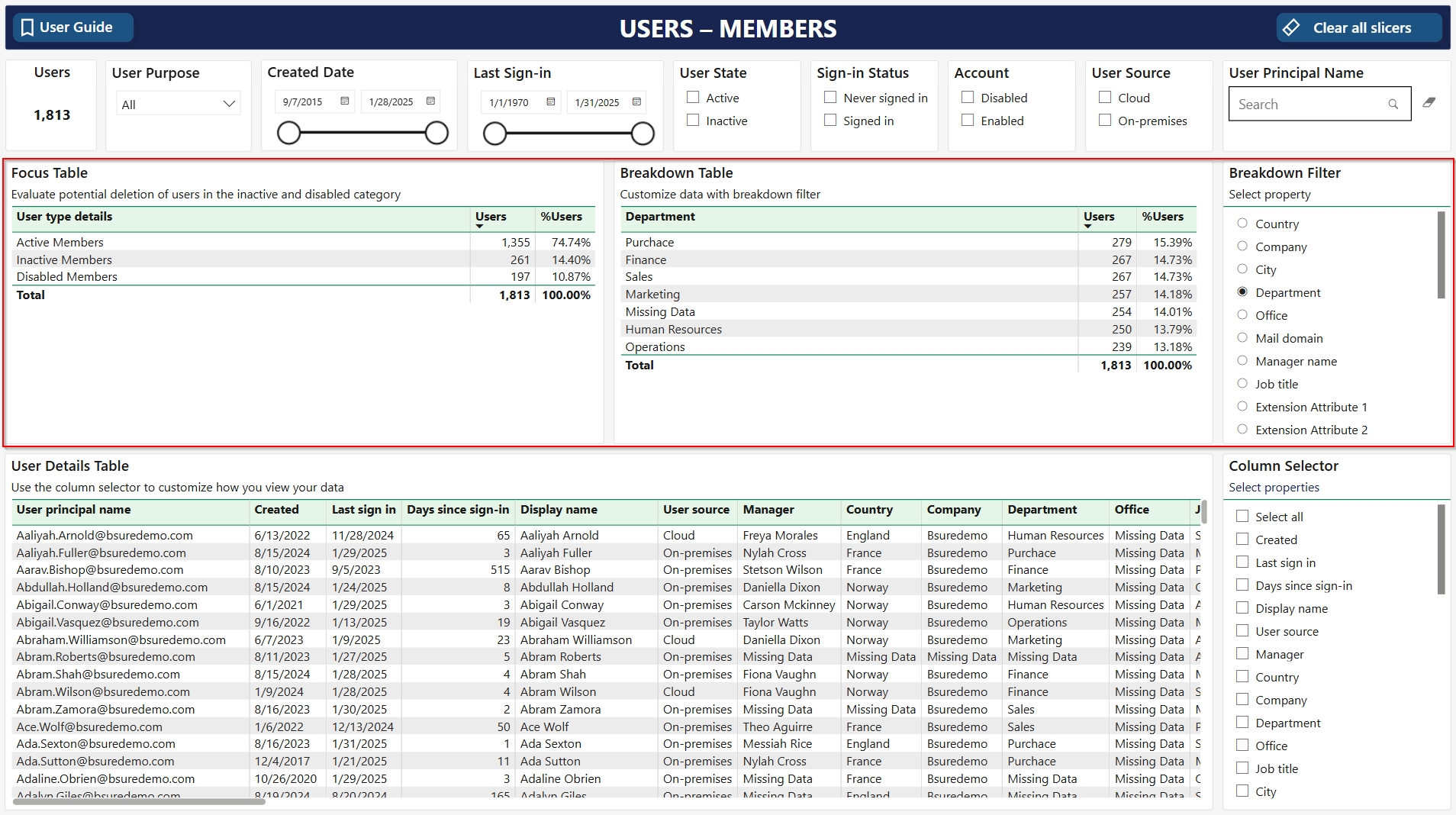
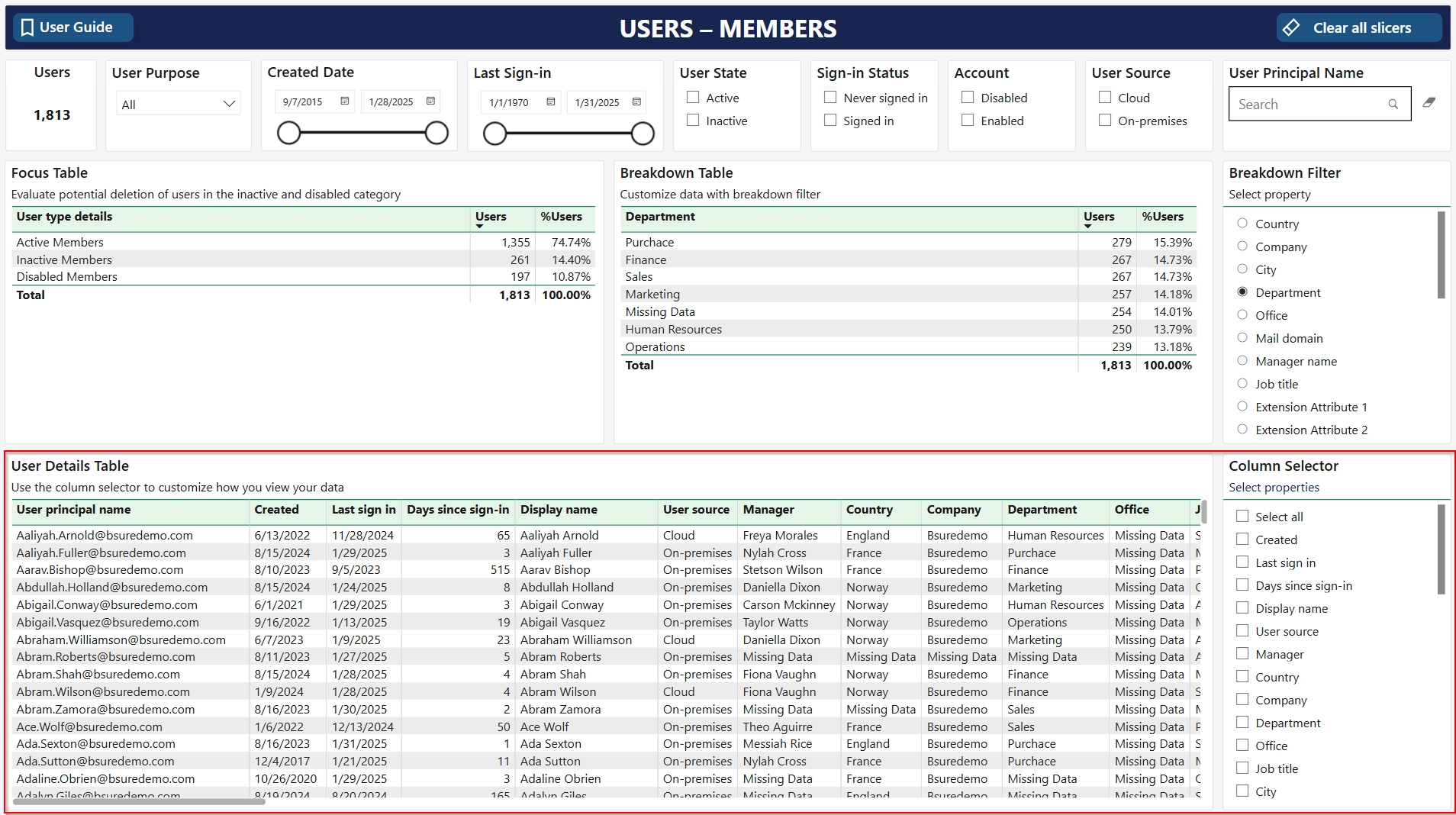
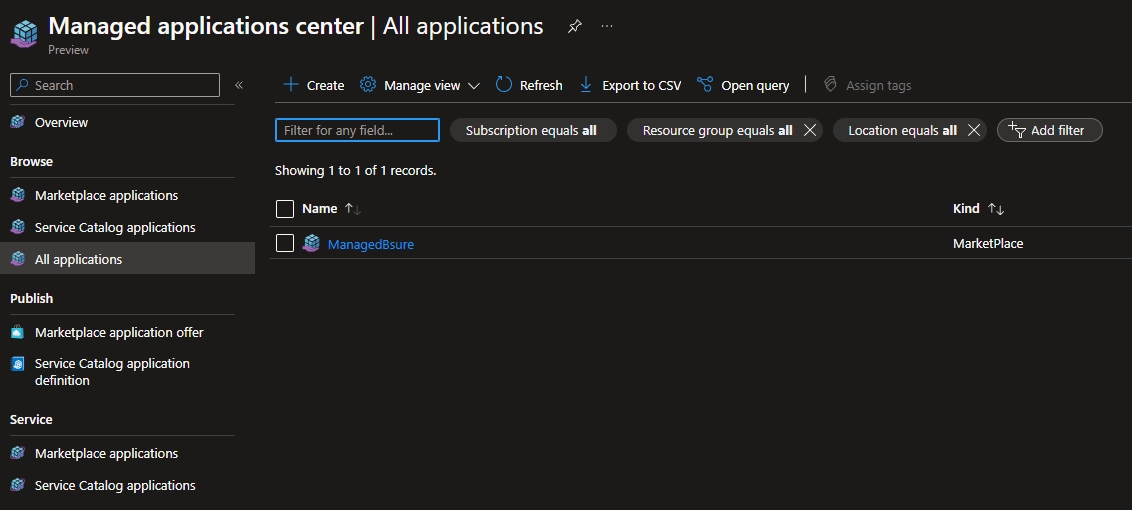
When using an Azure SQL server as part of a customer Azure Managed Application, the connection model differs from a storage account. Azure SQL can be configured for Entra-only authentication, which means that no SQL logins, keys, or connection strings are involved. Access is always based on Microsoft Entra ID tokens from the customer tenant.
This section outlines the trade-offs between using a public endpoint with Entra-only authentication versus configuring a private endpoint via VNet integration.
Using a public endpoint with Entra-only authentication is straightforward:
Azure SQL supports direct Microsoft Entra ID connections from Power BI and other Azure services.
No secrets or keys need to be managed; authentication happens with access tokens from Entra ID.
Low complexity and low cost: no VNet, DNS, or data gateways required.
Automation friendly: identities and permissions can be provisioned through IaC templates.
Managed identities from the Managed Application can be granted least-privilege contained users in the SQL database.
No storage keys or passwords: all access goes through Microsoft Entra ID.
Governance can be strictly enforced by:
Restricting access to customer-tenant identities only.
Assigning roles to Managed Identities and service principals with fine-grained RBAC.
Configuring a private endpoint for Azure SQL requires:
Creating a VNet and subnet for the private endpoint.
Integrating DNS so that the SQL server’s hostname resolves to the private IP.
Managing firewall, routing, and network security group (NSG) rules.
Deploying a VNet Data Gateway for Power BI connectivity, since Power BI cannot connect directly to private endpoints.
Higher cost due to additional networking infrastructure, DNS zones, and requirement for Power BI Premium/Fabric capacity to run the VNet Data Gateway.
Ongoing maintenance overhead: ensuring gateway uptime, managing DNS resolution, and handling VNet peering or firewall updates.
Provides maximum isolation: SQL server is not exposed to the internet.
Full alignment with strict compliance requirements.
Governance at both the network layer (VNet, NSG, firewall) and identity layer (Entra-only authentication).
Simplicity & Automation
Public endpoint + Entra-only authentication is the simplest and most automation-friendly path.
No secrets to manage, and no reliance on connection strings.
Security Trade-offs
Public endpoints are internet-facing, but with Entra-only authentication and firewall rules, risks are minimized.
Private endpoints remove internet exposure but at the cost of complexity, capacity requirements, and higher ongoing operations.
Governance Controls
Public endpoint + Entra-only auth centralizes governance in Microsoft Entra ID.
Private endpoint adds network-level governance for customers who require full isolation.
Azure SQL per customer: Each customer has a dedicated Azure SQL instance deployed in their subscription via the Managed Application.
Entra-only authentication:
Configure a Microsoft Entra admin on the SQL server.
Create contained principals for:
Public endpoint: Power BI can connect directly using Entra ID authentication, with no gateway required.
Private endpoint: Requires VNet Data Gateway bound to Power BI Premium/Fabric capacity, adding complexity and cost but delivering maximum isolation.
Firewall rules on the SQL server can limit exposure to required IP ranges or Azure services.
Integration complexity with the other components in the Managed Application.
The Managed Application’s Managed Identity.
The Power BI refresh identity (service principal).
Assign only the necessary database roles (e.g., read-only for reporting).
No keys, no passwords: all authentication is token-based.