> For the complete documentation index, see [llms.txt](https://docs.bsure.io/llms.txt). Markdown versions of documentation pages are available by appending `.md` to page URLs; this page is available as [Markdown](https://docs.bsure.io/user-guides/customer-settings/applications.md).
# Applications
To add applications you want to monitor in the Application reports and/or distribute to Application Owners - follow this guide
The Application Settings page allows you to manage the applications you want to monitor in the **Application reports and/or distribute to Application Owners**. Here you can add, edit, and remove applications, assign ownership, set cost details, and track renewal dates. Changes made here are reflected in your Power BI reports after a refresh.
### Accessing Application Settings
To navigate to the Application Settings page, go to **Customer Settings** in the left sidebar, then select **Applications**. You can also access it directly via the URL path */admin-settings/applications*.
### Page Layout
The Application Settings page consists of the following elements:
#### Action Buttons
At the top-right corner of the page, you will find two action buttons:
* **Refresh Power BI** – Click this button to refresh the Power BI reports after making changes to your application settings. This ensures your Application Cost report is updated with the latest data.
* **Add New Application** – Click this button to add a new application to the list. A dialog will open where you can fill in the application details.
#### Table Toolbar
Above the application list, a toolbar provides the following controls:
* **Row count** – Displays the total number of applications currently configured.
* **Reset Filters** – Clears any active filters applied to the table columns.
* **Columns** – Allows you to show or hide specific columns in the table to customize your view.
* **Export** – Exports the current application list to a file for offline use or further analysis.
#### Application Table
The main content area shows a table listing all configured applications with the following columns:
| Column | Description |
| ------------------------ | -------------------------------------------------------------------------------------------------------------------------- |
| **Name** | The name of the application. This column includes a text filter for searching. |
| **Customer Description** | A custom description you provide to identify the application within your organization. This column includes a text filter. |
| **Application Owner** | The email address of the person responsible for managing the application. This column includes a text filter. |
| **Renewal Date** | The date when the application license or subscription is due for renewal. |
| **Fixed Cost** | A fixed cost associated with the application, independent of the number of users. |
| **Unit Cost** | The cost per unit (typically per user) for the application. |
| **Units Bought** | The number of units (licenses) purchased for the application. |
Each column header supports sorting by clicking the sort arrows. The Name, Customer Description, and Application Owner columns also support text filtering via the filter input fields below the headers.
### Adding a New Application
If you found applications in the **Application – Drilldown report** that you want to follow more closely and distribute cost based on usage, you can add them to the Application Settings. Follow these steps:
1. Navigate to **Customer Settings > Applications** in the left sidebar.
2. Click the **Add New Application** button in the top-right corner of the page.
3. In the dialog that appears, search for the application by name. You can type the application name to narrow the list.
4. Select the application you want to add and click **Next**.
5. Fill in the application details:
* **Customer Description** – A description to identify the application in your organization.
* **Application Owner** – The email of the person responsible for the application.
* **Renewal Date** – The license/subscription renewal date (optional).
* **Fixed Cost** – Any fixed cost associated with the application (optional).
* **Unit Cost** – The cost per user/unit (optional).
* **Units Bought** – The number of licenses purchased (optional).
6. Click **Add New Application** to save.
7. Repeat the above steps for any additional applications you want to add.
### Editing an Application
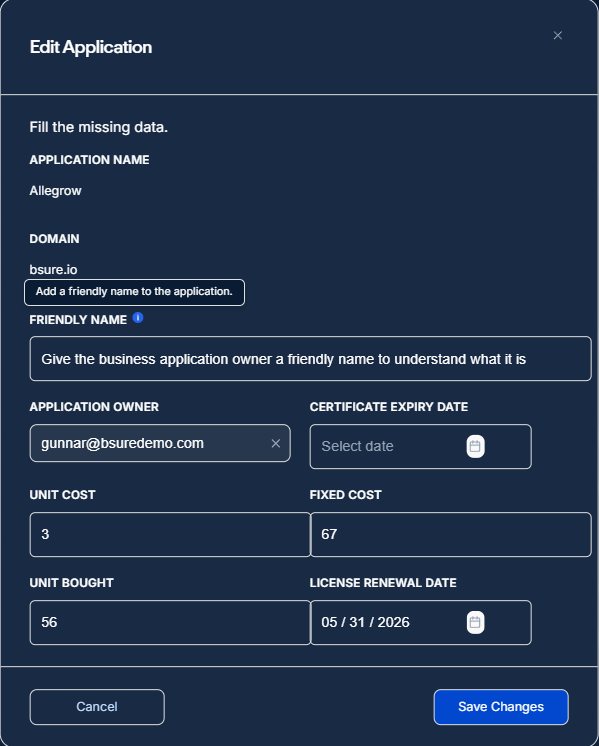
To edit an existing application, locate it in the table and click the **three-dot menu** (⋮) at the right end of the row. Select **Edit Application** from the dropdown.
The Edit Application dialog opens with the following fields:
* **Application Name** – Read-only. Displays the registered name of the application.
* **Domain** – Read-only. Shows the domain associated with the application.
* **Friendly Name** – An editable label you can customize for easier identification.
* **Application Owner** – A searchable field to assign or change the person responsible for the application.
* **Certificate Expiry Date** – The date when the application certificate expires.
* **Unit Cost** – The cost per user or unit.
* **Fixed Cost** – A fixed monthly cost for the application.
* **Unit Bought** – The number of licenses or units purchased.
* **License Renewal Date** – The date when the license is due for renewal.
After updating the fields, click **Save Changes** to apply your edits.
#### Changing the Application Owner
To change the Application Owner, type the name or email of the new owner in the search field. Select the desired user from the dropdown.
After saving, an **Onboard new application owner** dialog will appear with the following options:
* **Send to** – Shows the email address of the new owner. You can change the recipient if needed.
* **Open email draft** – Toggle this on to open a pre-filled email draft in your email client, notifying the new owner of their role.
* **Copy instructions to clipboard** – Click this button to copy onboarding instructions that you can share manually.
Click **Ok** to dismiss the dialog. If the email draft toggle is enabled, your email client will open with a pre-filled message.
### Removing an Application
To remove an application from the list, click the **three-dot menu** (⋮) on the application row and select **Remove Application**. Confirm the removal when prompted. The application will be removed from the Application Cost report after the next Power BI refresh.
### Refreshing Power BI Reports
After making changes to your application settings (adding, editing, or removing applications), click the **Refresh Power BI** button at the top-right of the page. This triggers a data refresh so your changes are reflected in the **Application – Cost report** in Power BI.
### Filtering and Sorting
The application table provides several ways to find and organize your data:
* **Column sorting** – Click any column header to sort the table by that column. Click again to reverse the sort order.
* **Text filters** – The Name, Customer Description, and Application Owner columns have filter input fields below the header. Type in these fields to filter the list in real time.
* **Reset Filters** – Click this button in the toolbar to clear all active filters and return to the full list.
* **Column visibility** – Use the Columns dropdown in the toolbar to show or hide specific columns based on your preferences.
### Exporting Application Data
Click the **Export** button in the toolbar to download the current application list. This is useful for sharing the data with colleagues or for offline analysis.
### Summary
Use Application Settings to control which applications you track in Bsure Insights. Add or update owners, renewal dates, and cost details, then refresh Power BI to apply the changes in the Application - Cost report.
### Next steps
1. Add the applications you want to monitor.
2. Assign an Application Owner for each application.
3. Enter renewal and cost details where relevant.
4. Click **Refresh Power BI** and verify the updated report data.
---
# Agent Instructions
This documentation is published with GitBook. GitBook is the documentation platform designed so that both humans and AI agents can read, navigate, and reason over technical content effectively. Learn more at gitbook.com.
## Querying This Documentation
If you need additional information that is not directly available in this page, you can query the documentation by asking a question.
Perform an HTTP GET request on the following URL with the `ask` and `goal` query parameters:
```
GET https://docs.bsure.io/user-guides/customer-settings/applications.md?ask=&goal=
```
`ask` is the immediate question: it should be specific, self-contained, and written in natural language.
`goal` is what the user is ultimately trying to achieve, the reason they need the answer. Sharing it helps GitBook give you a better, more relevant answer. A goal is most helpful when it describes the outcome the user wants rather than restating the question. For example, with `ask=how do I create an API token`, a goal like `automate deployments from our CI pipeline` lets GitBook tailor the answer to that use case.
The response will contain a direct answer to the question and relevant excerpts and sources from the documentation.
Use this mechanism when the answer is not explicitly present in the current page, you need clarification or additional context, or you want to retrieve related documentation sections.